
How to Create and Link a Prompt
Write a reusable instruction template once, then make it available to one or more servers.
Steps
Go to Prompts and create a new prompt, or start from a curated Prompt Template.
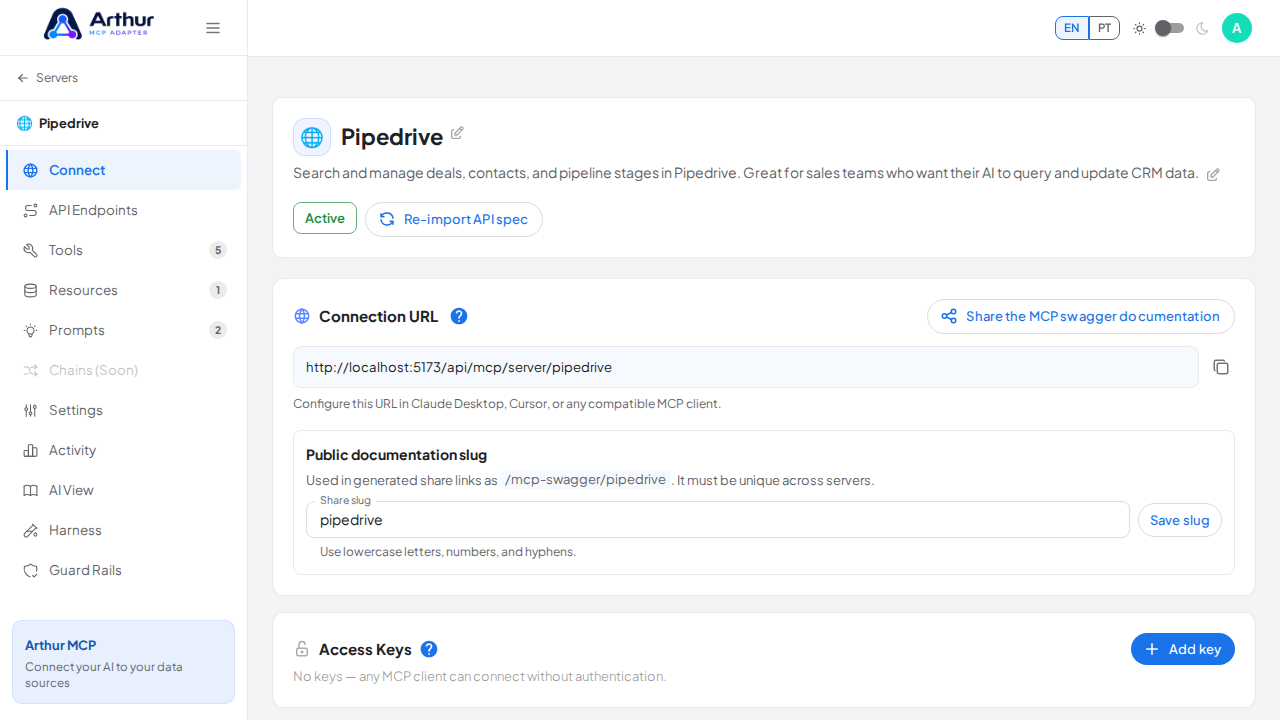
Write the prompt content. Use
{{argumentName}}for anything the caller should fill in — Arthur detects these automatically and exposes them as arguments.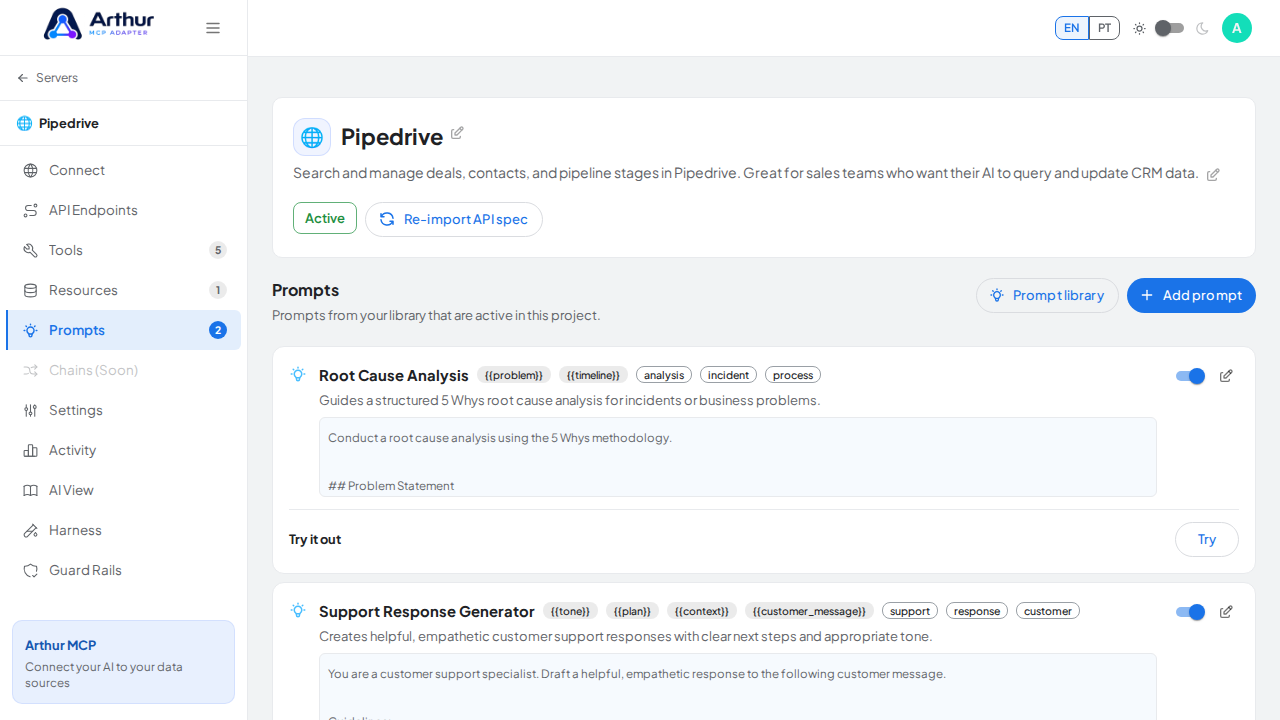
Tag the prompt so it's easy to find later.
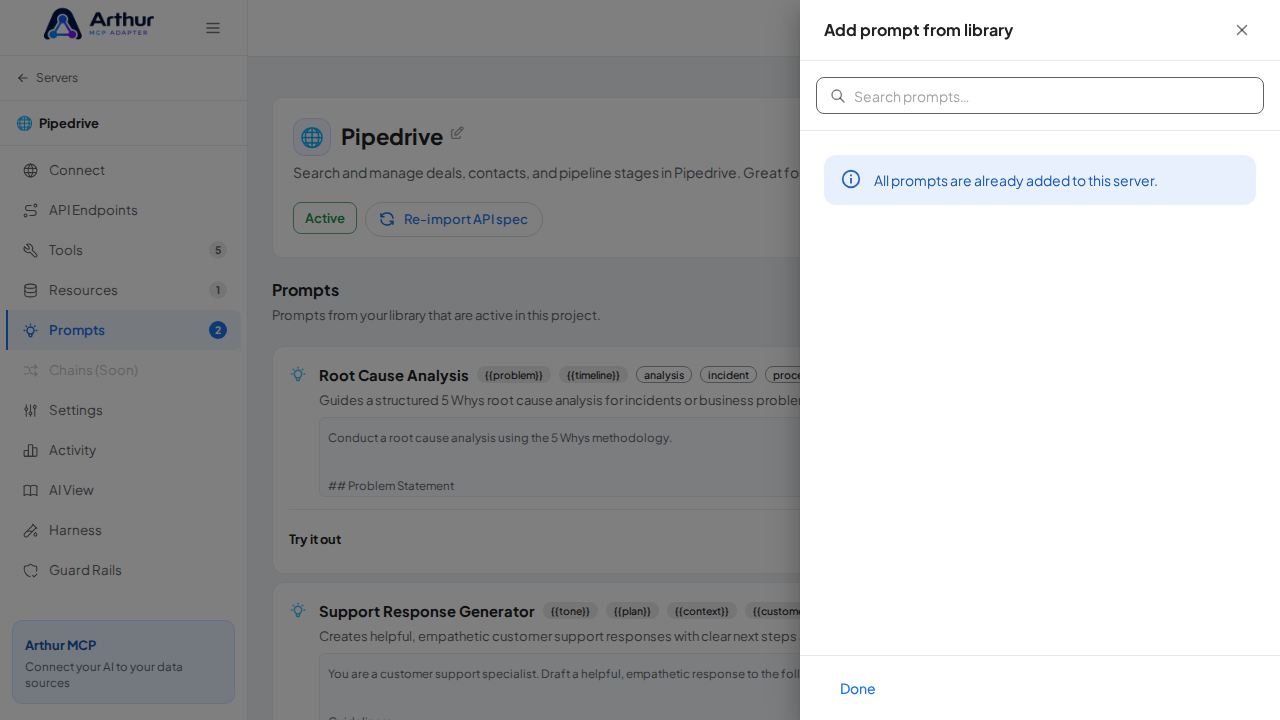
Open the server that should offer this prompt, go to its Prompts tab, and link the prompt from the shared library.
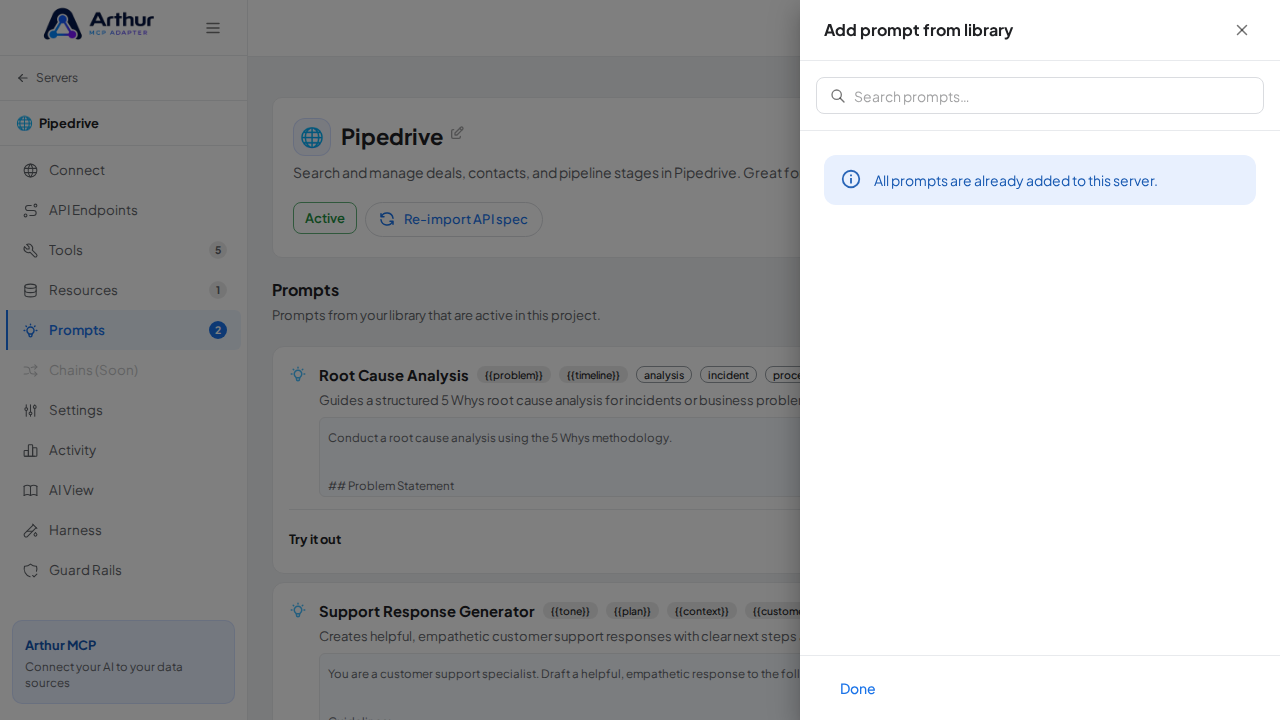
Enable the linked prompt.
Confirm it worked
The prompt appears (enabled) on the server's Prompts tab, and a connected AI client can fetch it with its detected arguments.
Good to know
- One prompt, many servers: editing the shared prompt updates it everywhere it's linked, so you don't maintain duplicate copies.
- Disabling a linked prompt on one server doesn't remove it from the shared library or from any other server it's linked to.
Related
Tutorial video