
MCP Server Management
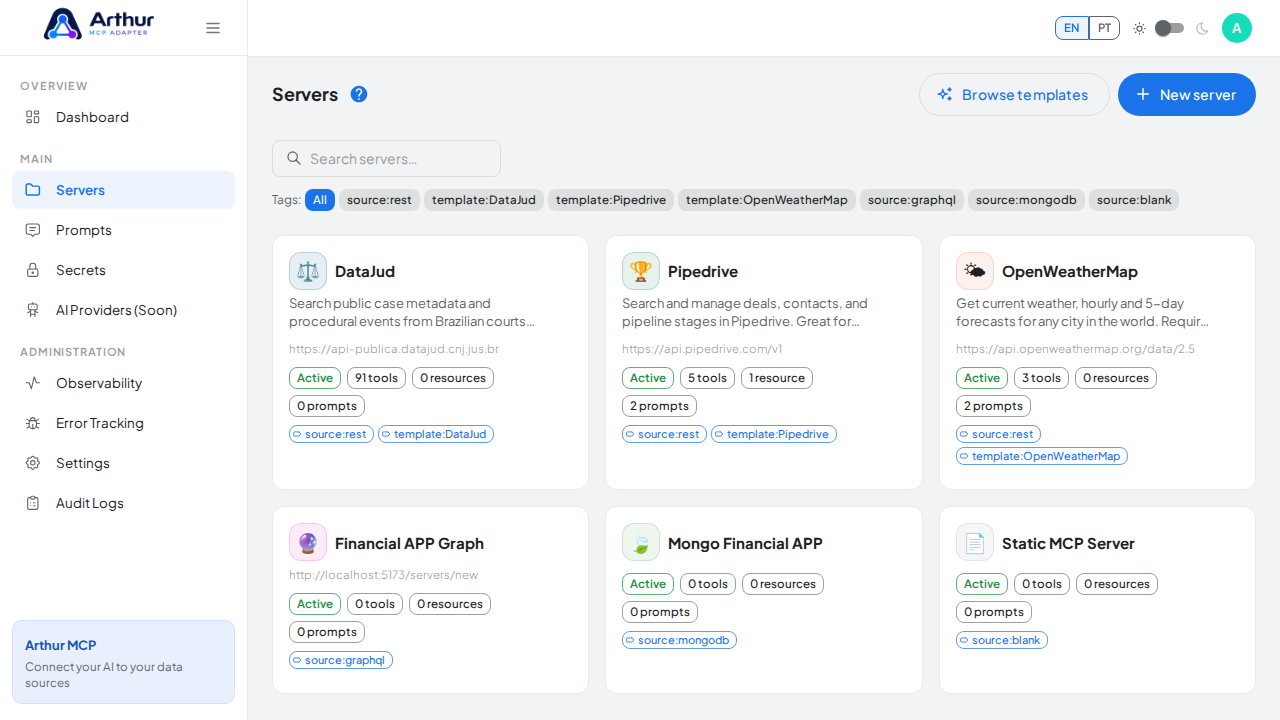
A Server is the core unit in Arthur MCP: it wraps one data source — today a REST API, with GraphQL, gRPC, and several SQL/NoSQL connectors already visible in the UI — and gets its own MCP endpoint that AI clients can connect to.
What you can do
- Create a server from an OpenAPI/Swagger spec, a Postman collection, a REST template, or from a blank slate.
- Configure its base URL, upstream authentication, rate limits, response size limits, availability windows, and maintenance mode.
- Pause a server to stop all traffic instantly without losing any of its configuration, then reactivate it whenever you're ready.
- Re-import an updated API spec into an existing server instead of rebuilding its tools from zero — new and changed operations are picked up without discarding your edits to the rest.
Server slug
Every server has a slug — a short, unique, URL-safe identifier (lowercase letters, numbers, and hyphens only) auto-generated from the server's name when you create it. It's the server's public address: it's what appears in the public share link and in the MCP endpoint URL AI clients connect to.
You can change it yourself from the Connect tab, under "Public doc slug." Since it must stay unique across every server on the instance, changing it is also how you revoke an old public share link — the previous slug simply stops resolving. See How to Manage Your Server Slug.
Activity Log
The Activity tab is a live execution log for the server: every tool call, with timestamp, tool name, whether it came from an MCP client or a direct test, status code, response time, and any error message. Rows with a request or response body can be expanded to see the full JSON. Use it to debug a failing tool call or to confirm an AI client is actually reaching your server.
How to use it
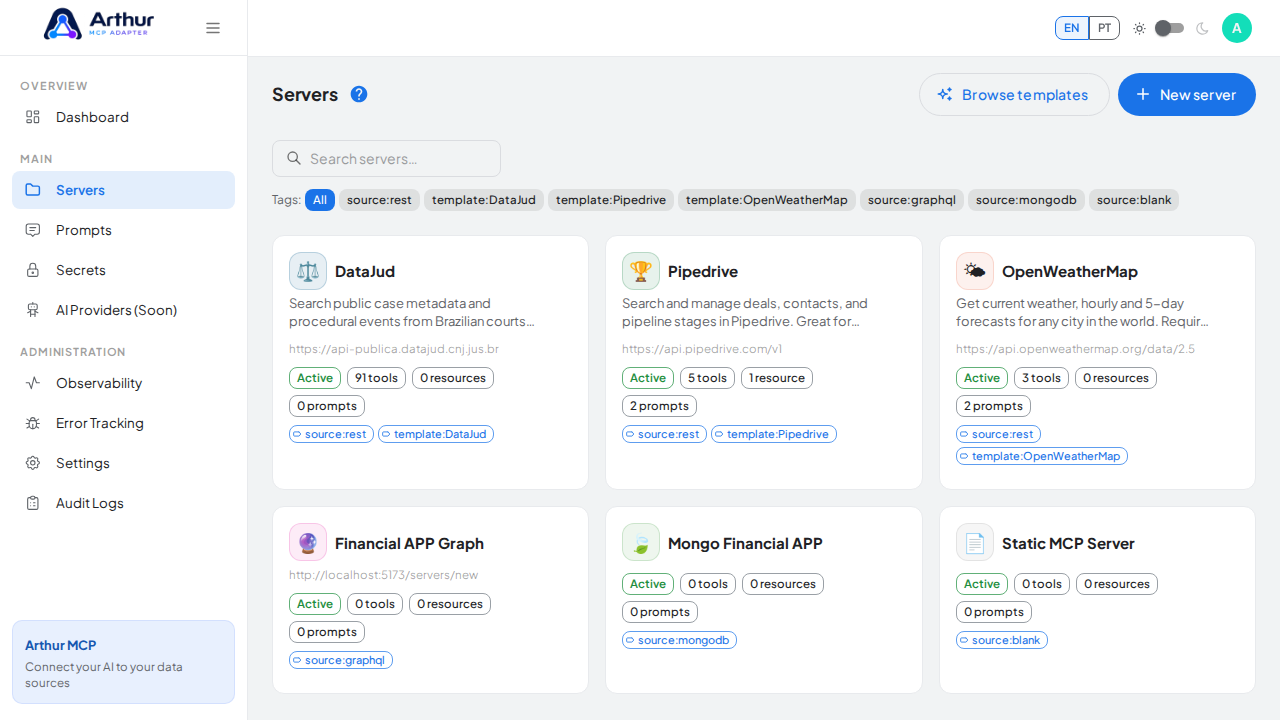
- From the Dashboard, click New Server.
- Choose how to start it: upload a spec/collection, pick a template, or start blank. See Getting Started for a walkthrough of each path.
- Open the server and use its tabs — Connect, Tools, Resources, Prompts, Settings, Activity — to shape and operate it.
- Use Settings to adjust the base URL, authentication, and traffic controls at any time, or to pause the server temporarily.
Good to know
- Pausing a server is reversible and does not delete anything — it simply stops the server from answering MCP calls until reactivated.
- Related: REST API Template Gallery, Dynamic Tools, Settings.
Tutorial video