
How to Rotate the JWT Signing Secret
Rotate the secret used to sign auth tokens and public share links, without redeploying the instance.
Steps
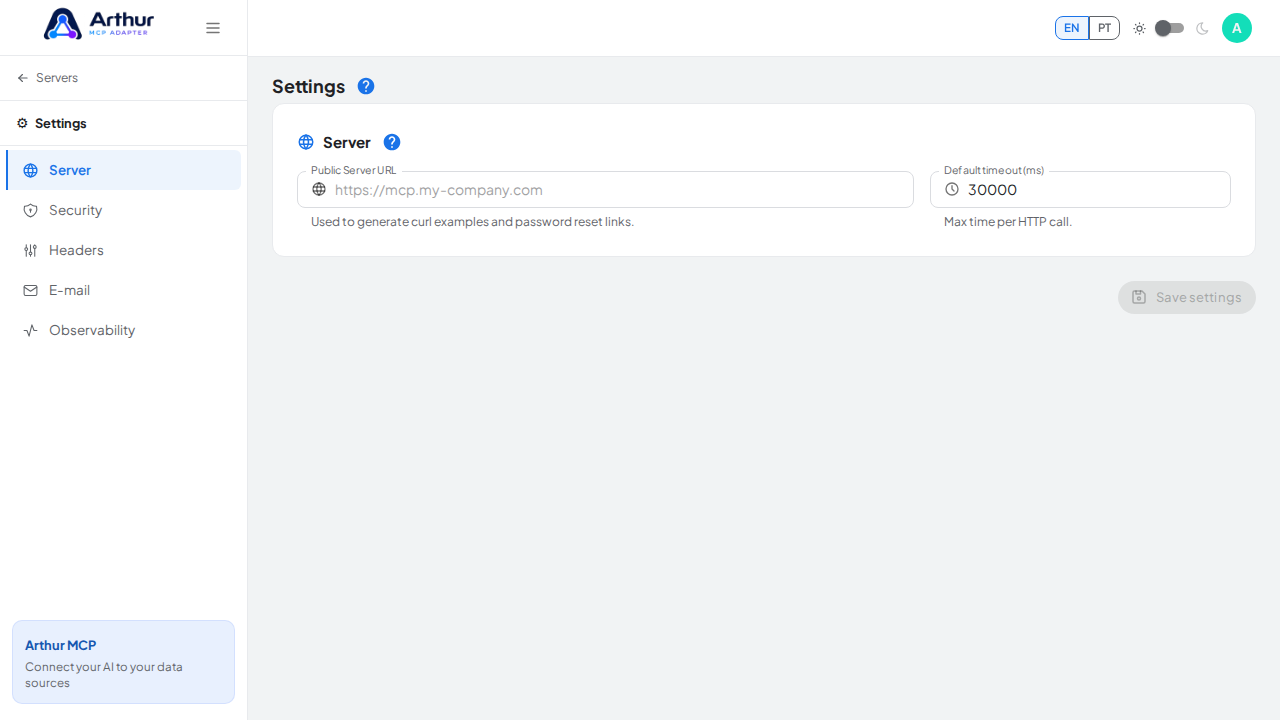
Go to Settings → Security.
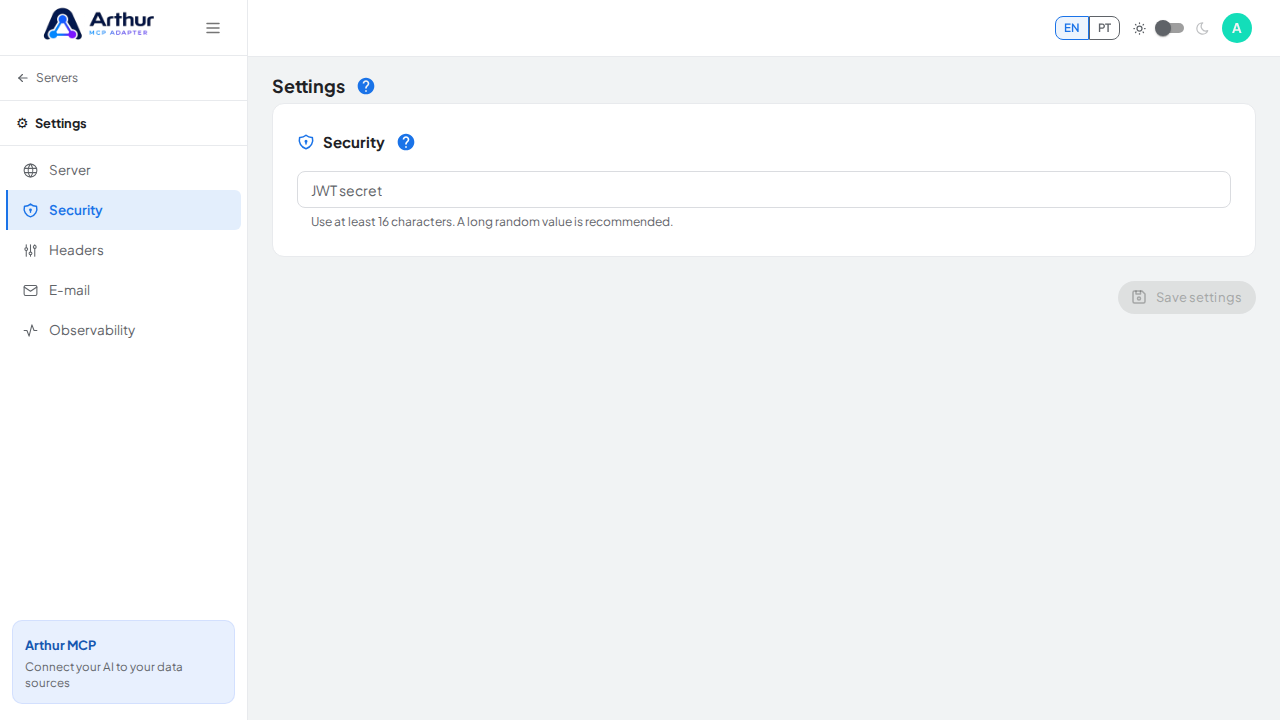
Trigger the rotation.
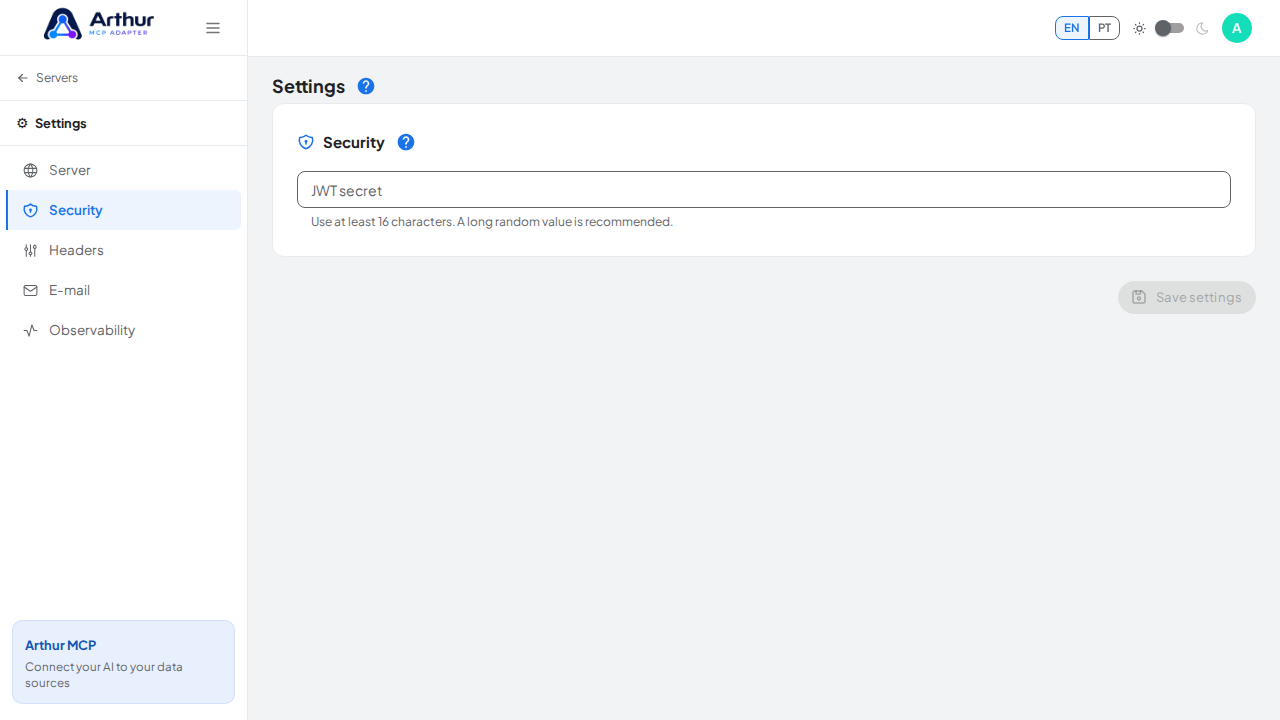
Confirm it worked
The Security tab shows the secret as set, without ever displaying its value.
Good to know
- Rotating invalidates outstanding MCP OAuth bearer tokens and public share links — clients using OAuth will need to reauthorize, and share links may need to be regenerated where applicable.
- It does not affect your own login session — Arthur user sessions are issued and verified by Supabase Auth, which is unrelated to this secret.
- Only users allowed to manage instance settings (Administrators, by default) can rotate it.
Related
Tutorial video