Secrets and Authentication
Arthur MCP keeps credentials out of plain sight, whether they're used to call an upstream API or to protect one of your own MCP servers.
What you can do
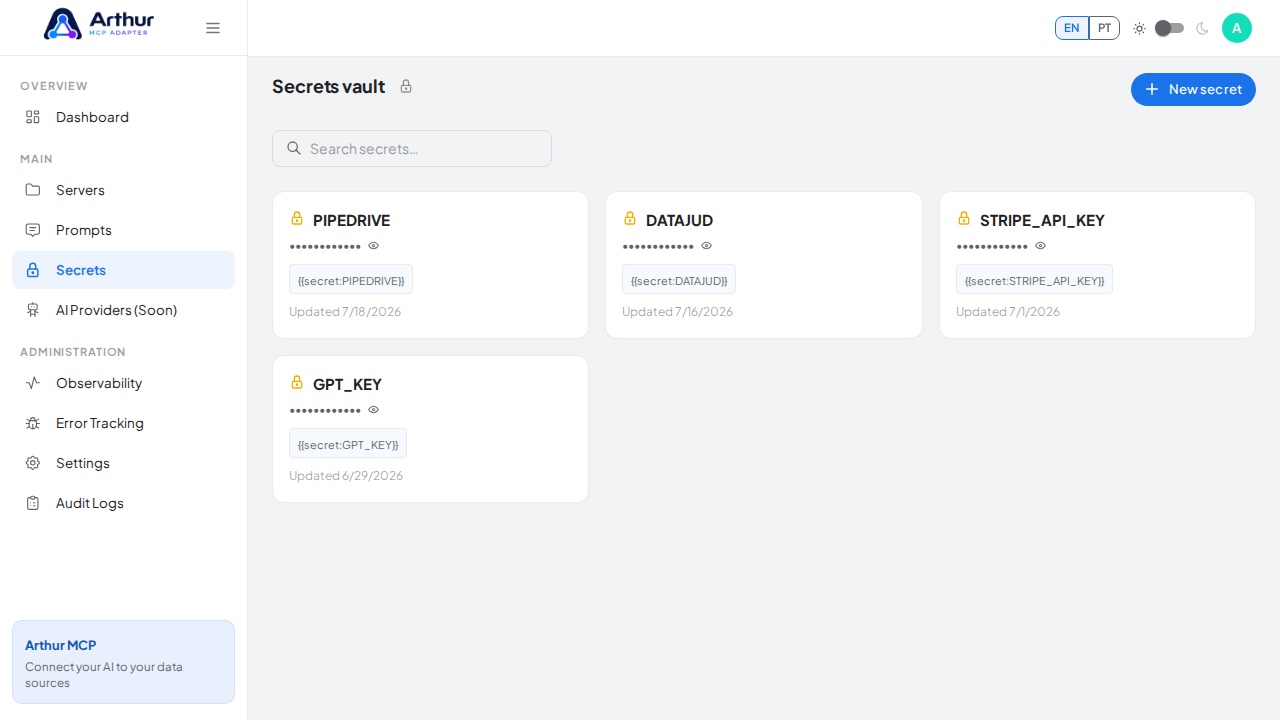
- Store secret values separately from their metadata, so credentials never render in list views.
- Reference a secret by name —
{{secret:NAME}}— anywhere a server needs it, instead of pasting raw values into configuration. - Reveal or copy a secret's value only when you deliberately choose to, through a dedicated action.
- Manage MCP Access Keys so clients can authenticate to a specific server.
- Configure OAuth clients for MCP consumers such as ChatGPT, either through your own authorization server or Arthur-managed credentials.
- Rotate the platform's JWT signing secret from Settings without redeploying.
How to use it
- Go to Secrets and create a named secret with its value.
- Reference it as
{{secret:NAME}}in a server's upstream authentication, headers, or query parameters. - Open a server's Connect tab to create Access Keys or configure an OAuth client for incoming MCP connections.
- Share a key or OAuth setup with the AI client that needs to connect — see Public MCP Swagger Pages for a way to document this without exposing the dashboard.
Good to know
- There are two separate authentication layers: the upstream credentials Arthur uses to call your API, and the incoming credentials an AI client uses to call your MCP server. Keep them mentally separate — they're configured in different places.
- Rotating the JWT signing secret invalidates outstanding MCP OAuth bearer tokens and share links, but does not affect your own login session.
Tutorial video