
How to Set Up Error Alerts
Get an email when a specific server's error rate crosses a threshold you set. This is a per-server alert, separate from the instance-wide Error Tracking integration (Sentry or similar) — Error Tracking forwards every failure to an external provider's dashboard, while Error Alerts emails you directly when one server's error rate gets bad.
Steps
Open the server and go to its Settings tab.
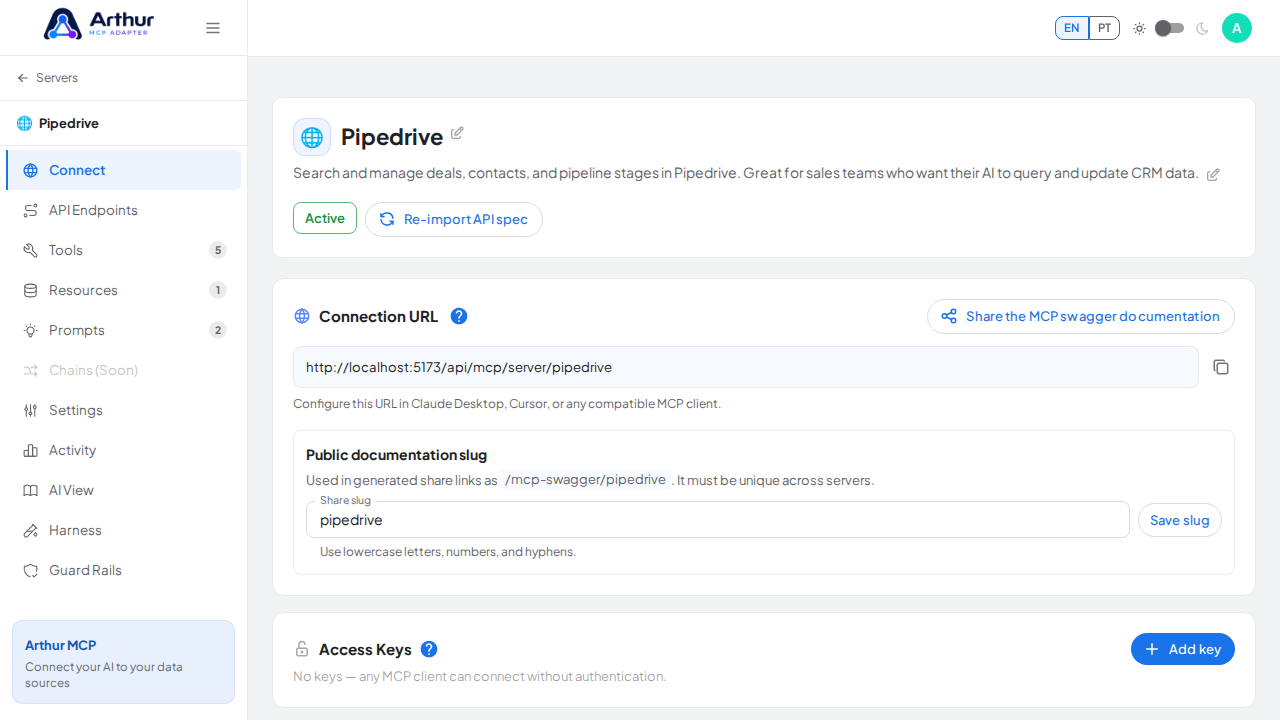
Find Error alerts and enable it.
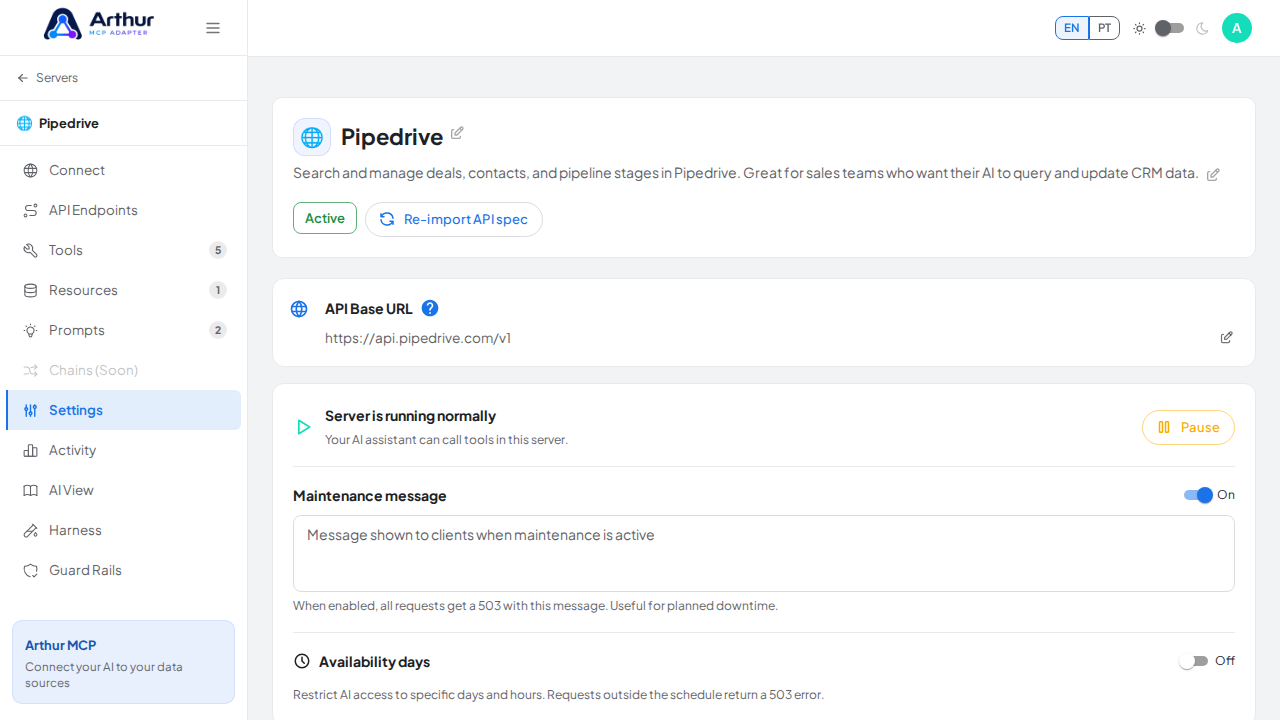
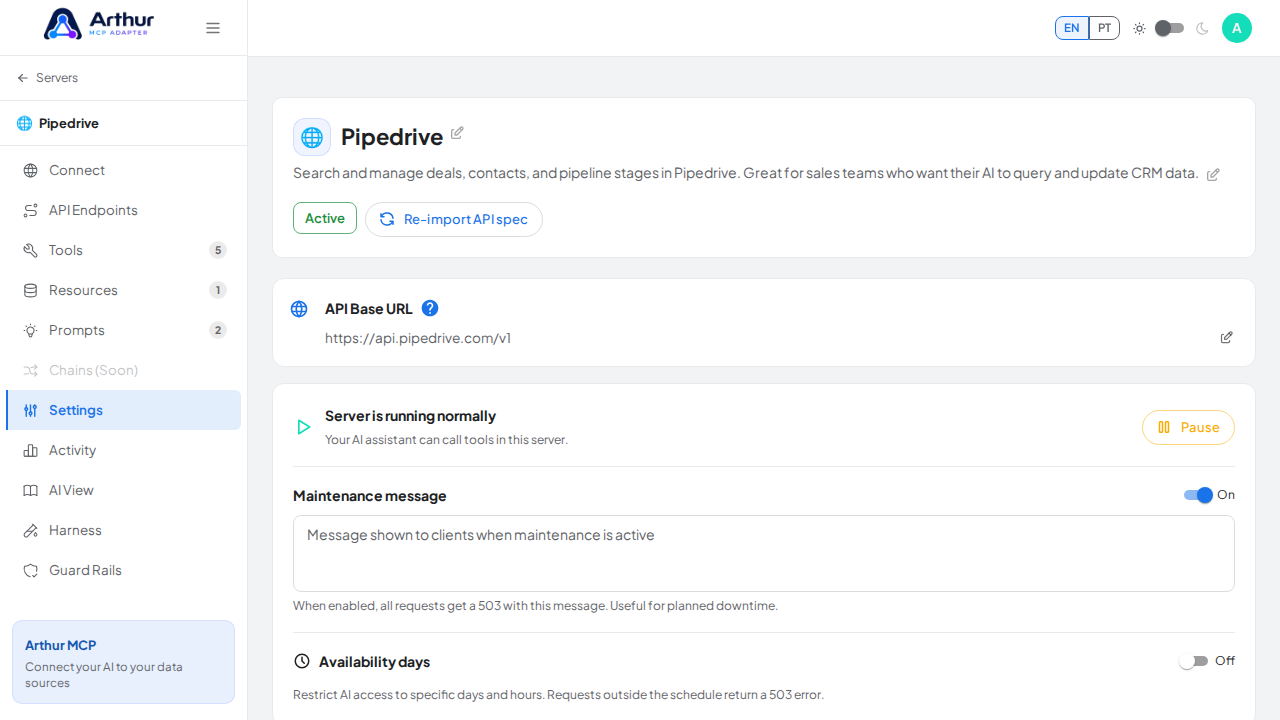
Set the alert threshold — the error rate (1–100%) that triggers an email.
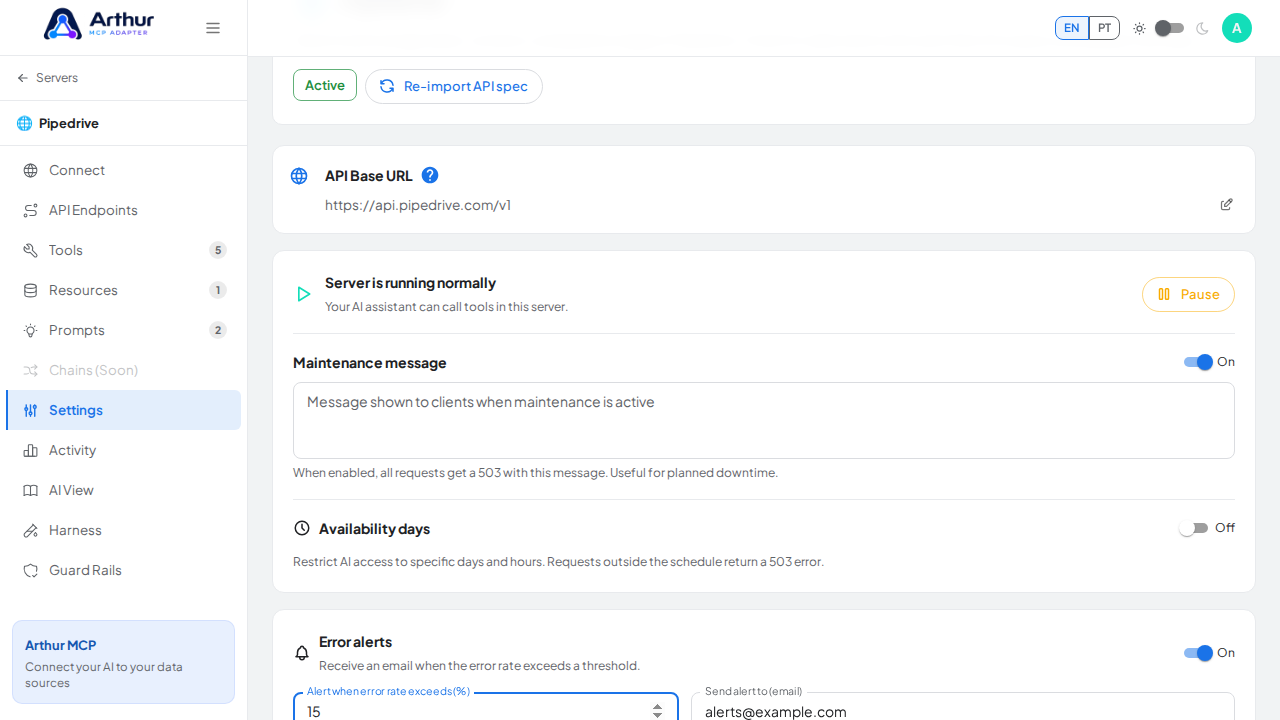
Enter the email address that should receive the alert.
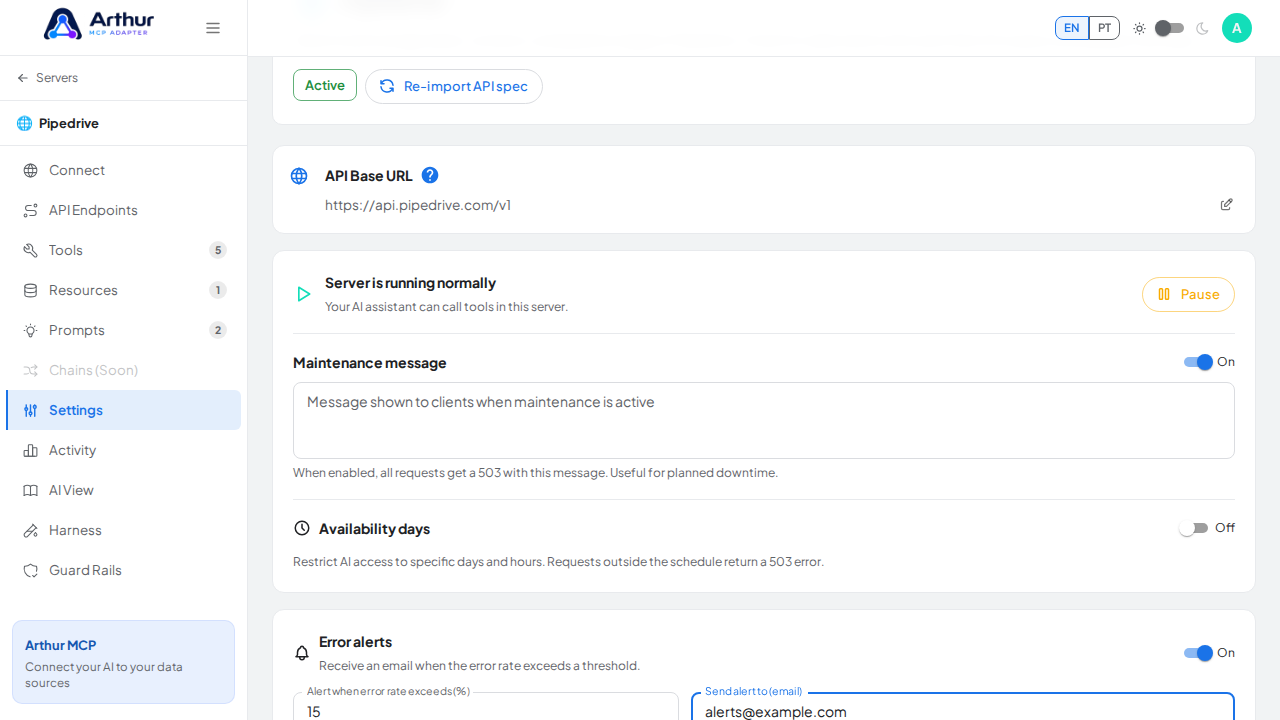
Save.
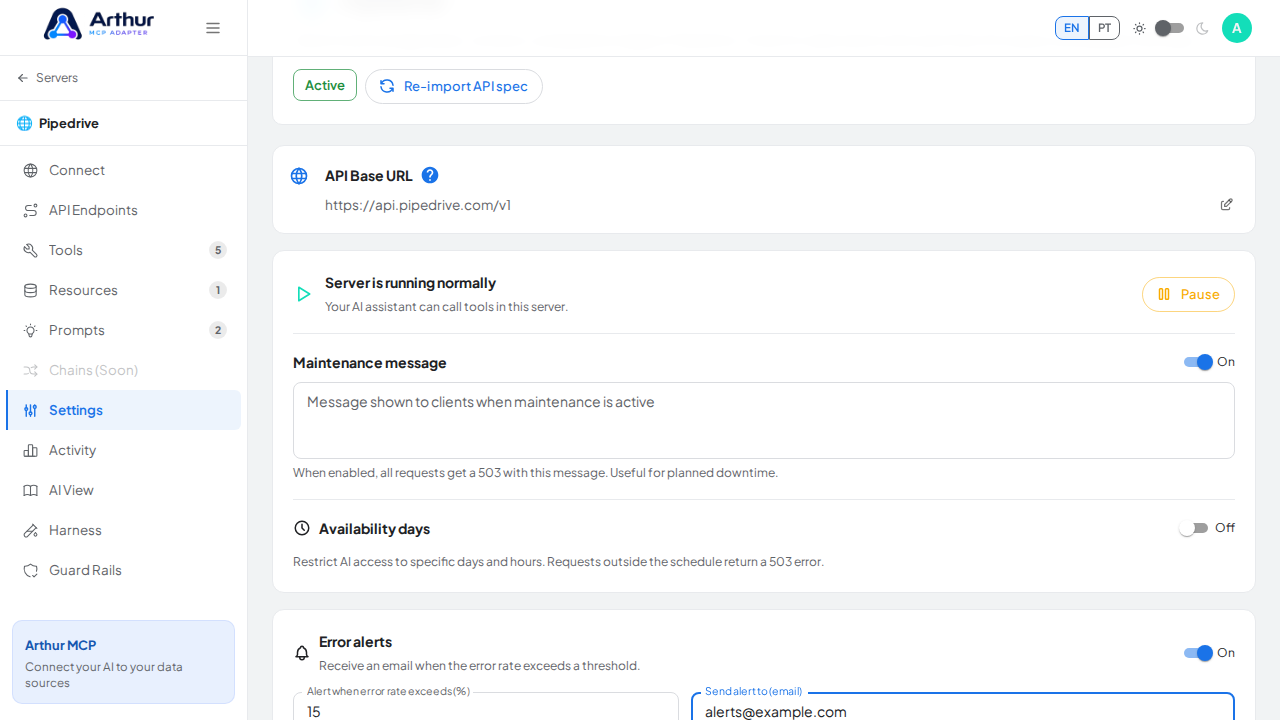
Confirm it worked
If the server's recent error rate exceeds your threshold, the configured address receives an email the next time the alert check runs.
Good to know
- This checks the server's own recent execution history, so it needs some traffic (successful or failing) to have a meaningful error rate to compare against.
- Use this for "tell me if this one server starts failing a lot"; use Error Tracking for "send every failure across the instance to my monitoring dashboard."
Related
Tutorial video