How to Connect Cursor
Prerequisites: a server already created in Arthur, with its MCP endpoint URL available from the Connect tab.
Steps
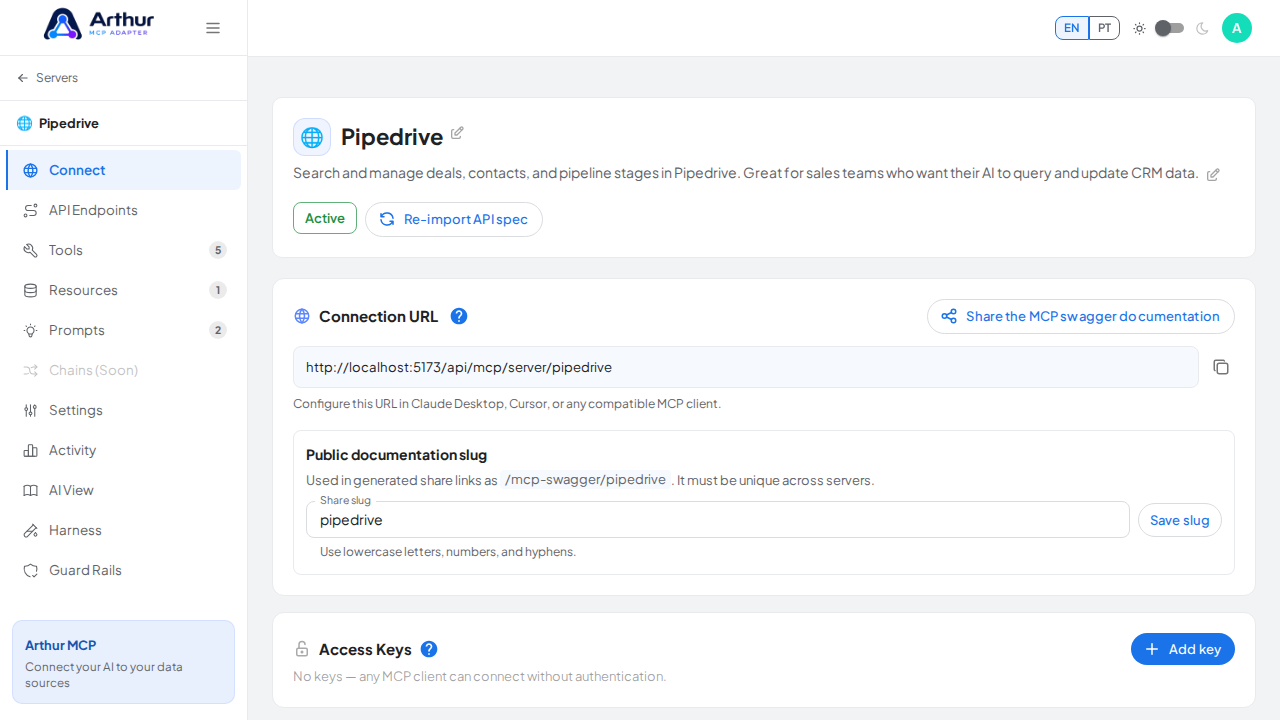
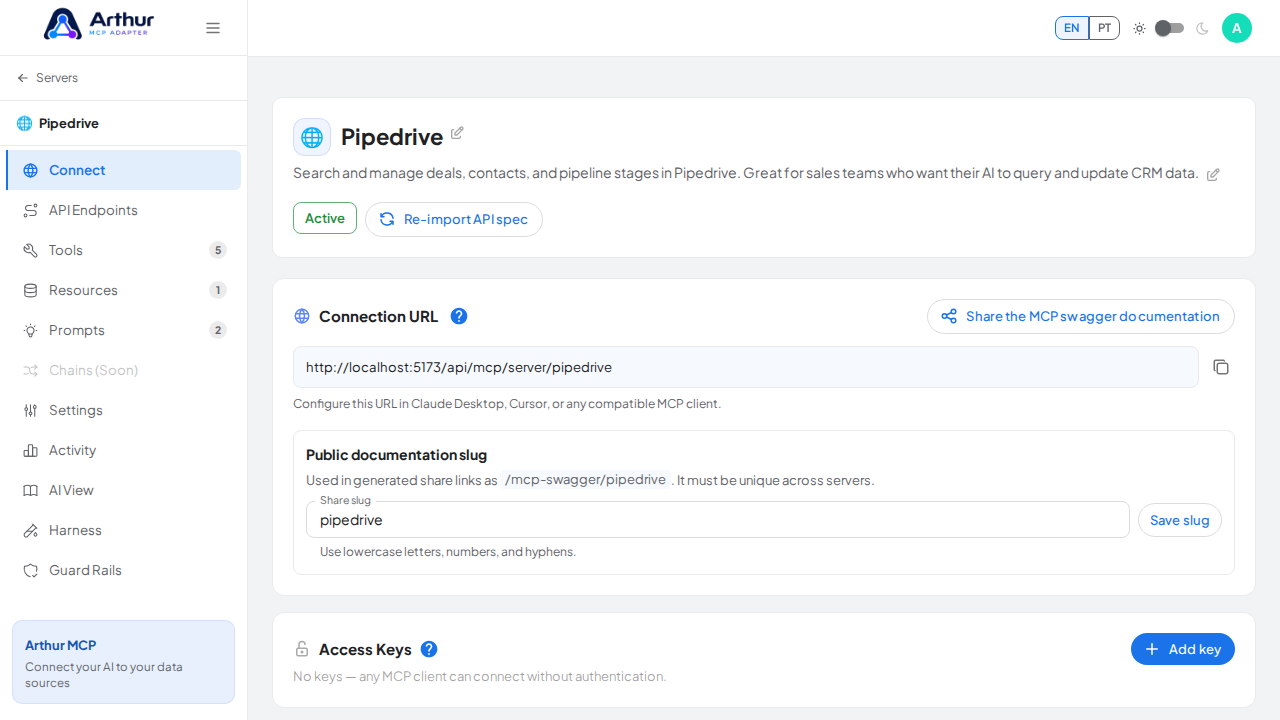
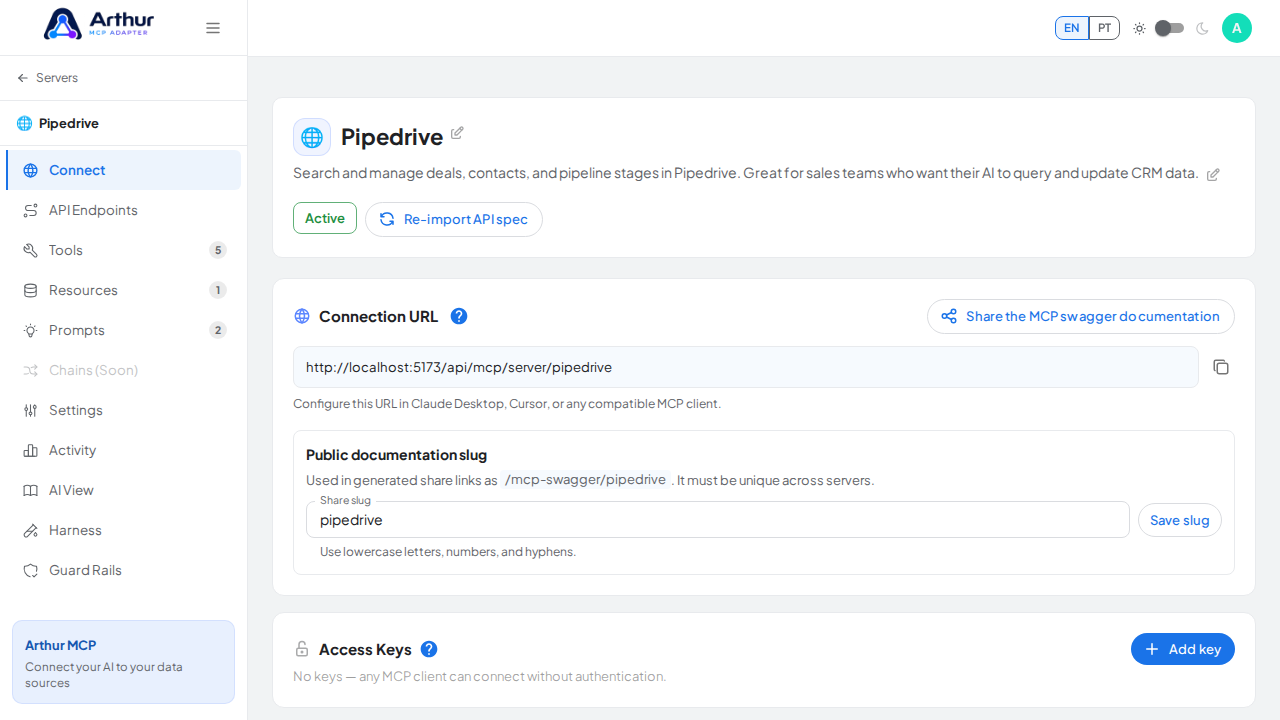
Open the server's Connect tab and copy the MCP endpoint URL. If the server requires authentication, also copy an Access Key — see How to Protect a Server with an Access Key.
In Cursor, open Settings → Features → MCP Servers → Add new MCP server.
Choose HTTP transport and paste the endpoint URL.
If the server requires a key, add a custom header:
auth: <your-api-key>.Save.
Confirm it worked
The new server appears in Cursor's MCP Servers panel with its tools listed underneath it.
Related
Tutorial video