How to Connect Claude Desktop
Prerequisites: a server already created in Arthur, with its MCP endpoint URL available from the Connect tab.
Steps
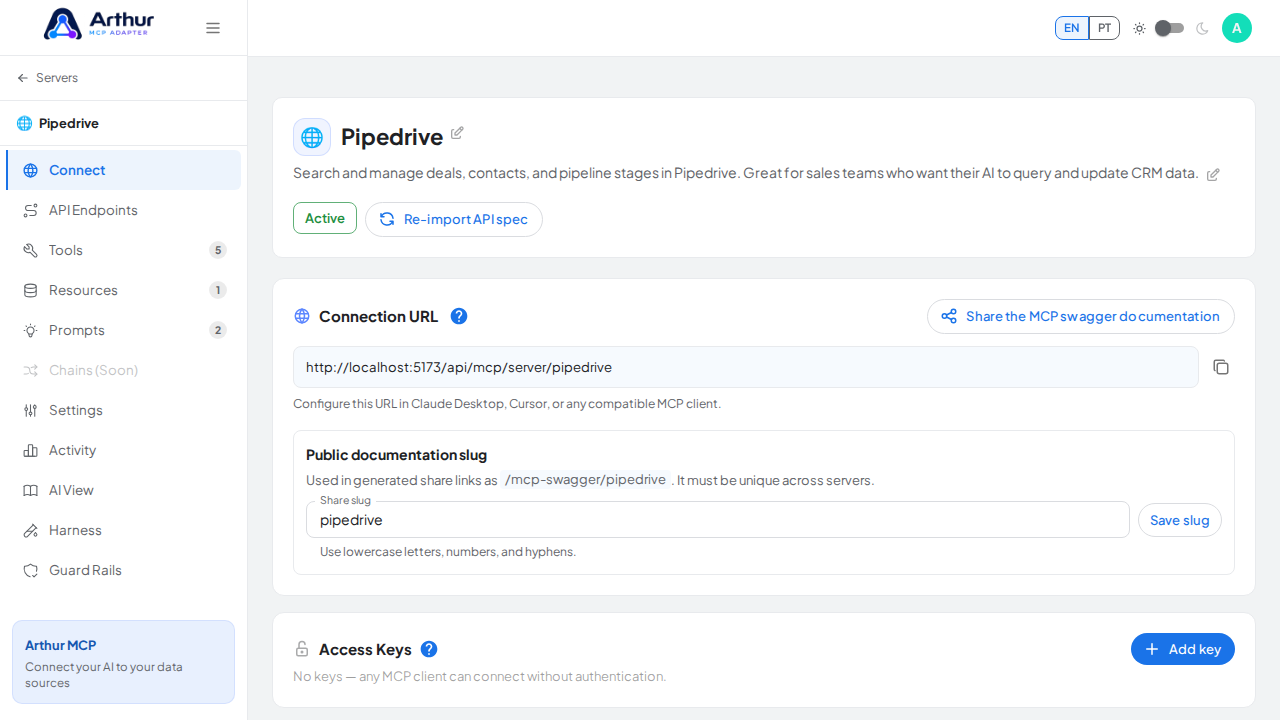
Open the server's Connect tab and copy the MCP endpoint URL. If the server requires authentication, also copy an Access Key — see How to Protect a Server with an Access Key.
In Claude Desktop, open Settings → Connectors → Add custom connector.
Paste the MCP endpoint URL.
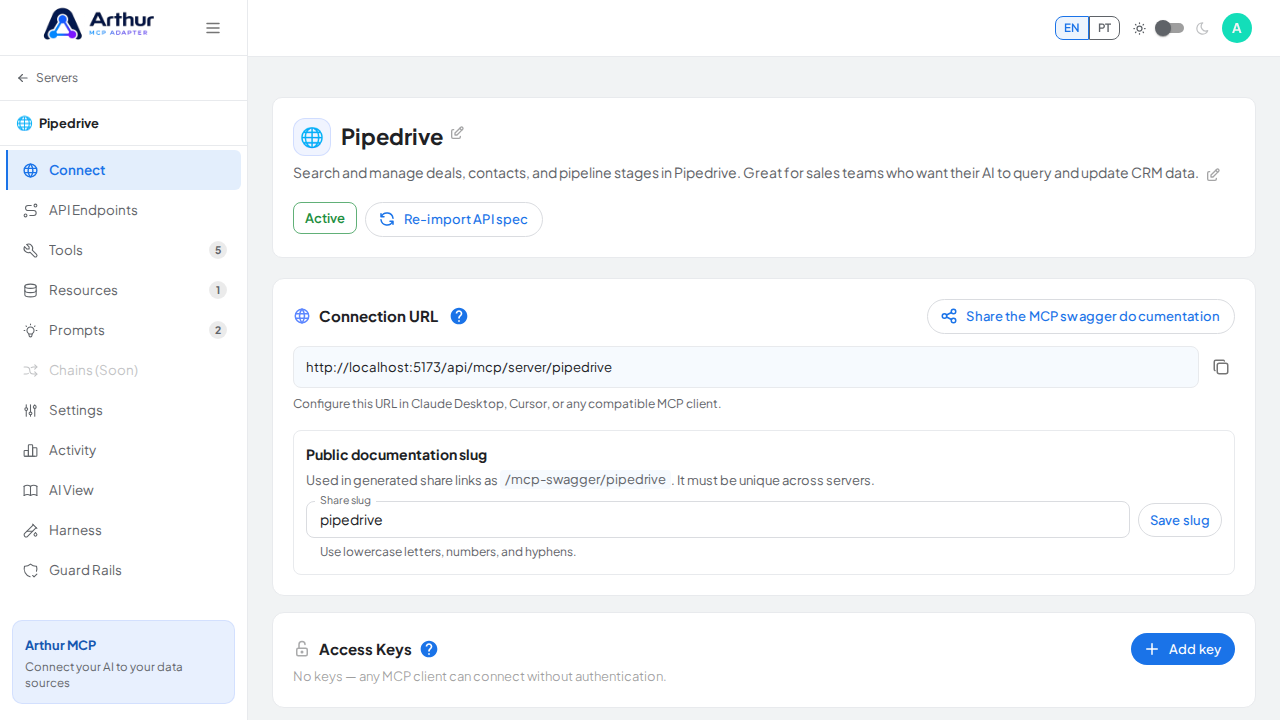
If the server requires a key, add it as the
authheader. Use the?auth=query parameter only if your Claude Desktop version doesn't support custom headers.Save the connector.
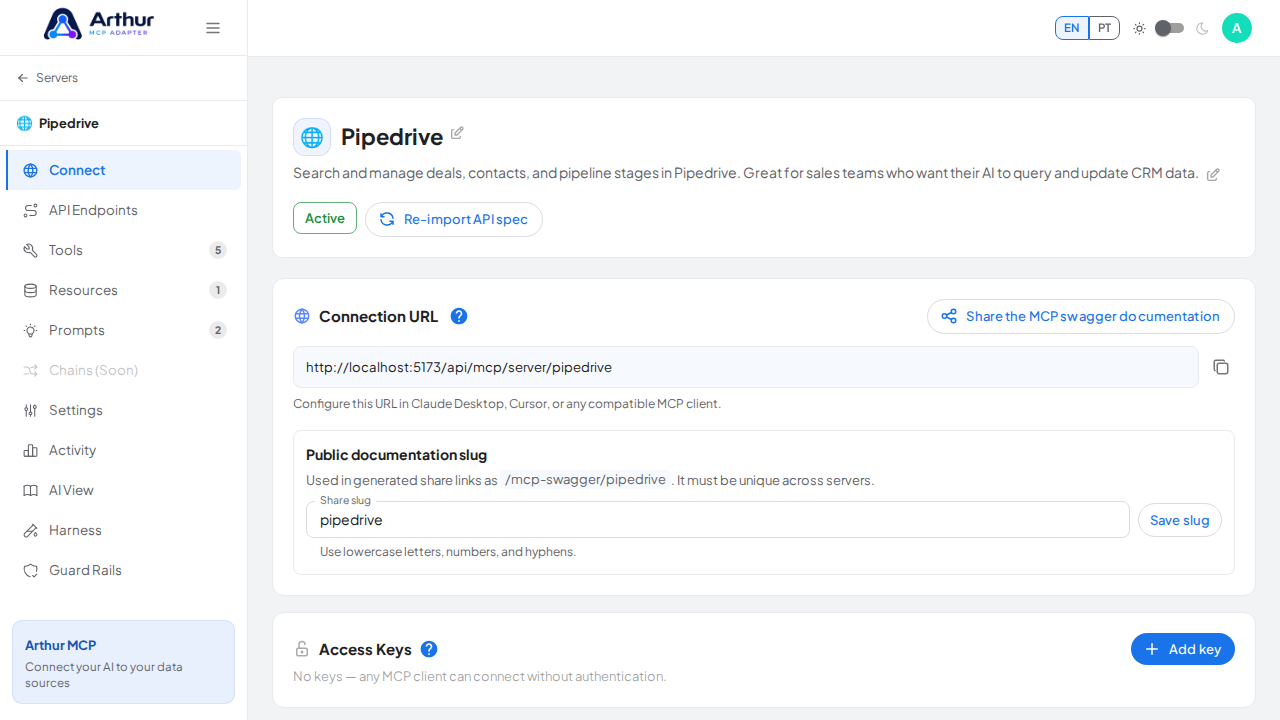
Confirm it worked
Start a new chat and check that Claude lists the server's tools when you ask what it can do, or when you open the connector's tool list.
Related
Tutorial video