How to Connect ChatGPT via OAuth
ChatGPT connects to MCP servers as an OAuth 2.0 client, so it needs a server with an OAuth Client configured rather than a plain Access Key.
Prerequisites: a server already created in Arthur.
Steps
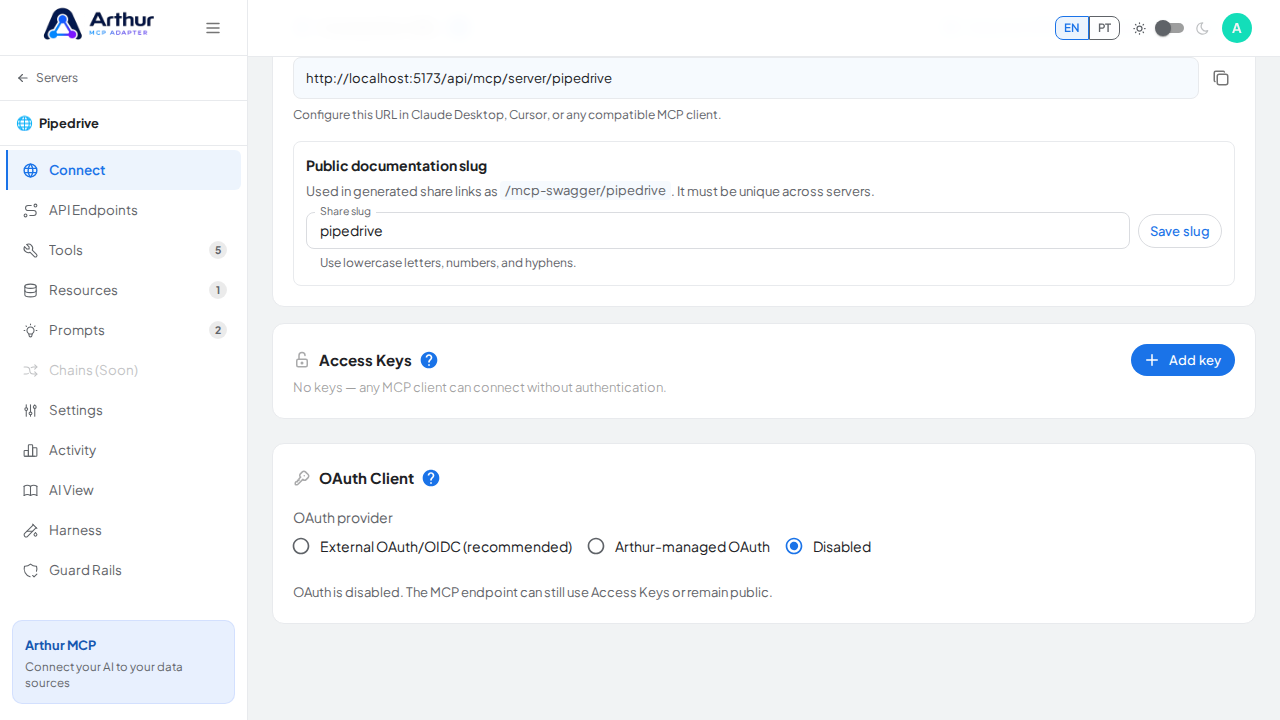
Open the server's Connect tab and configure OAuth Client. Choose Arthur-managed for the simplest setup, or External if you already run your own OAuth/OIDC provider.
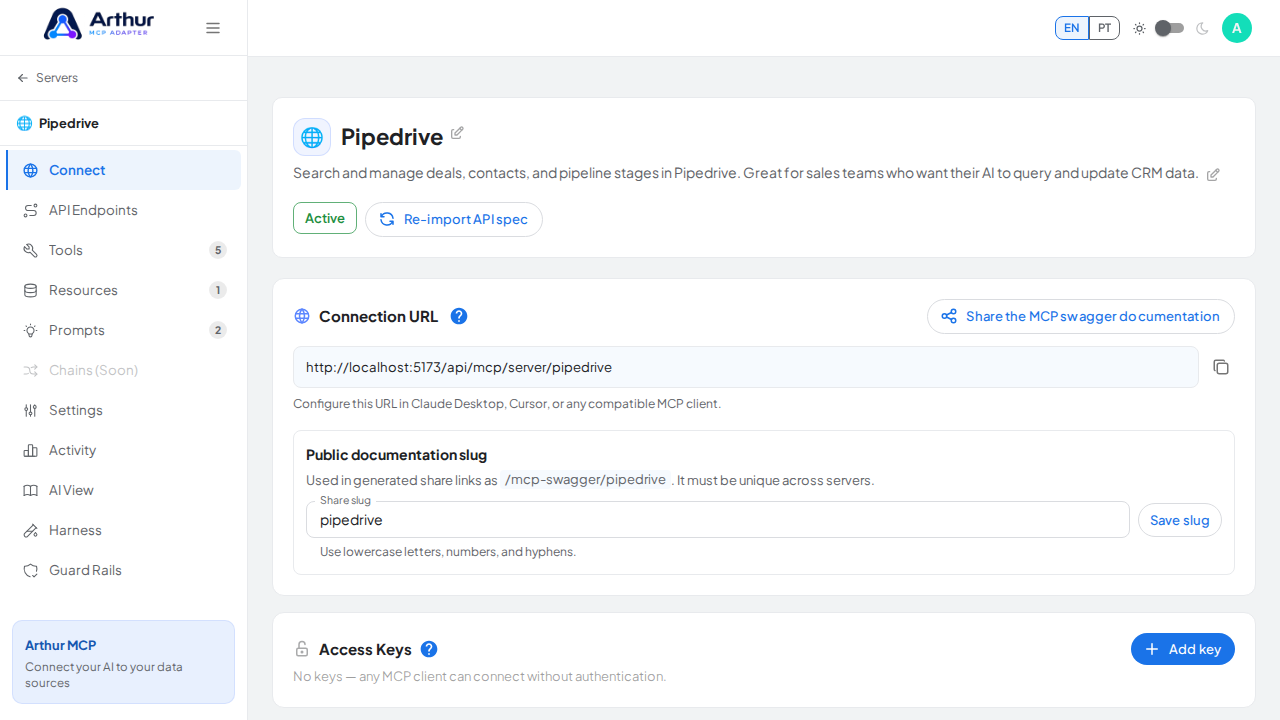
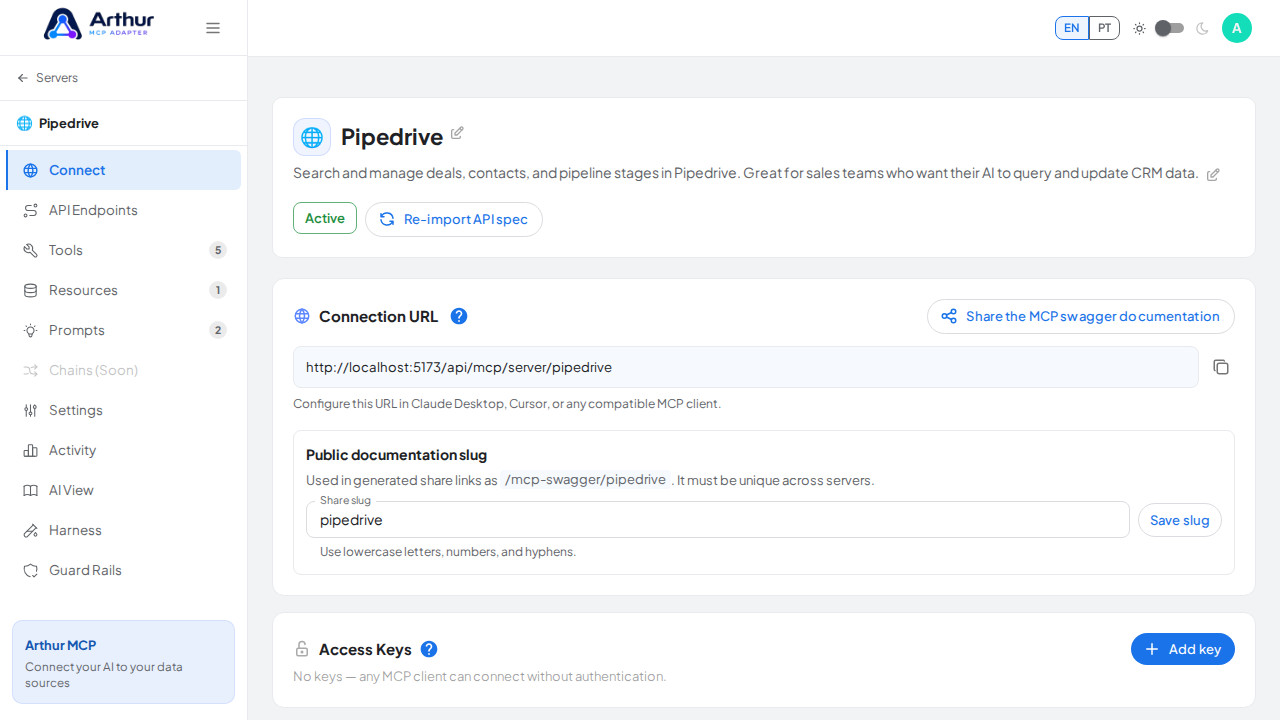
Copy the server's MCP endpoint URL.
In ChatGPT, go to Settings → Connectors (Apps & Connectors) and create a new connector using the MCP endpoint URL.
ChatGPT discovers the authorization requirements automatically and opens a login prompt — Arthur's own login page in managed mode, or your identity provider's page in external mode.
Approve the connection.
Confirm it worked
ChatGPT lists the server's tools once authorization completes, and you can call one from a chat.
Good to know
- When OAuth is enabled and no Access Key is configured, only OAuth-authenticated requests are accepted — anonymous calls are rejected.
- External mode never asks ChatGPT for your Arthur password; the login screen belongs to your own identity provider.
Related
Tutorial video