How to integrate Gcore Storage using MCP
Provision and manage Gcore Object Storage buckets and access keys. This guide creates an MCP server from Arthur's Gcore Storage template — tools preconfigured against https://api.gcore.com/storage/v4 — and finishes by sharing the server's MCP swagger documentation.
Steps
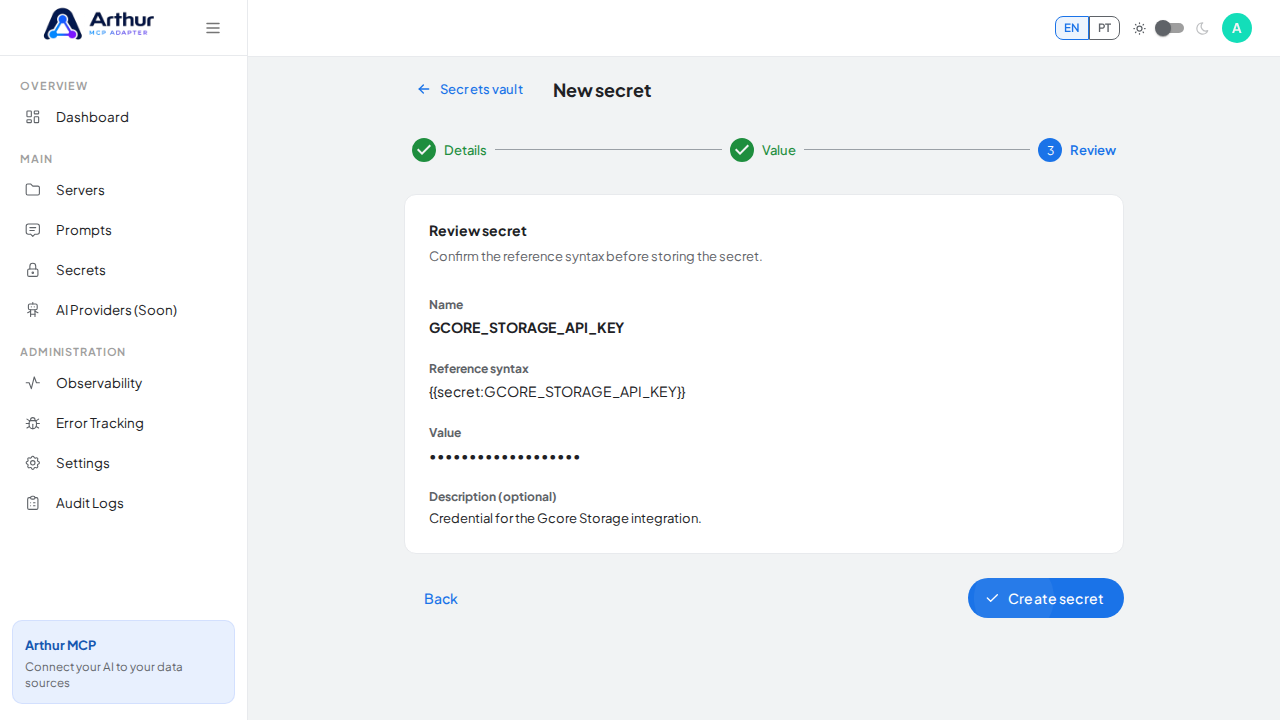
Open the Secrets vault and create a secret named
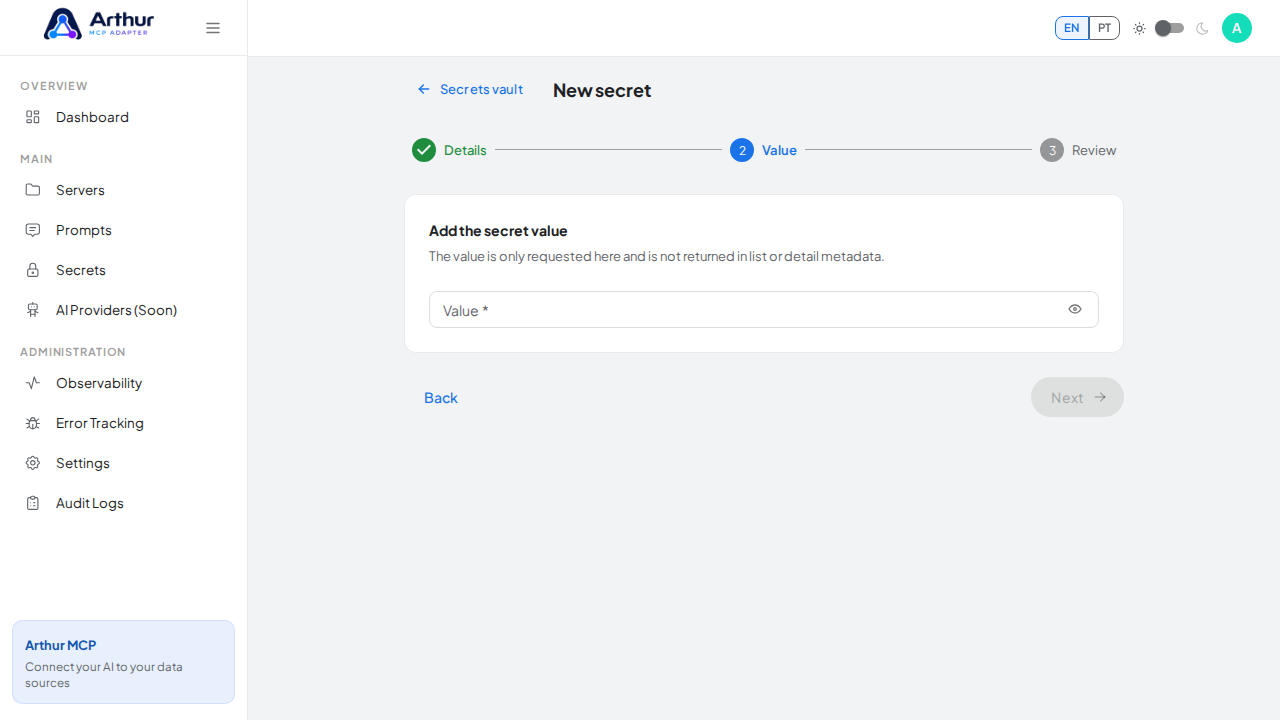
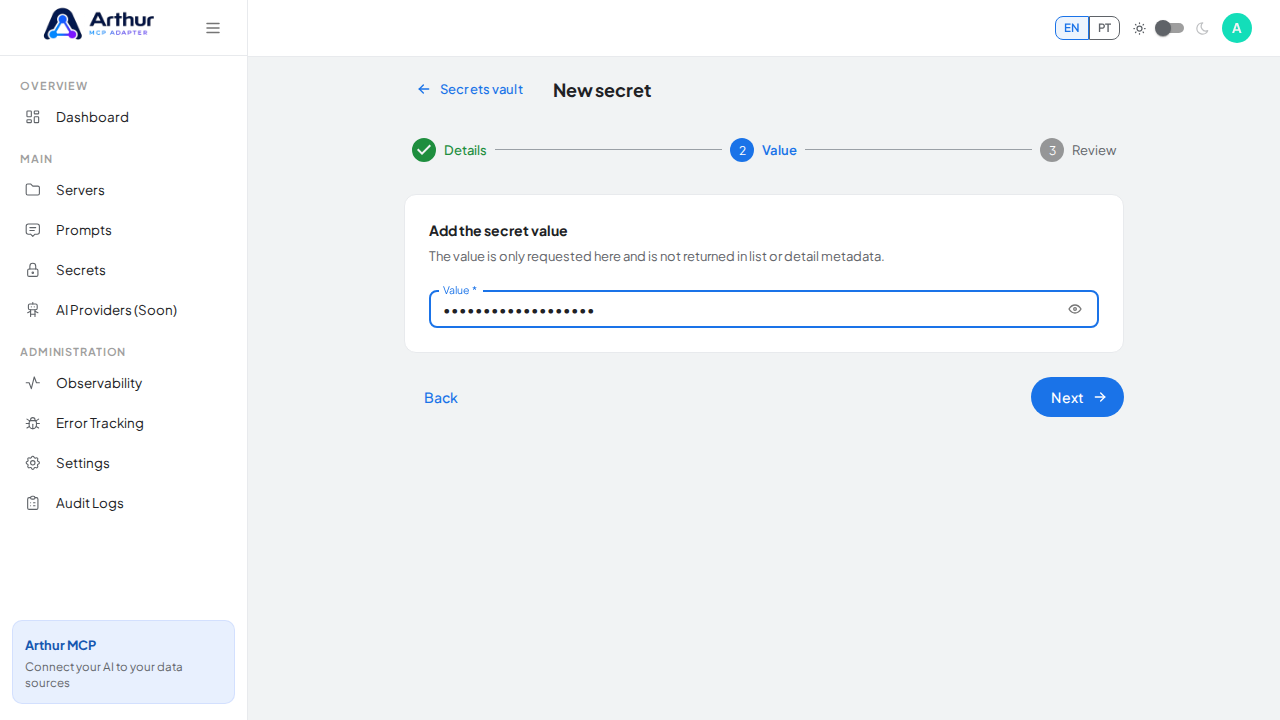
GCORE_STORAGE_API_KEYholding your API key. Generate a Gcore API token in the Customer Portal and store the complete header value 'APIKey' (including the APIKey prefix) as the Authorization header secret. 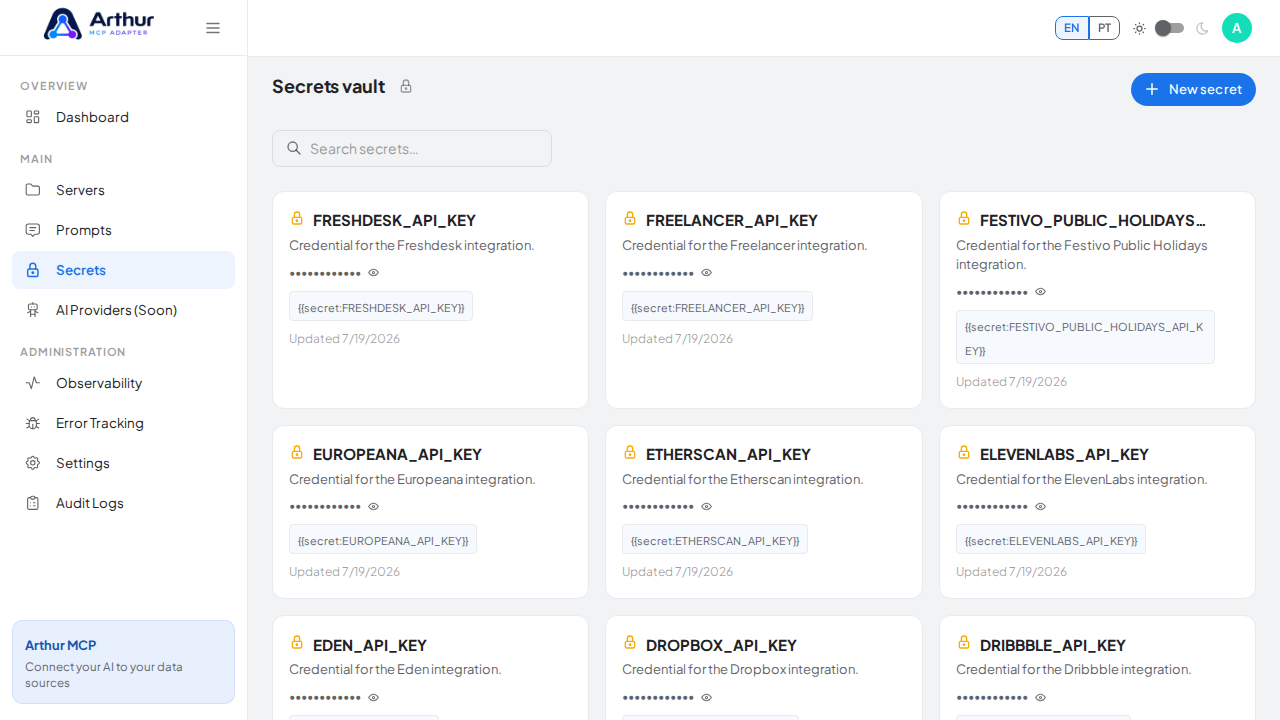


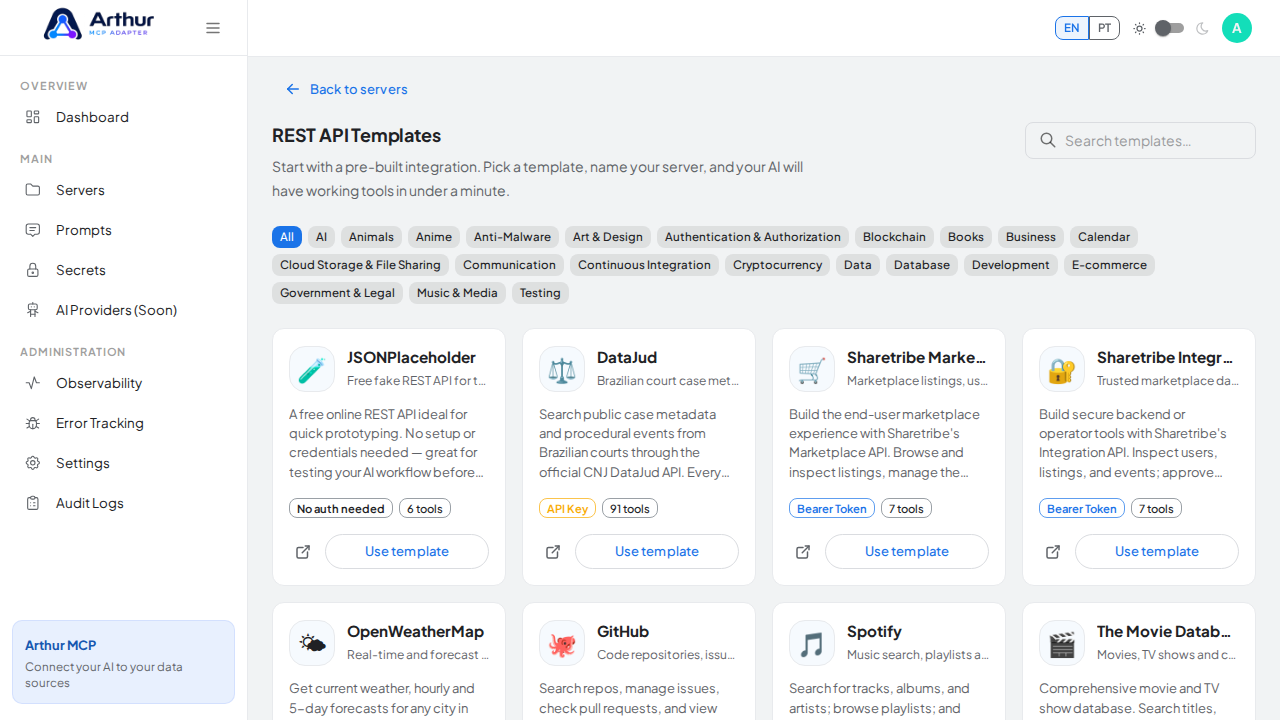
Go to the REST API Templates gallery and search for Gcore Storage.

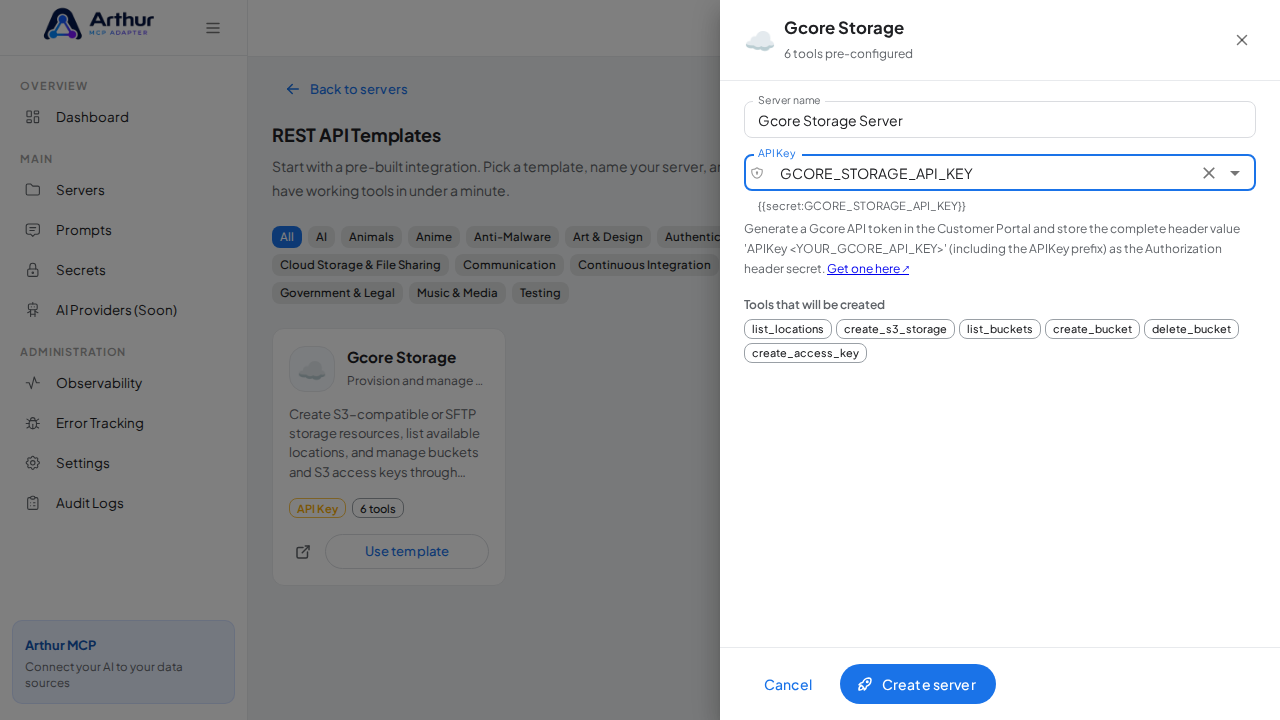
Click Use template on the Gcore Storage card to open the server-creation dialog.
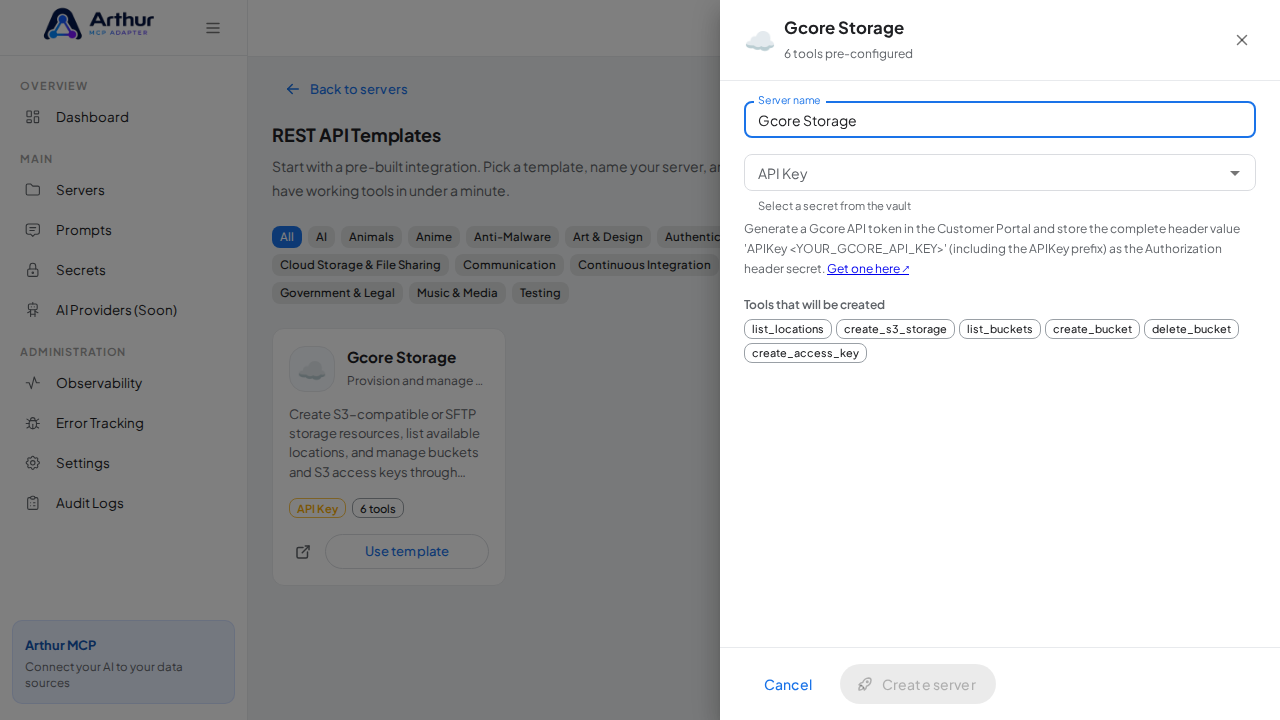
Review the server name and select
GCORE_STORAGE_API_KEYin the credential field — the dialog only accepts vault secrets, and it lists every tool that will be created.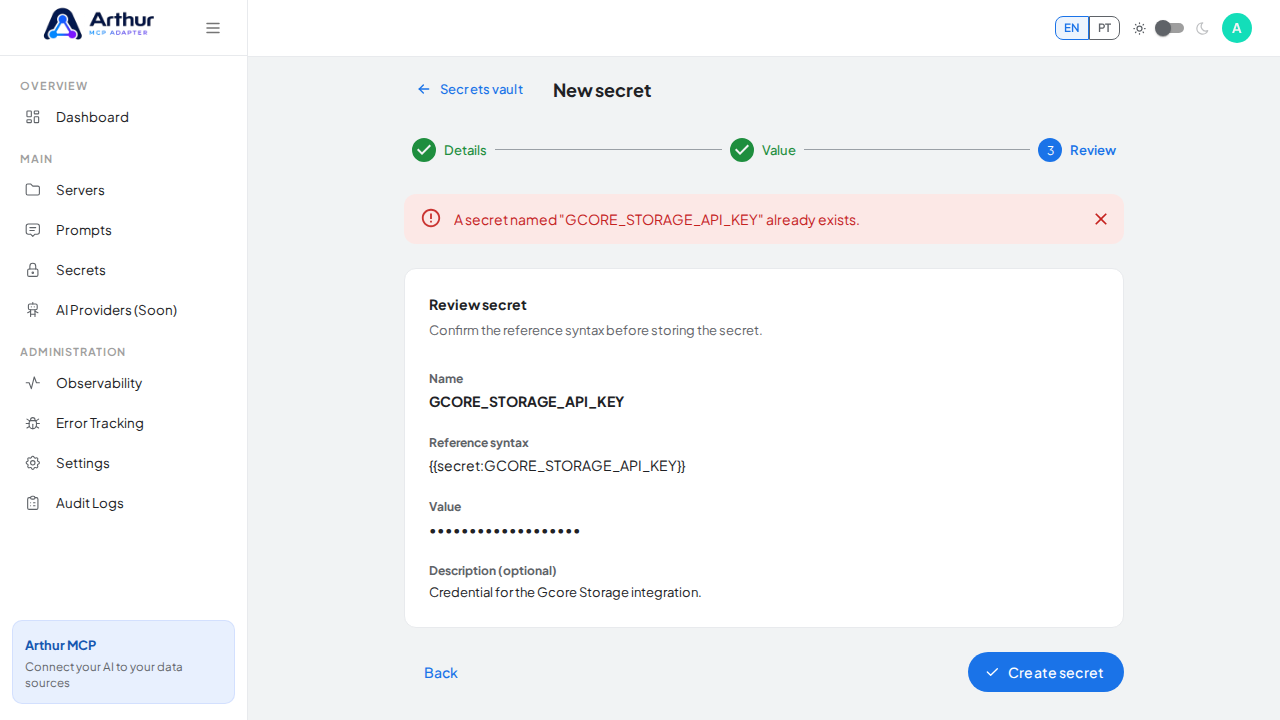

Click Create server. Arthur creates the server, applies the authentication, and generates all the tools.


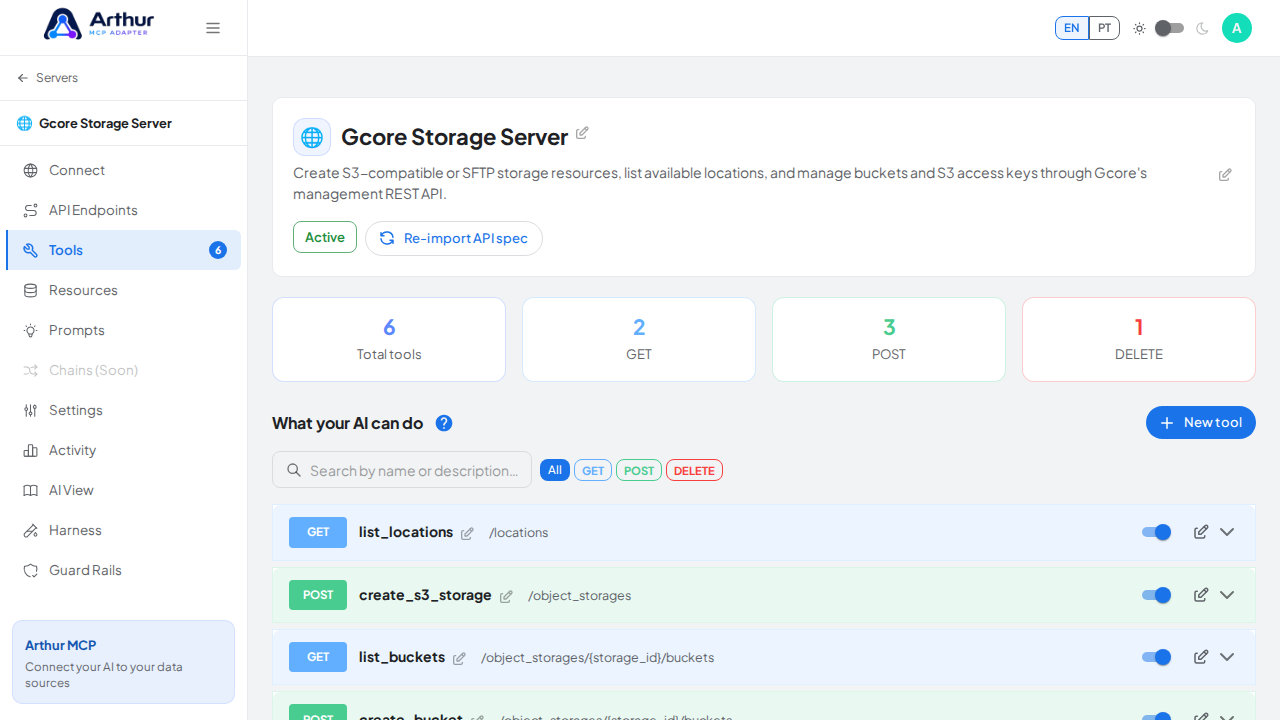
Open the server's Tools tab to review the generated tools.
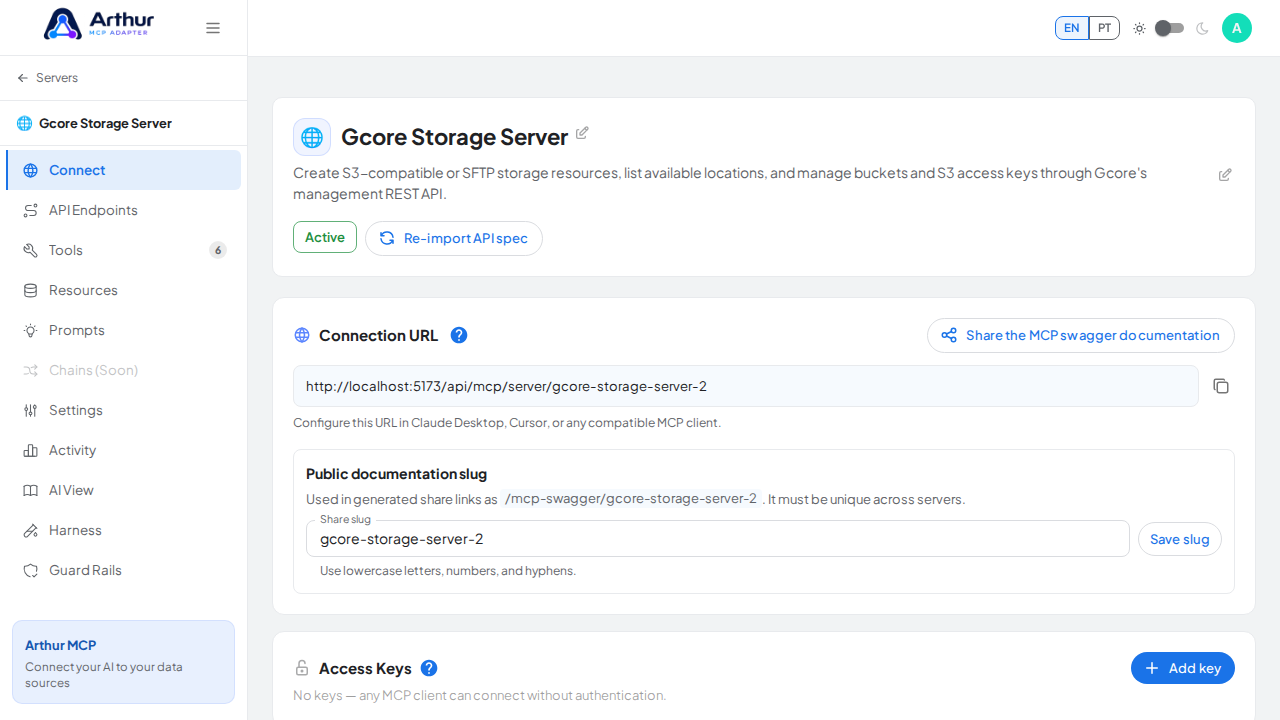
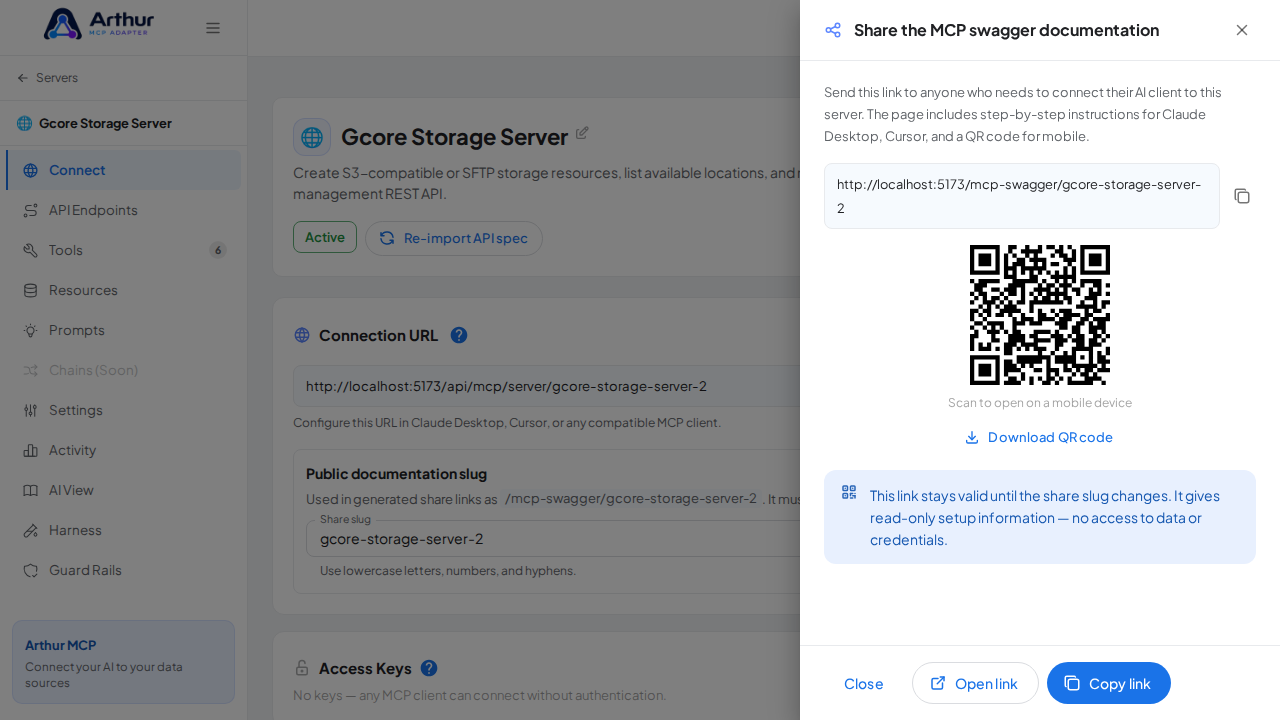
Open the server's Connect section and click Share the MCP swagger documentation — Arthur generates the public documentation link and QR code for this server.

Confirm it worked
The server appears with 6 preconfigured tool(s): list_locations, create_s3_storage, list_buckets, create_bucket, delete_bucket, create_access_key. The Connect section offers the MCP swagger documentation — a shareable page with setup instructions for any AI client.
Good to know
- Create S3-compatible or SFTP storage resources, list available locations, and manage buckets and S3 access keys through Gcore's management REST API.
- This integration requires a credential (api-key). Get one at https://accounts.gcore.com/signup.
- Official API documentation: https://docs.gcore.com/storage
- Editing a tool later never changes the template — templates are starting points, and the server is fully yours after creation.
Related
Tutorial video