
How to integrate DataJud using MCP
Brazilian court case metadata and procedural events. This guide creates an MCP server from Arthur's DataJud template — tools preconfigured against https://api-publica.datajud.cnj.jus.br — and finishes by sharing the server's MCP swagger documentation.
Steps
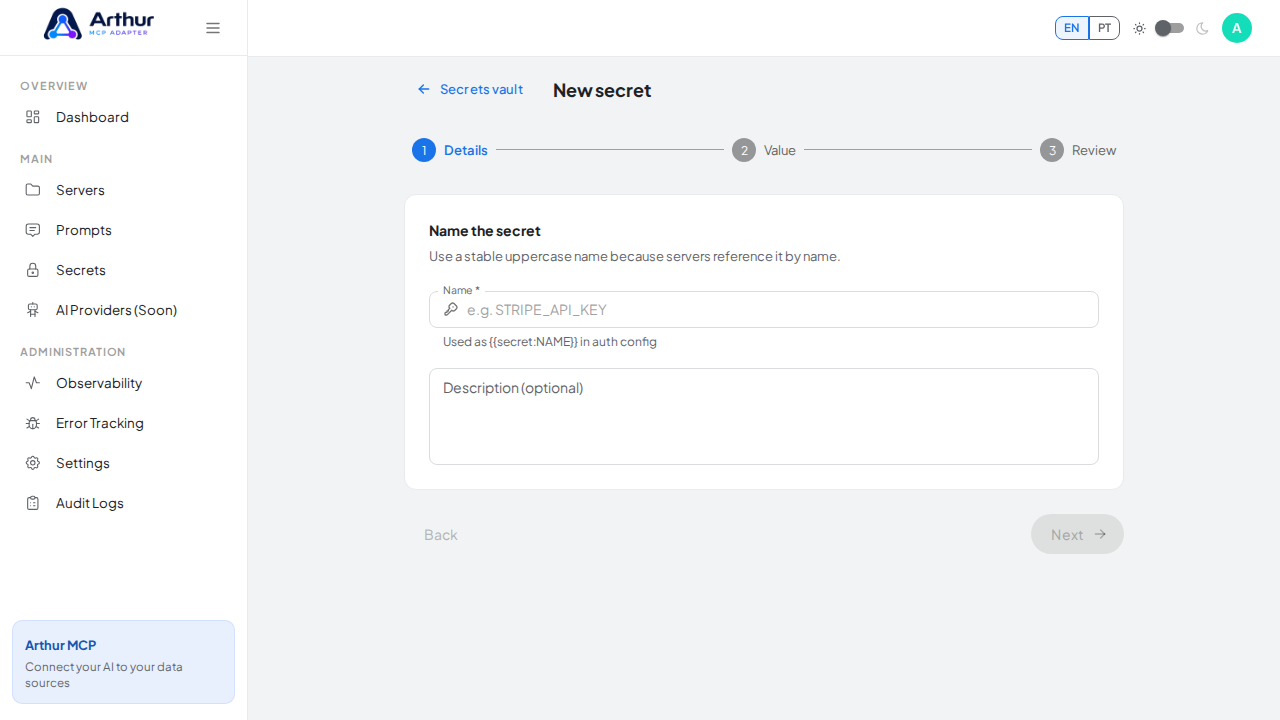
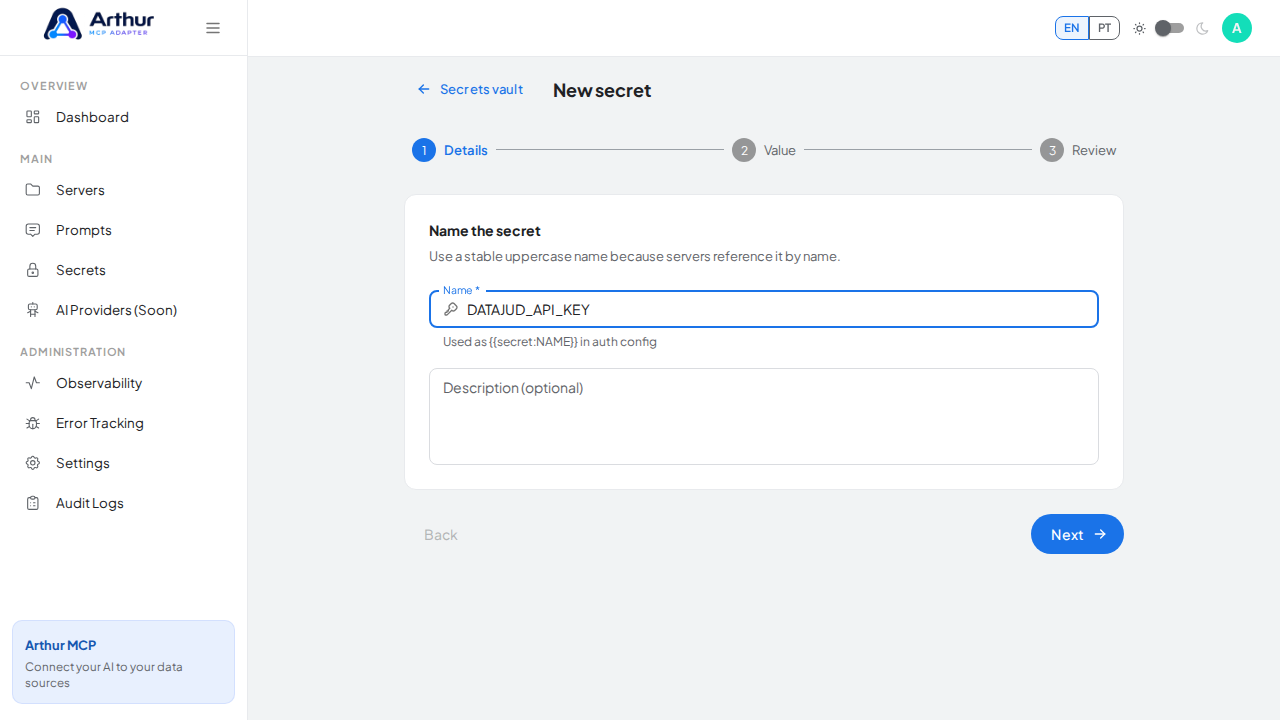
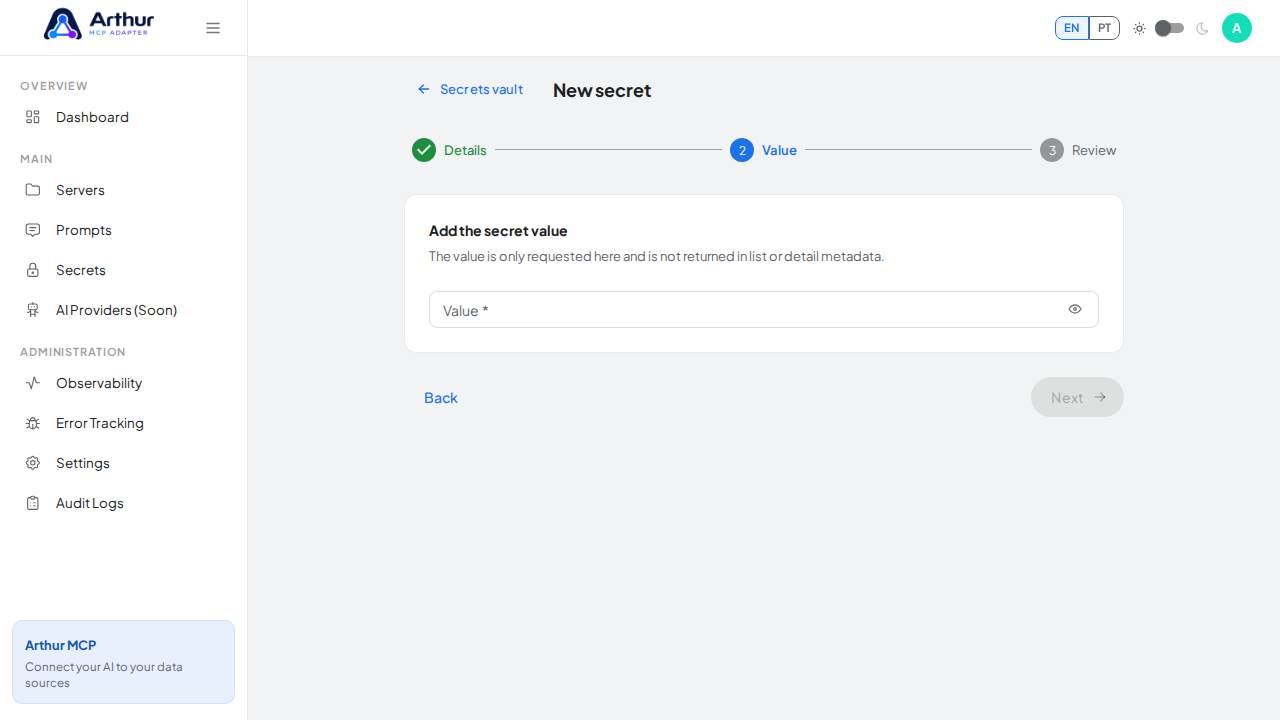
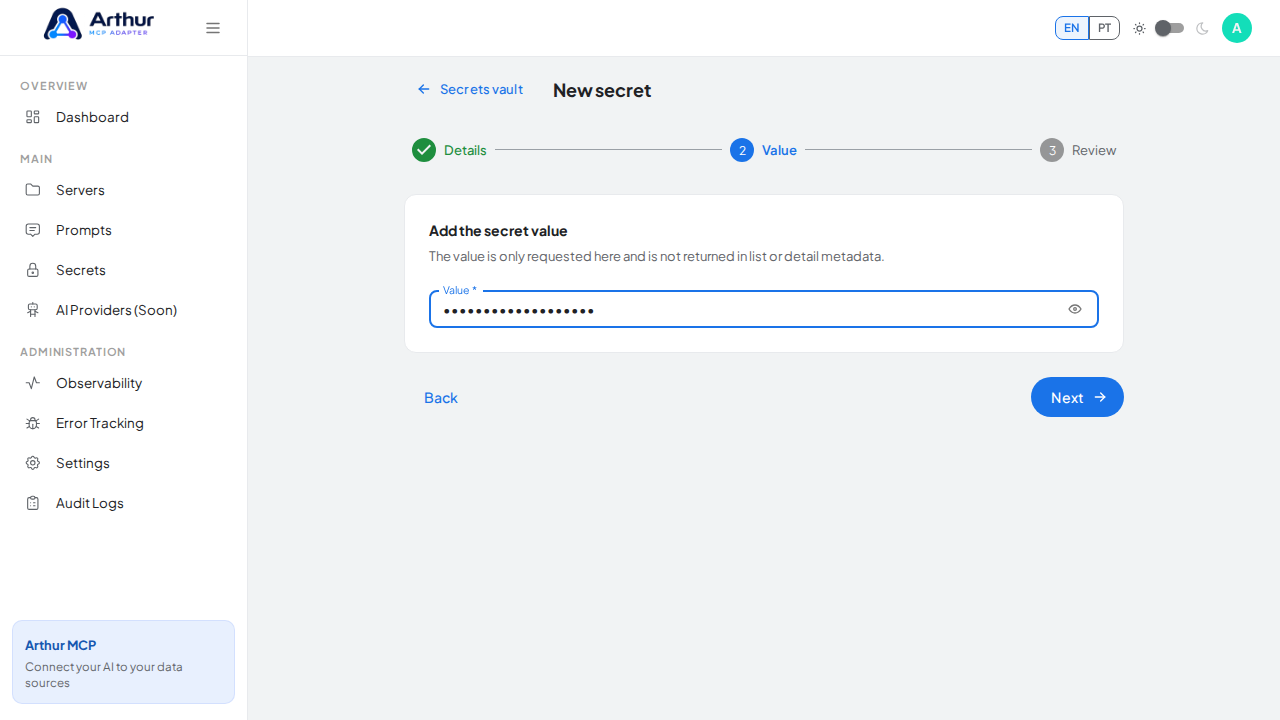
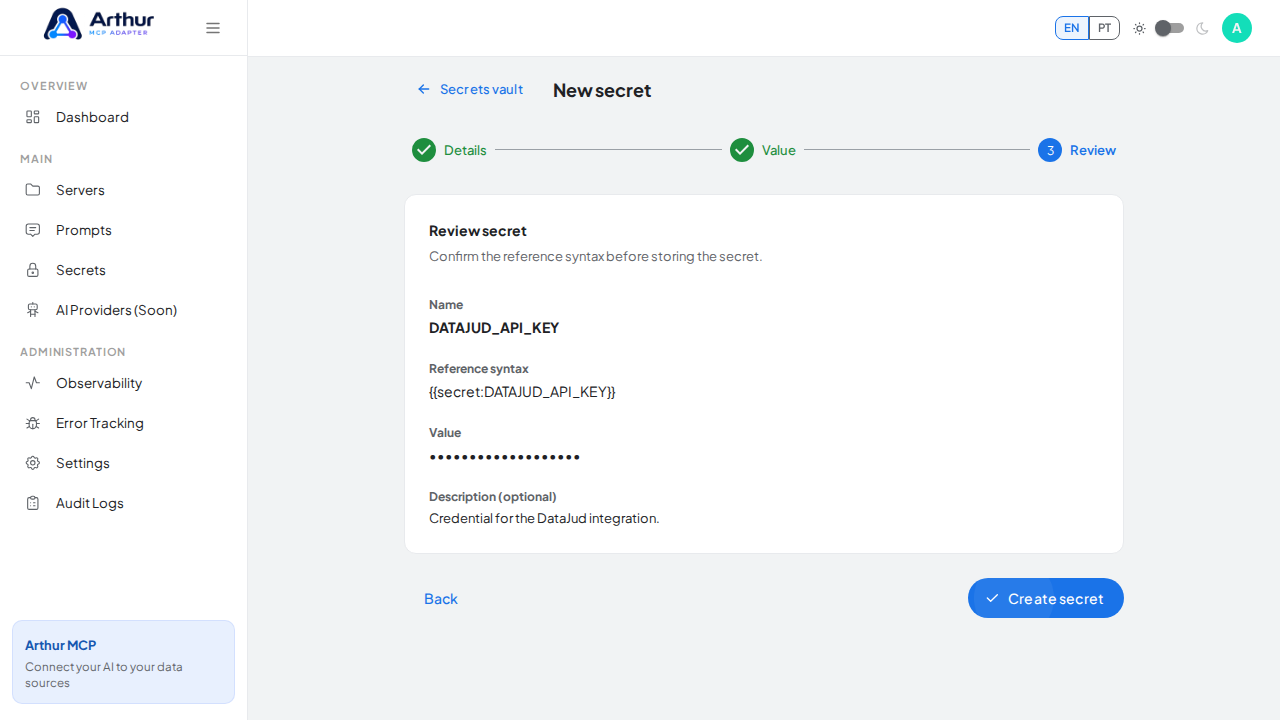
Open the Secrets vault and create a secret named
DATAJUD_API_KEYholding your API key. Copy the current public key from the CNJ DataJud access page and store the complete Authorization value, including the 'APIKey ' prefix. CNJ may rotate this key at any time.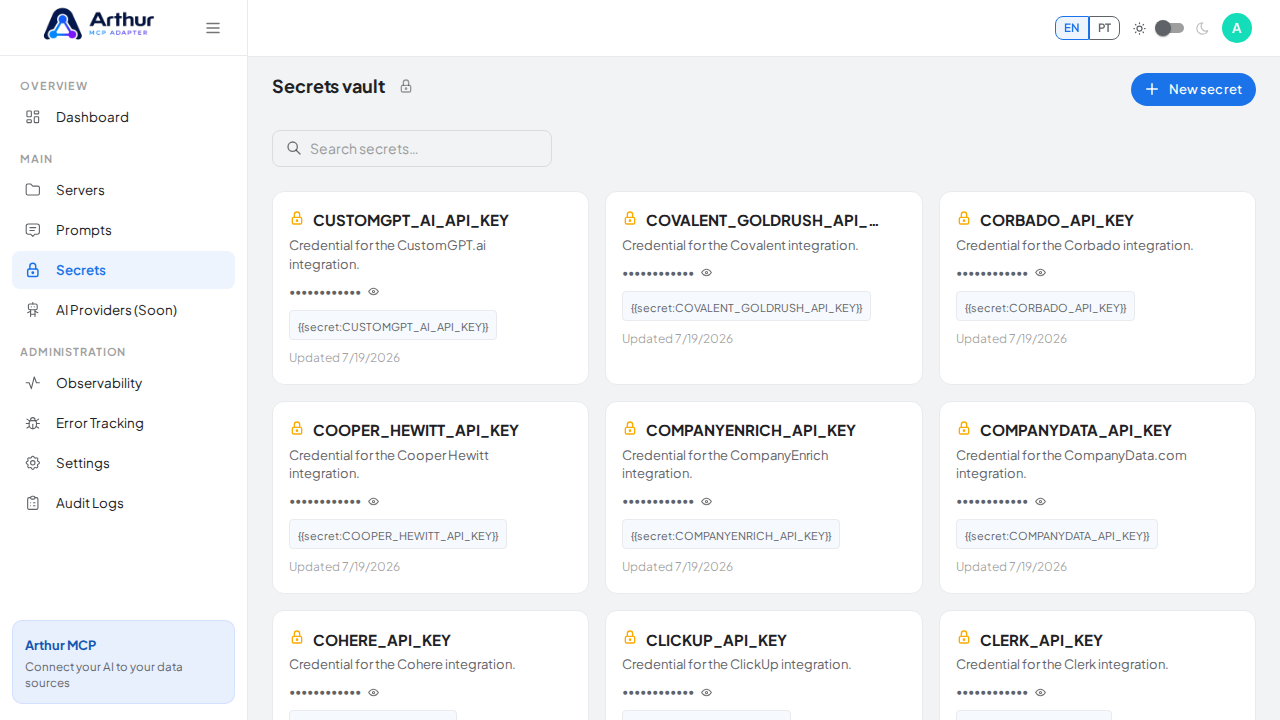
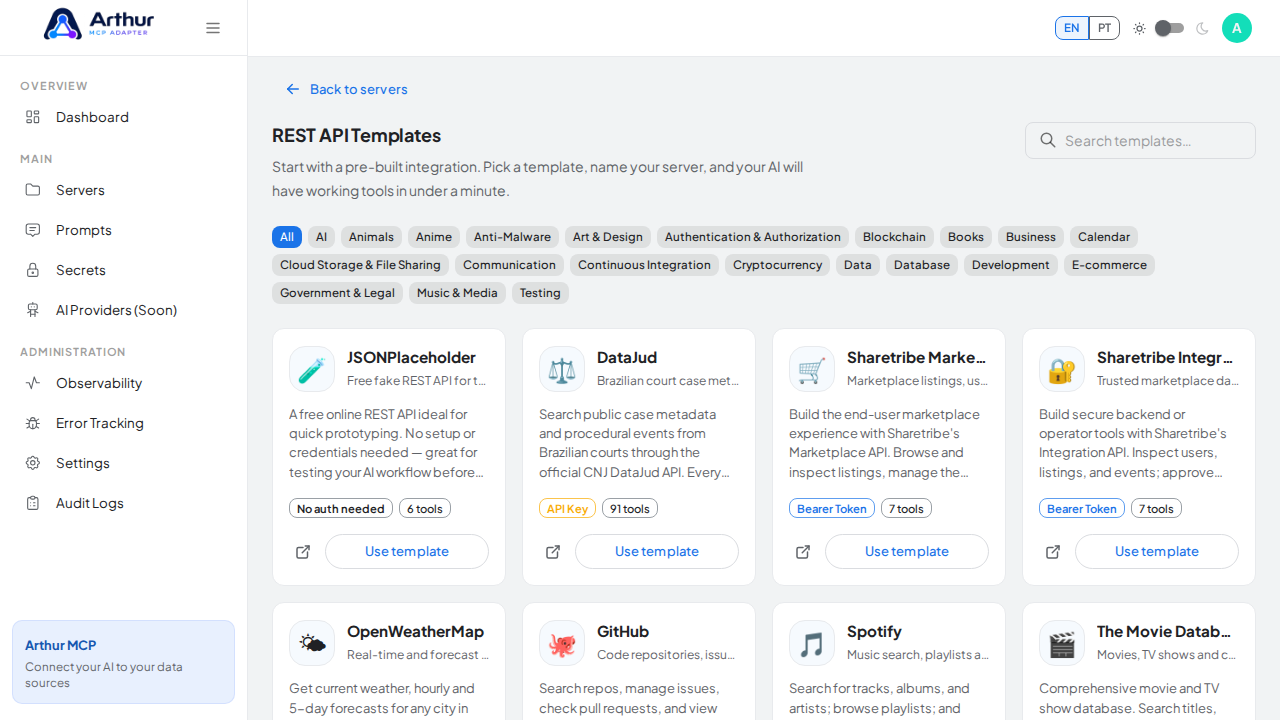
Go to the REST API Templates gallery and search for DataJud.
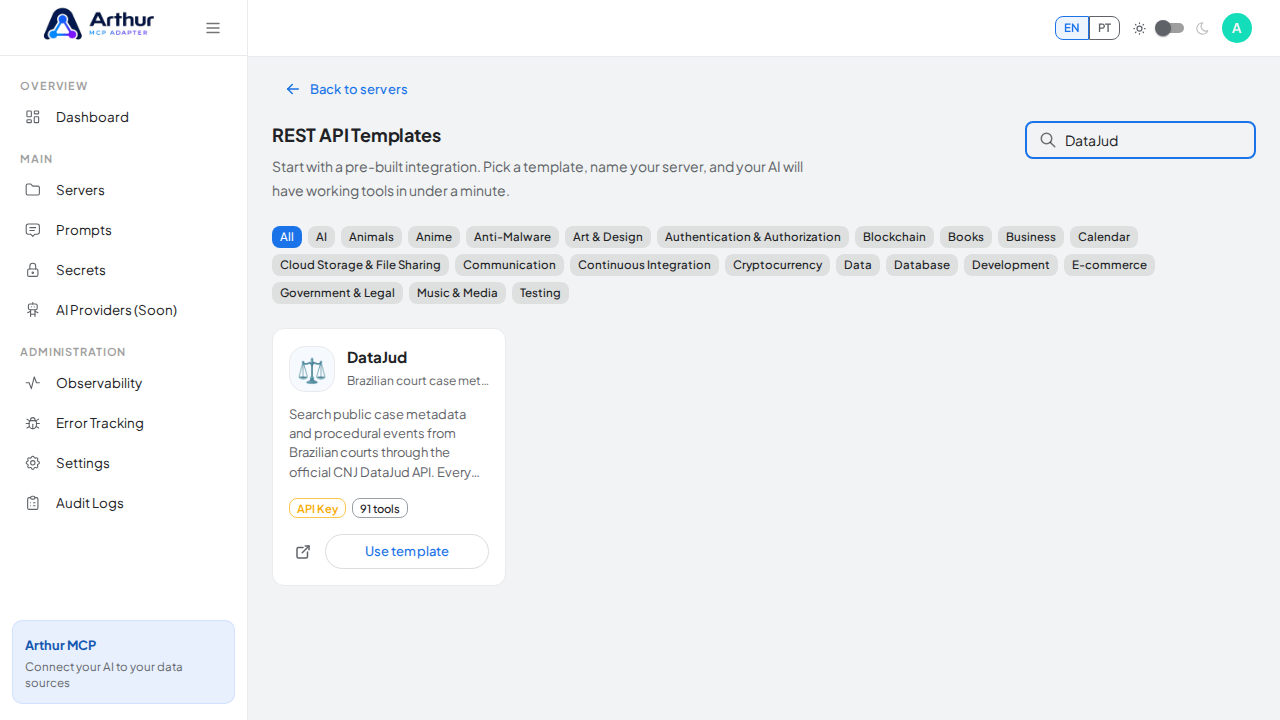
Click Use template on the DataJud card to open the server-creation dialog.
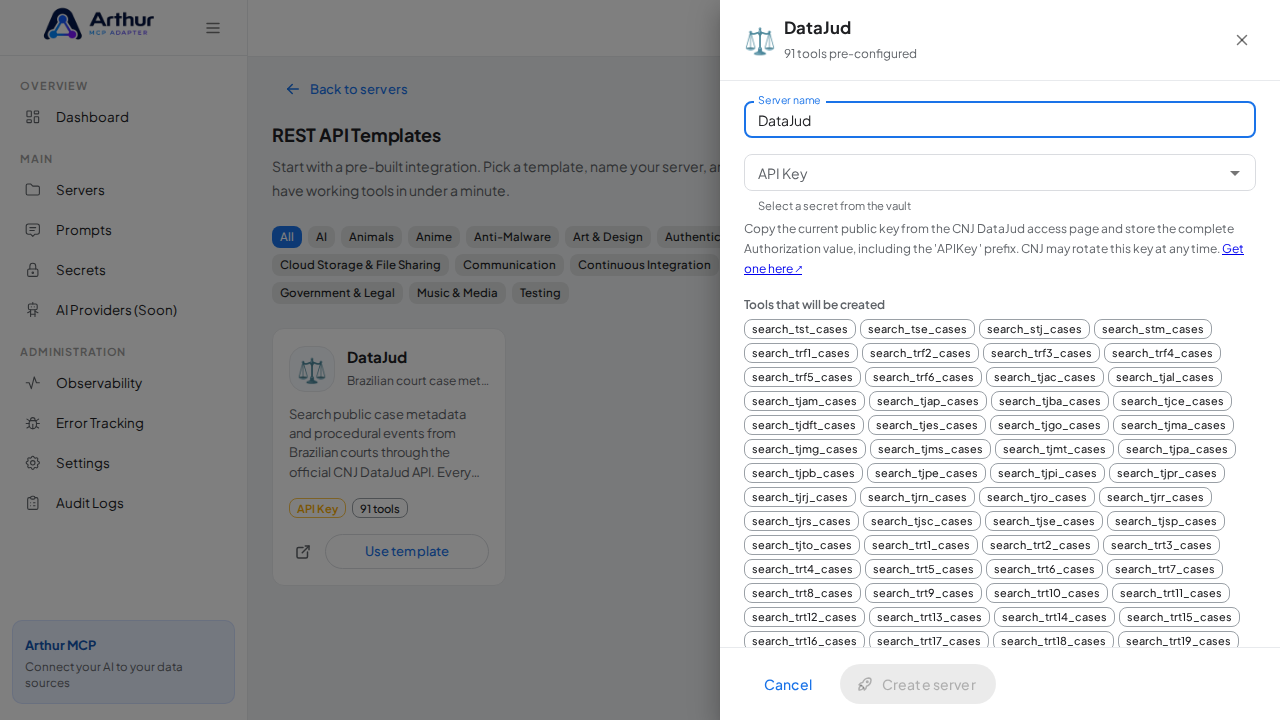
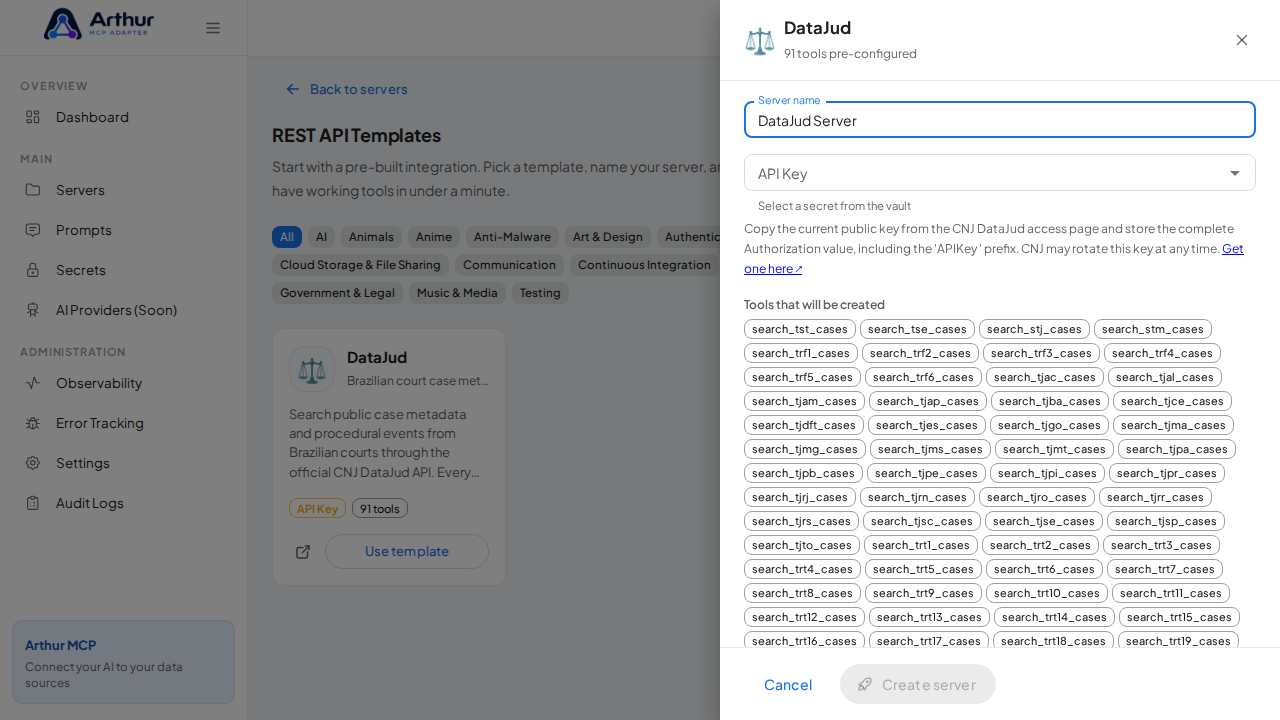
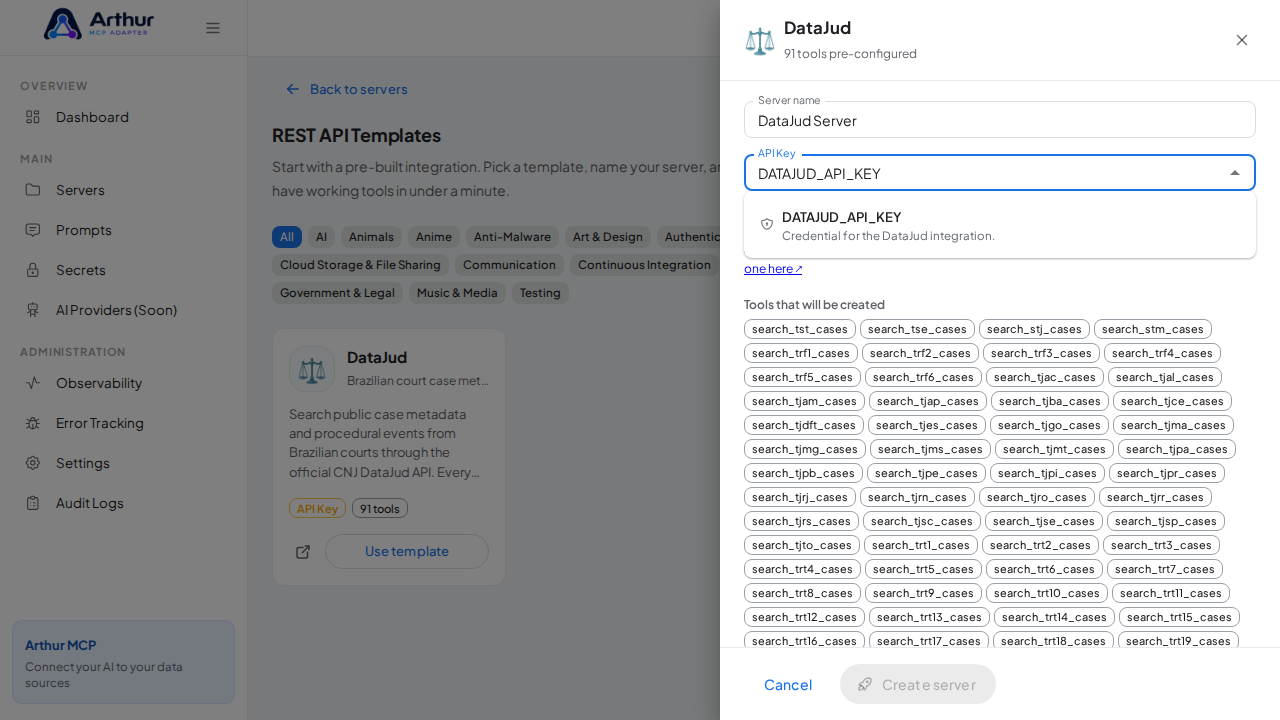
Review the server name and select
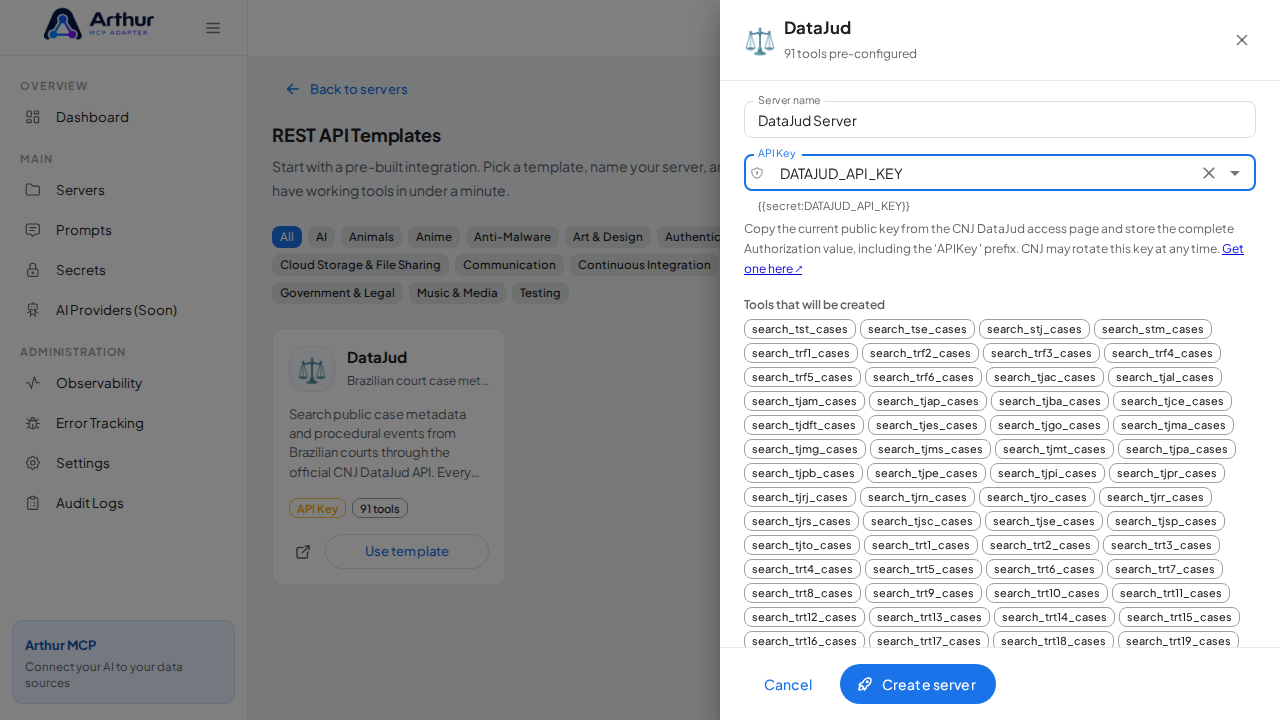
DATAJUD_API_KEYin the credential field — the dialog only accepts vault secrets, and it lists every tool that will be created.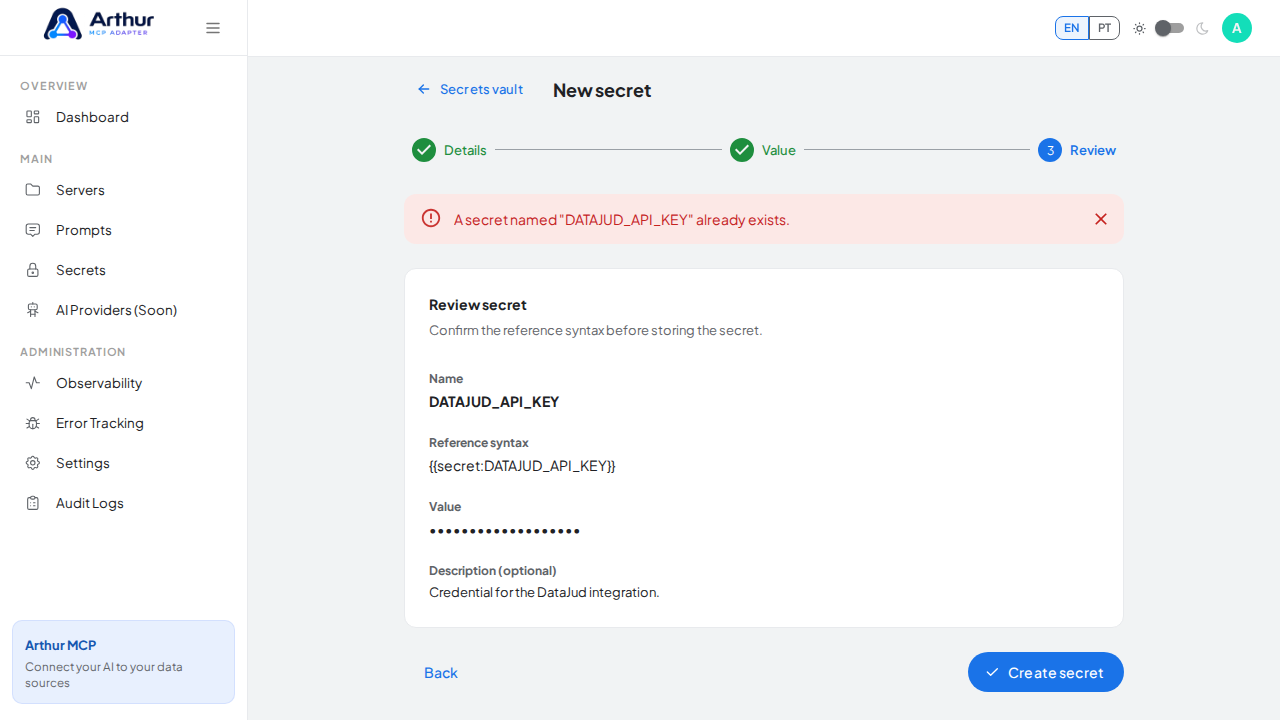
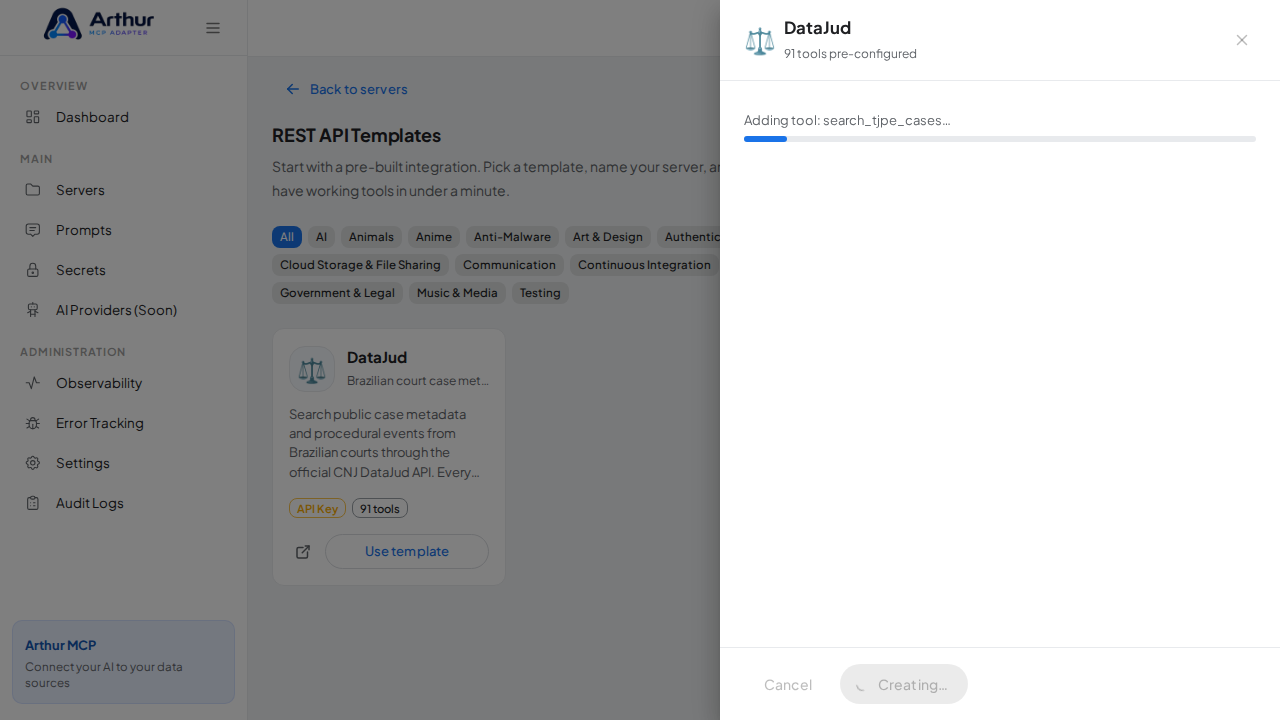
Click Create server. Arthur creates the server, applies the authentication, and generates all the tools.
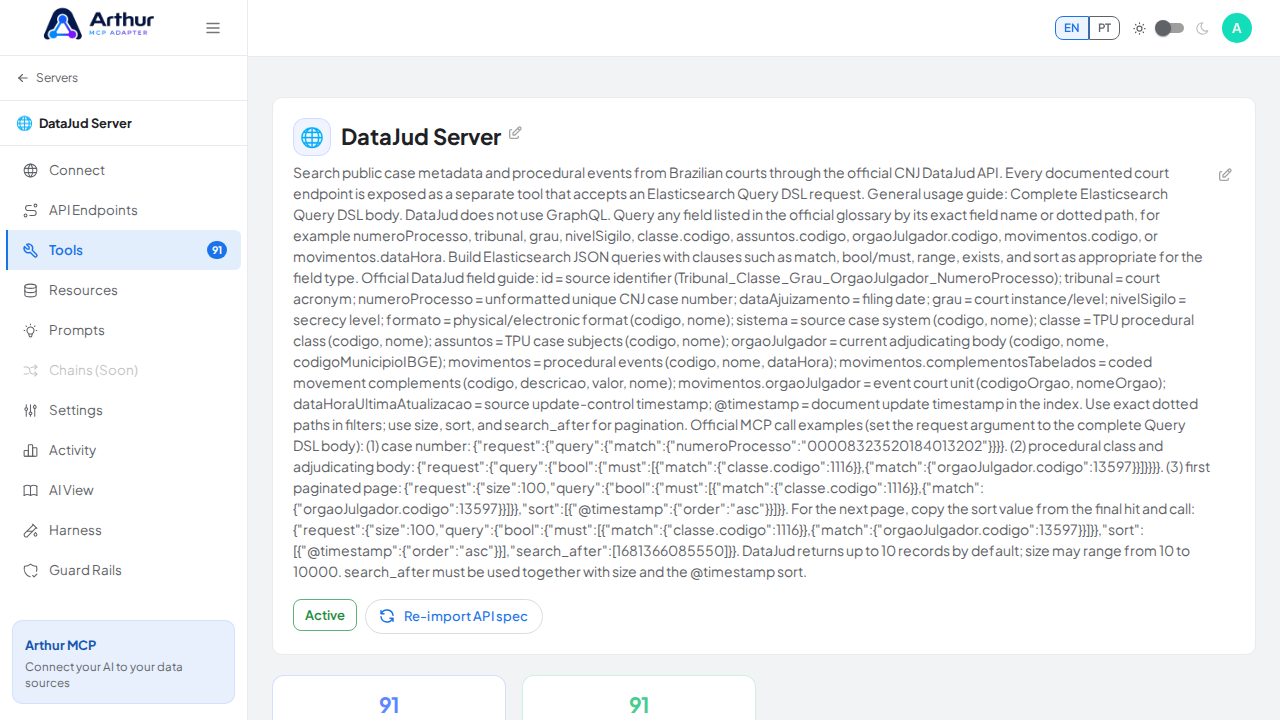
Open the server's Tools tab to review the generated tools.
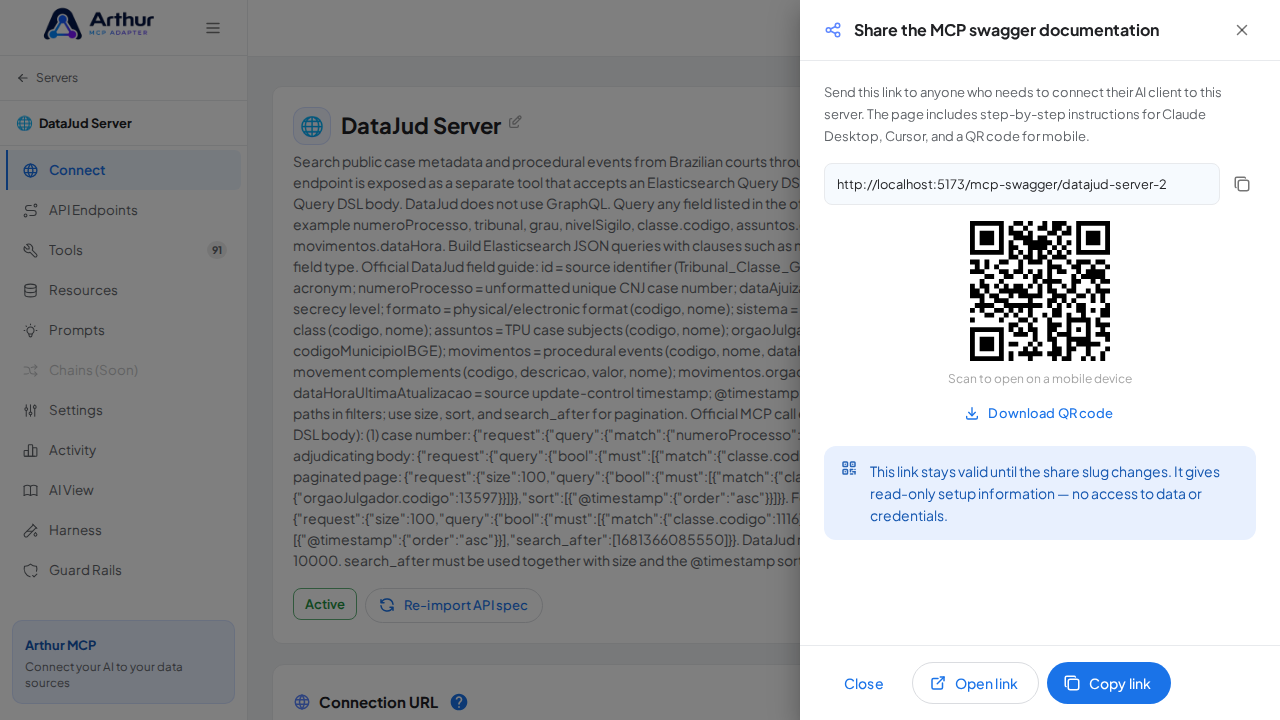
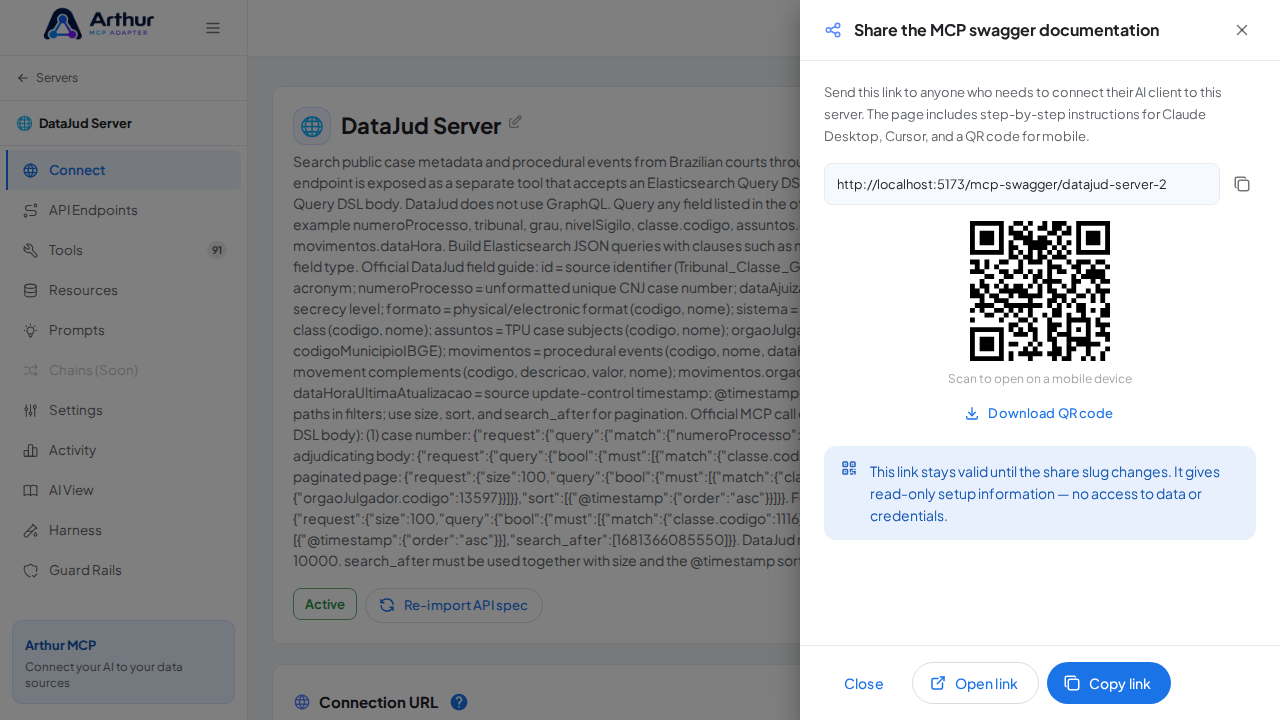
Open the server's Connect section and click Share the MCP swagger documentation — Arthur generates the public documentation link and QR code for this server.
Confirm it worked
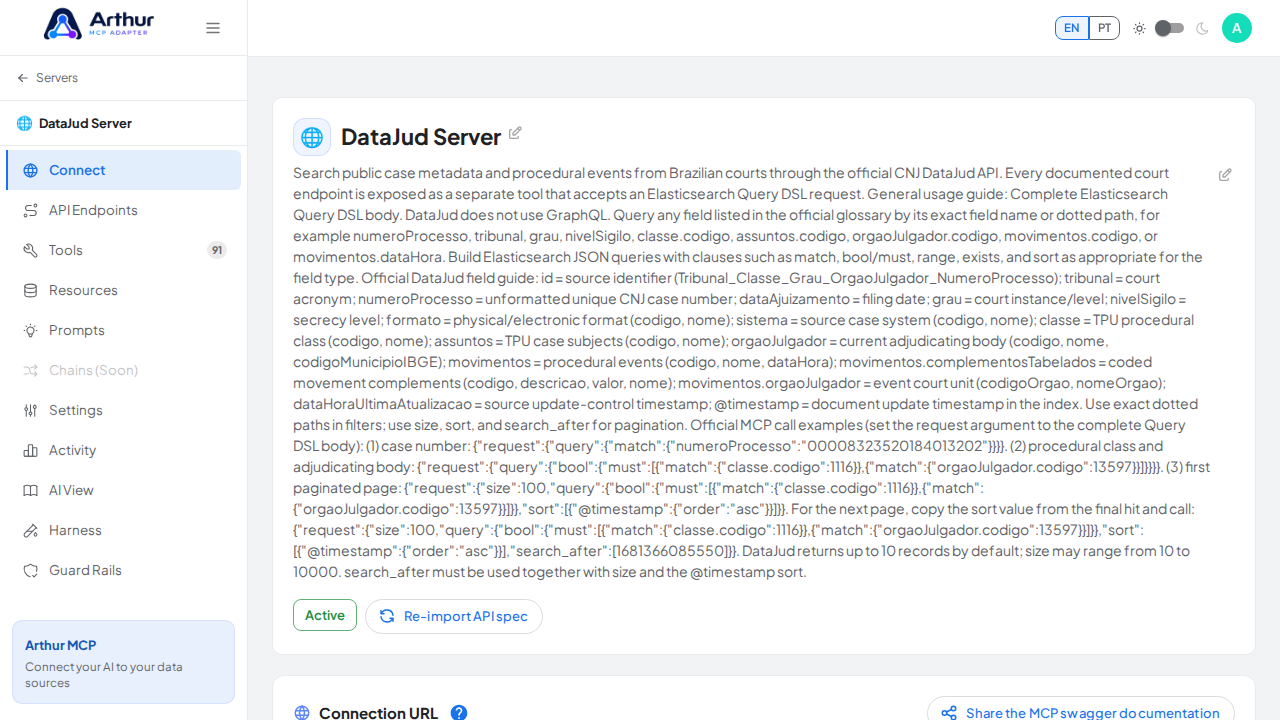
The server appears with 91 preconfigured tool(s): search_tst_cases, search_tse_cases, search_stj_cases, search_stm_cases, search_trf1_cases, search_trf2_cases, search_trf3_cases, search_trf4_cases, search_trf5_cases, search_trf6_cases, search_tjac_cases, search_tjal_cases, search_tjam_cases, search_tjap_cases, search_tjba_cases, search_tjce_cases, search_tjdft_cases, search_tjes_cases, search_tjgo_cases, search_tjma_cases, search_tjmg_cases, search_tjms_cases, search_tjmt_cases, search_tjpa_cases, search_tjpb_cases, search_tjpe_cases, search_tjpi_cases, search_tjpr_cases, search_tjrj_cases, search_tjrn_cases, search_tjro_cases, search_tjrr_cases, search_tjrs_cases, search_tjsc_cases, search_tjse_cases, search_tjsp_cases, search_tjto_cases, search_trt1_cases, search_trt2_cases, search_trt3_cases, search_trt4_cases, search_trt5_cases, search_trt6_cases, search_trt7_cases, search_trt8_cases, search_trt9_cases, search_trt10_cases, search_trt11_cases, search_trt12_cases, search_trt13_cases, search_trt14_cases, search_trt15_cases, search_trt16_cases, search_trt17_cases, search_trt18_cases, search_trt19_cases, search_trt20_cases, search_trt21_cases, search_trt22_cases, search_trt23_cases, search_trt24_cases, search_tre_ac_cases, search_tre_al_cases, search_tre_am_cases, search_tre_ap_cases, search_tre_ba_cases, search_tre_ce_cases, search_tre_dft_cases, search_tre_es_cases, search_tre_go_cases, search_tre_ma_cases, search_tre_mg_cases, search_tre_ms_cases, search_tre_mt_cases, search_tre_pa_cases, search_tre_pb_cases, search_tre_pe_cases, search_tre_pi_cases, search_tre_pr_cases, search_tre_rj_cases, search_tre_rn_cases, search_tre_ro_cases, search_tre_rr_cases, search_tre_rs_cases, search_tre_sc_cases, search_tre_se_cases, search_tre_sp_cases, search_tre_to_cases, search_tjmmg_cases, search_tjmrs_cases, search_tjmsp_cases. The Connect section offers the MCP swagger documentation — a shareable page with setup instructions for any AI client.
Good to know
- Search public case metadata and procedural events from Brazilian courts through the official CNJ DataJud API. Every documented court endpoint is exposed as a separate tool that accepts an Elasticsearch Query DSL request. General usage guide: Complete Elasticsearch Query DSL body. DataJud does not use GraphQL. Query any field listed in the official glossary by its exact field name or dotted path, for example numeroProcesso, tribunal, grau, nivelSigilo, classe.codigo, assuntos.codigo, orgaoJulgador.codigo, movimentos.codigo, or movimentos.dataHora. Build Elasticsearch JSON queries with clauses such as match, bool/must, range, exists, and sort as appropriate for the field type. Official DataJud field guide: id = source identifier (Tribunal_Classe_Grau_OrgaoJulgador_NumeroProcesso); tribunal = court acronym; numeroProcesso = unformatted unique CNJ case number; dataAjuizamento = filing date; grau = court instance/level; nivelSigilo = secrecy level; formato = physical/electronic format (codigo, nome); sistema = source case system (codigo, nome); classe = TPU procedural class (codigo, nome); assuntos = TPU case subjects (codigo, nome); orgaoJulgador = current adjudicating body (codigo, nome, codigoMunicipioIBGE); movimentos = procedural events (codigo, nome, dataHora); movimentos.complementosTabelados = coded movement complements (codigo, descricao, valor, nome); movimentos.orgaoJulgador = event court unit (codigoOrgao, nomeOrgao); dataHoraUltimaAtualizacao = source update-control timestamp; @timestamp = document update timestamp in the index. Use exact dotted paths in filters; use size, sort, and search_after for pagination. Official MCP call examples (set the request argument to the complete Query DSL body): (1) case number: {"request":{"query":{"match":{"numeroProcesso":"00008323520184013202"}}}}. (2) procedural class and adjudicating body: {"request":{"query":{"bool":{"must":[{"match":{"classe.codigo":1116}},{"match":{"orgaoJulgador.codigo":13597}}]}}}}. (3) first paginated page: {"request":{"size":100,"query":{"bool":{"must":[{"match":{"classe.codigo":1116}},{"match":{"orgaoJulgador.codigo":13597}}]}},"sort":[{"@timestamp":{"order":"asc"}}]}}. For the next page, copy the sort value from the final hit and call: {"request":{"size":100,"query":{"bool":{"must":[{"match":{"classe.codigo":1116}},{"match":{"orgaoJulgador.codigo":13597}}]}},"sort":[{"@timestamp":{"order":"asc"}}],"search_after":[1681366085550]}}. DataJud returns up to 10 records by default; size may range from 10 to 10000. search_after must be used together with size and the @timestamp sort.
- This integration requires a credential (api-key). Get one at https://datajud-wiki.cnj.jus.br/api-publica/acesso/.
- Official API documentation: https://datajud-wiki.cnj.jus.br/api-publica/
- Editing a tool later never changes the template — templates are starting points, and the server is fully yours after creation.
Related
Tutorial video