
How to create Win/Loss Analysis using MCP
Extract insights from won and lost deals. This guide creates the Win/Loss Analysis prompt from Arthur's template catalog, sets up a blank MCP server, and links the prompt so any connected AI client can use it.
Steps
Go to Prompt Templates and search for Win/Loss Analysis.
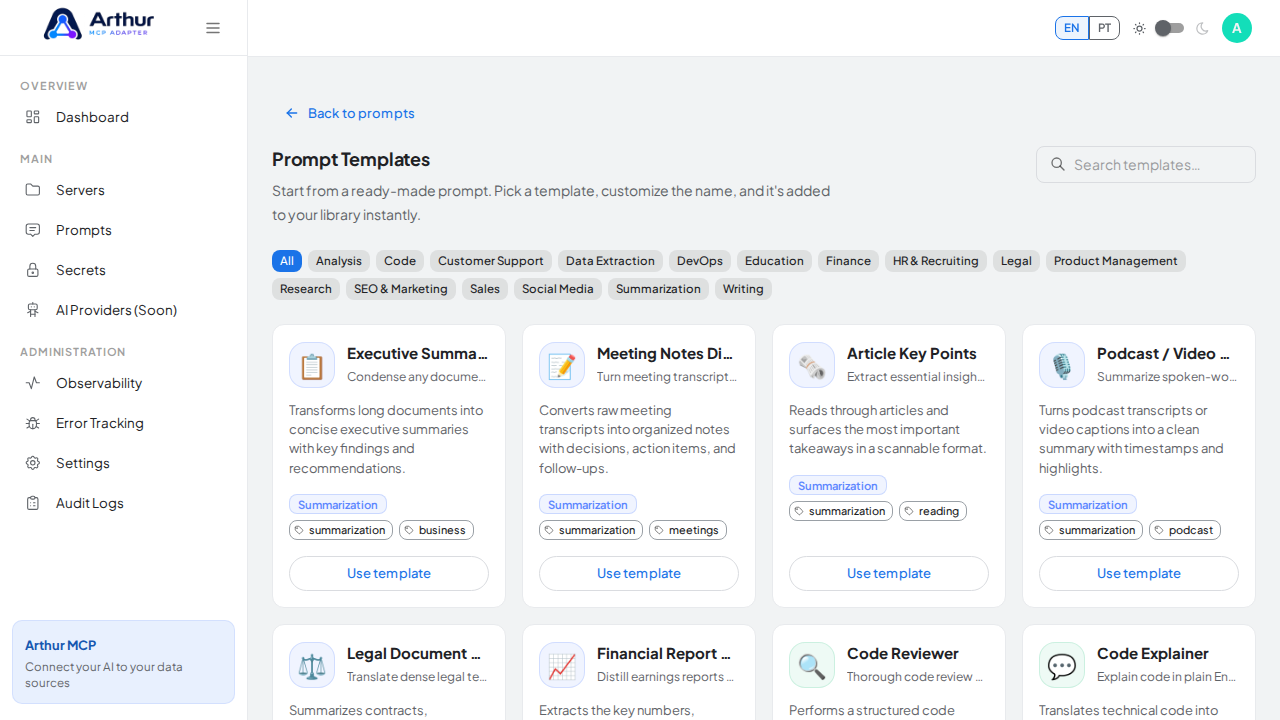
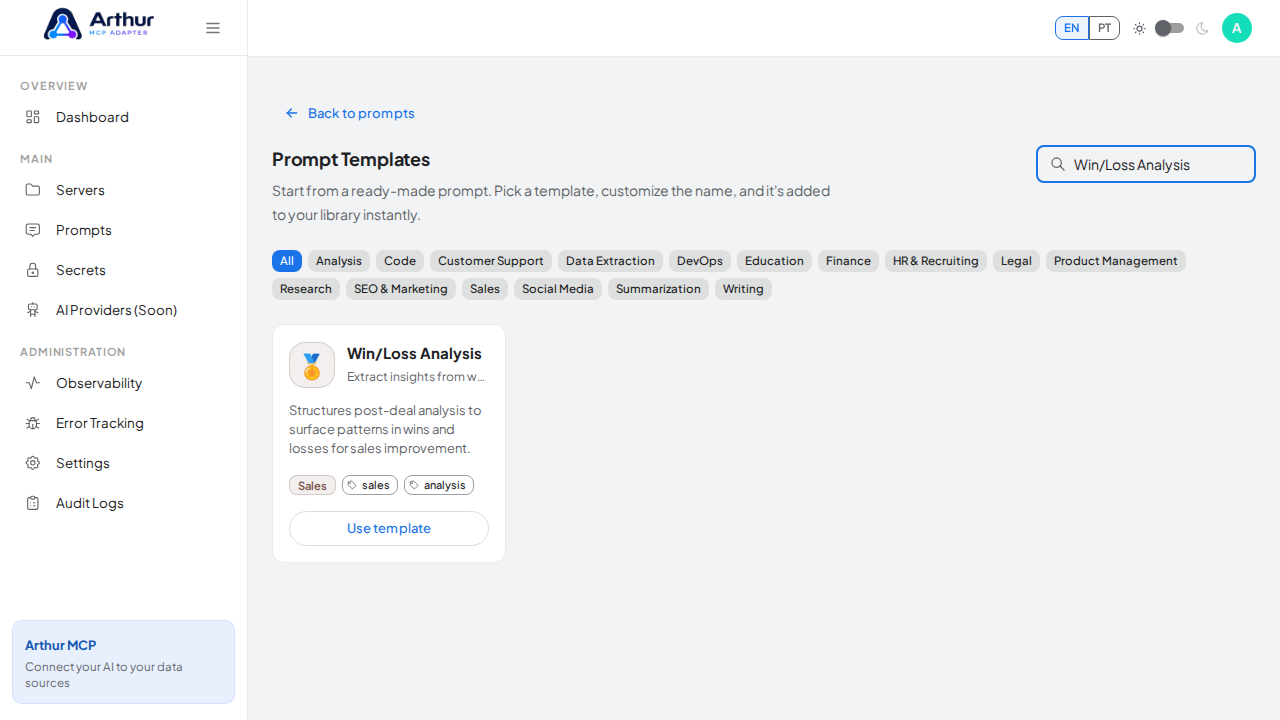
Click Use template on the Win/Loss Analysis card and review the prefilled name, description, and content preview.
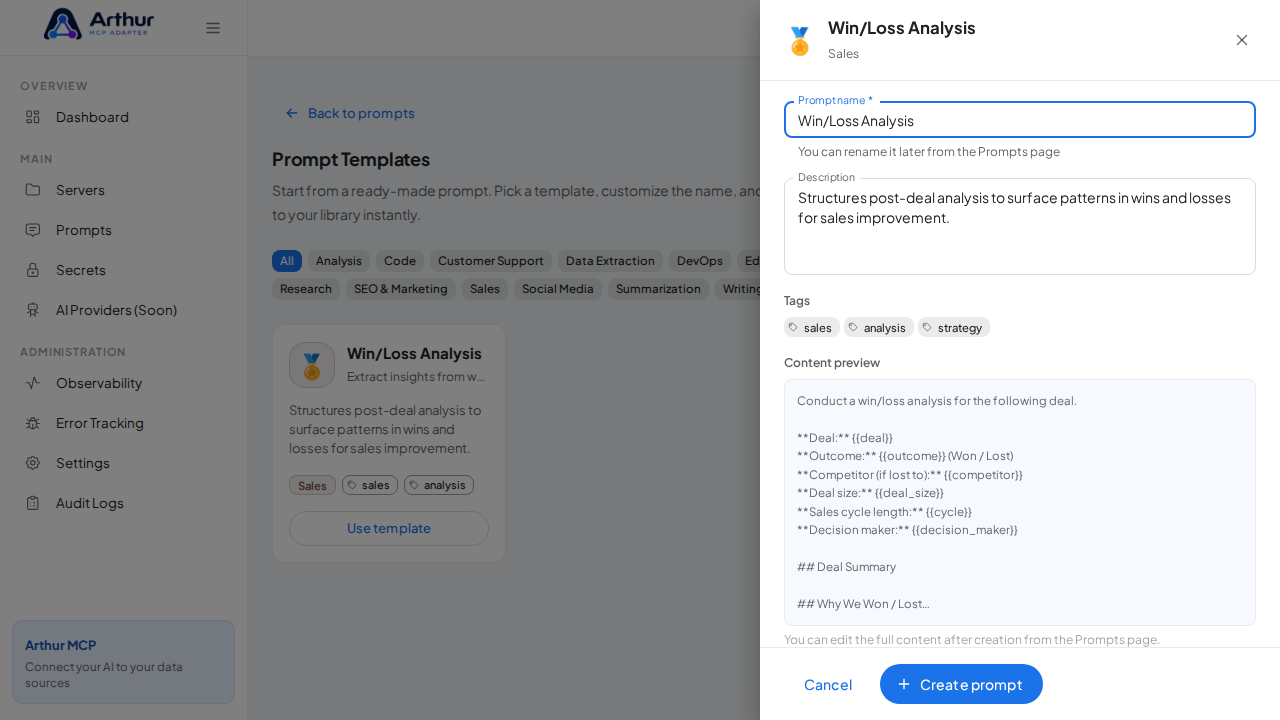
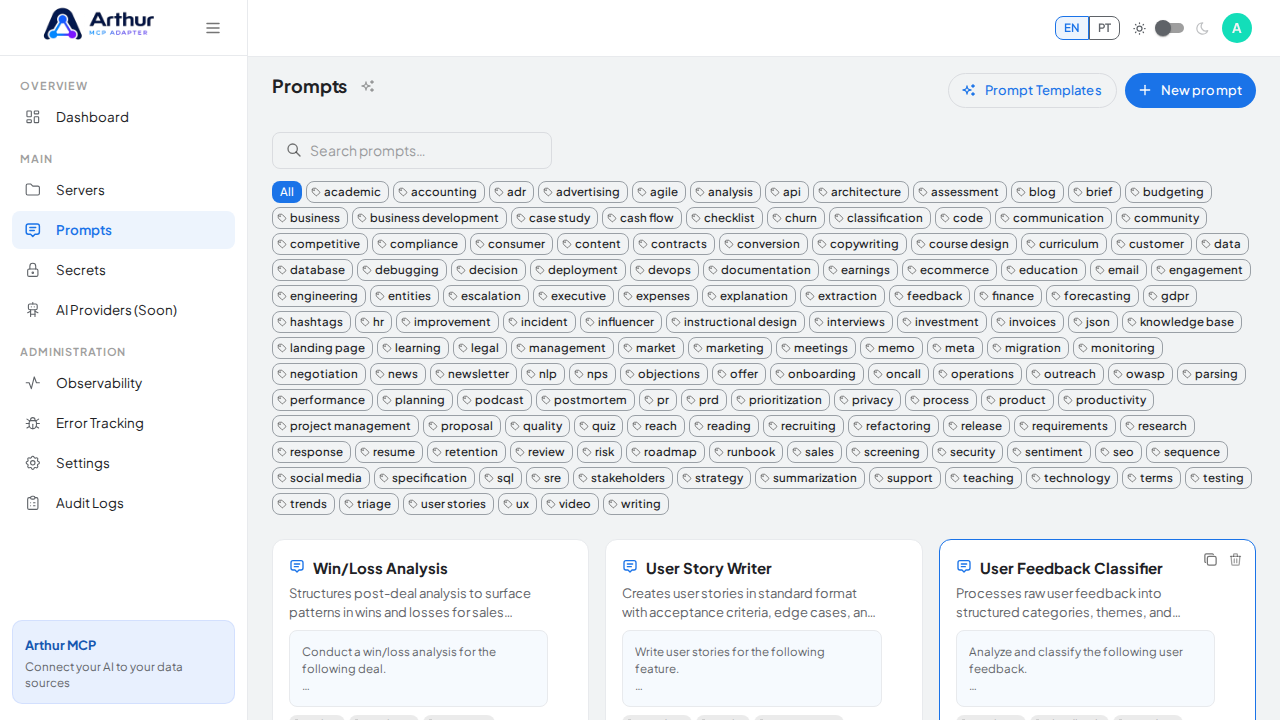
Click Create prompt — the prompt is added to your shared library.
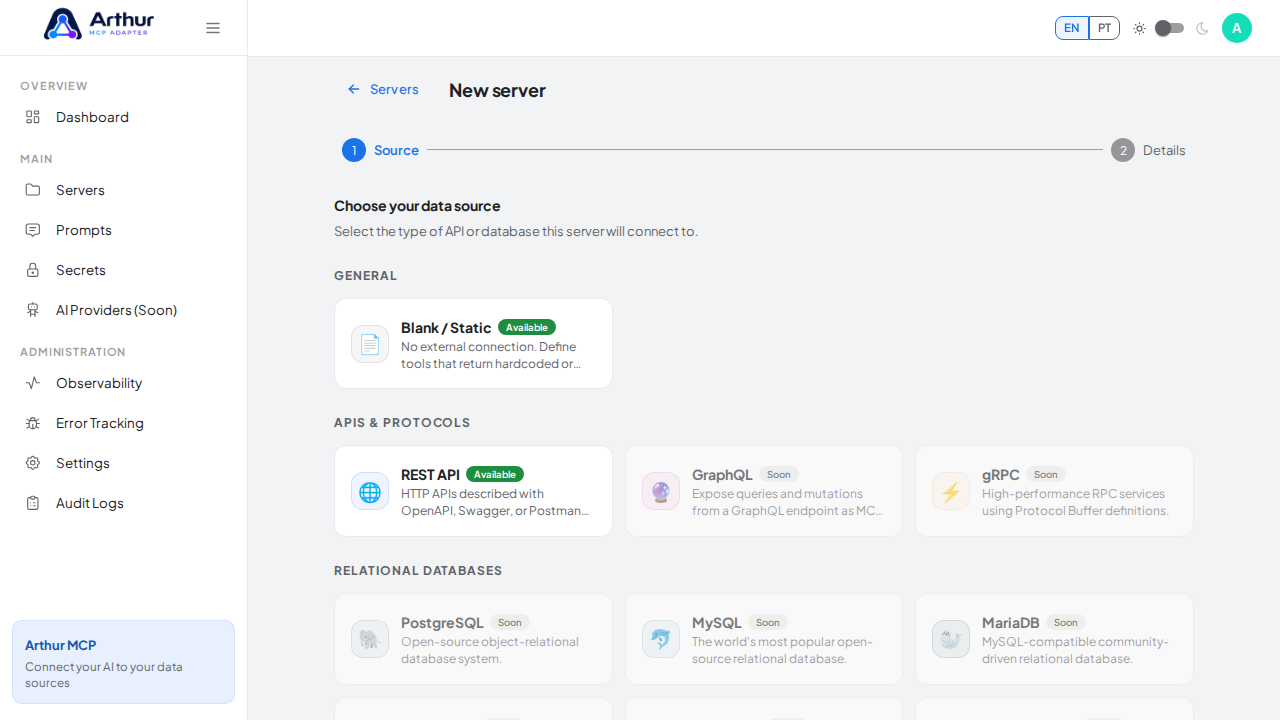
Go to New server, choose Blank / Static as the source, and click Next.
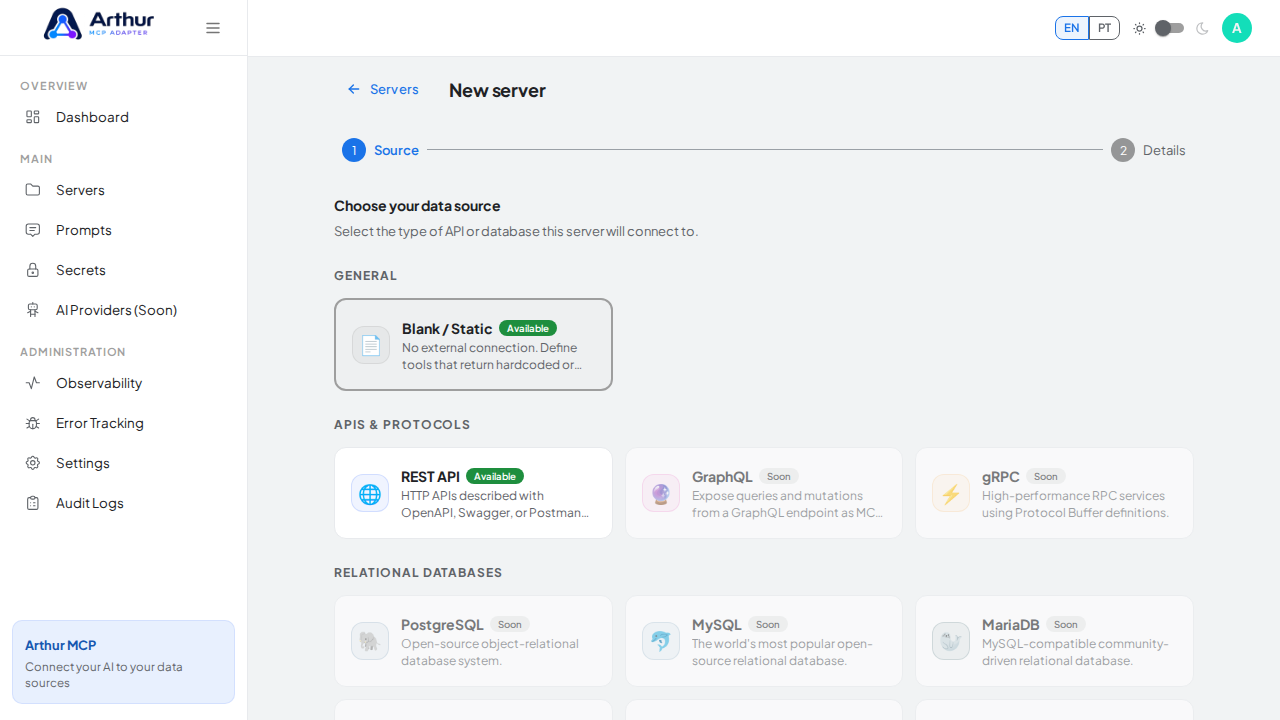
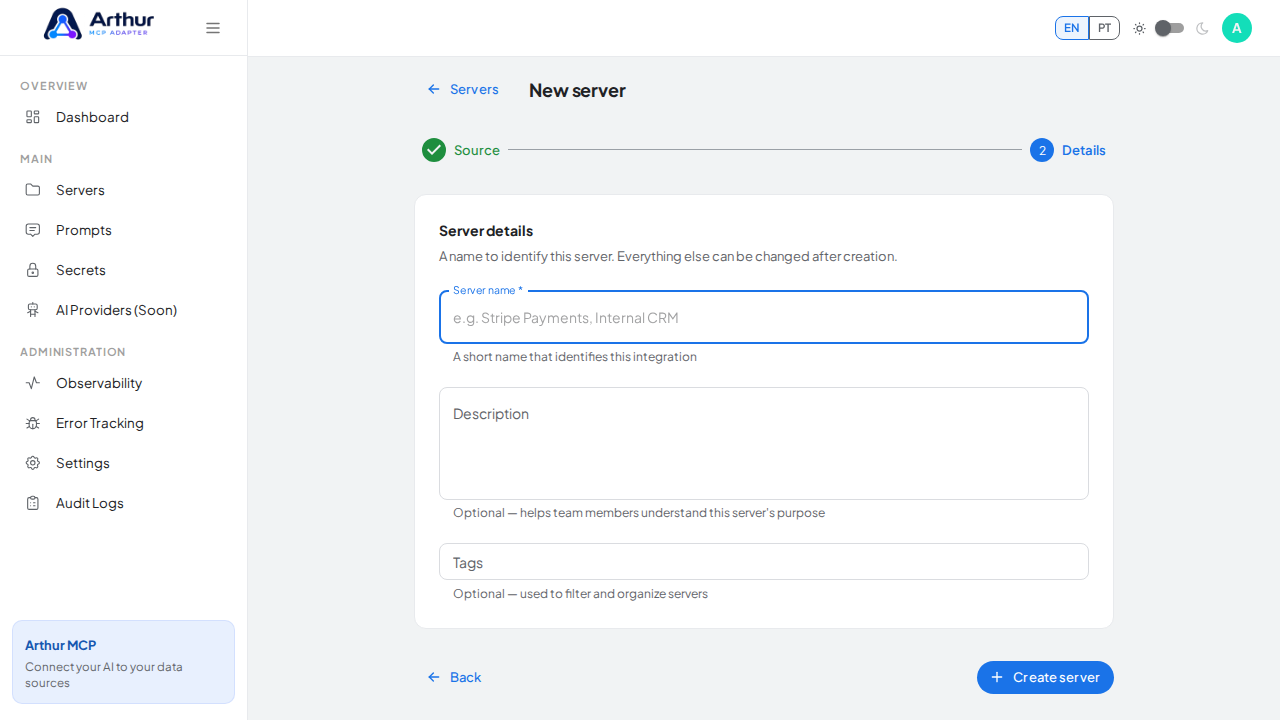
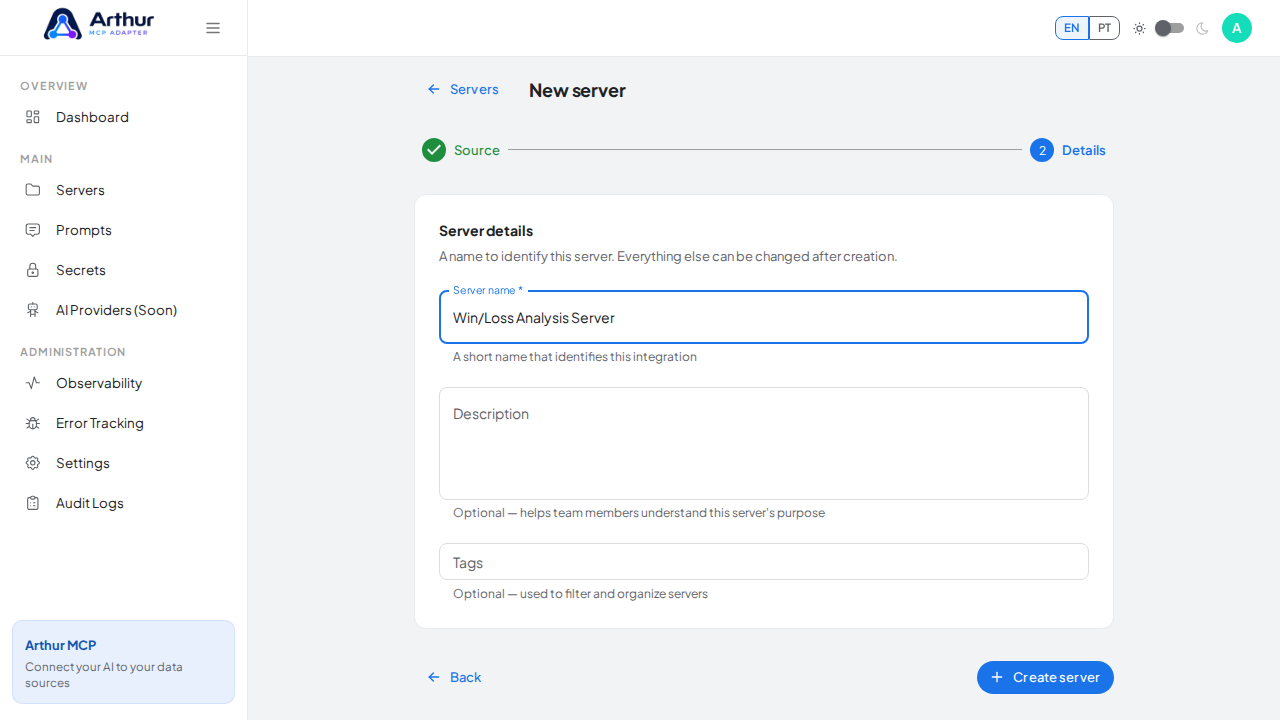
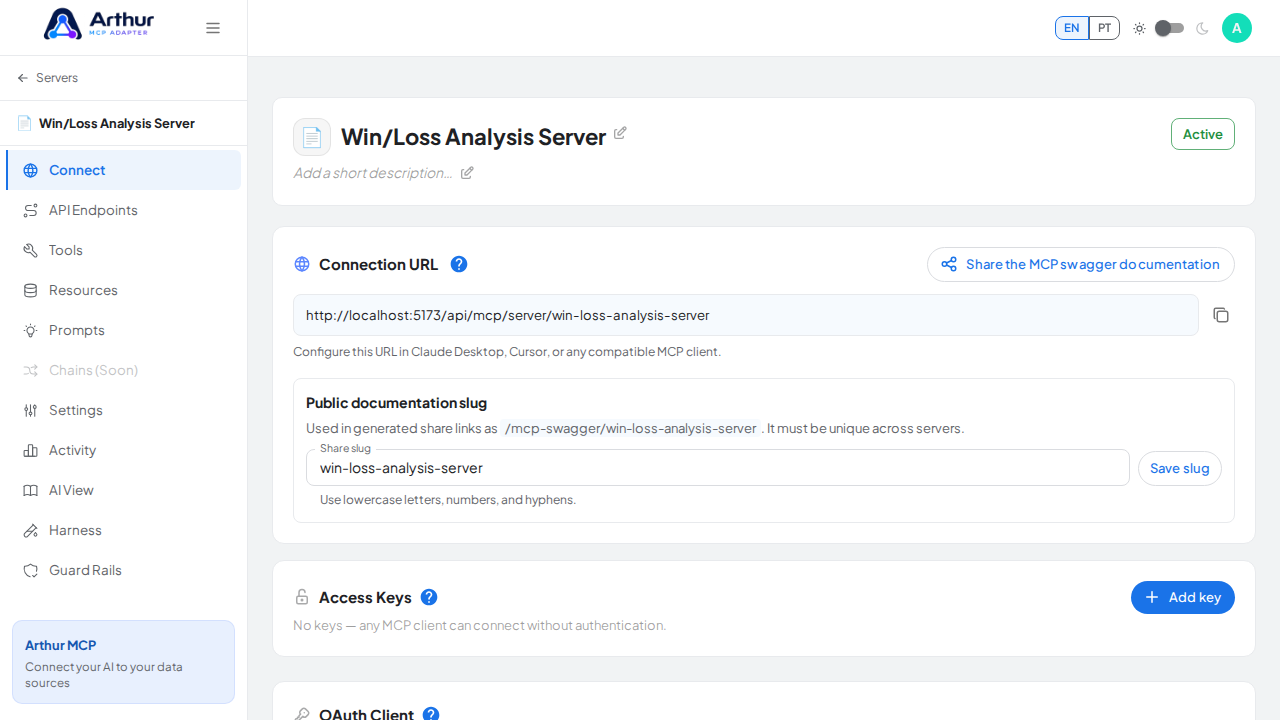
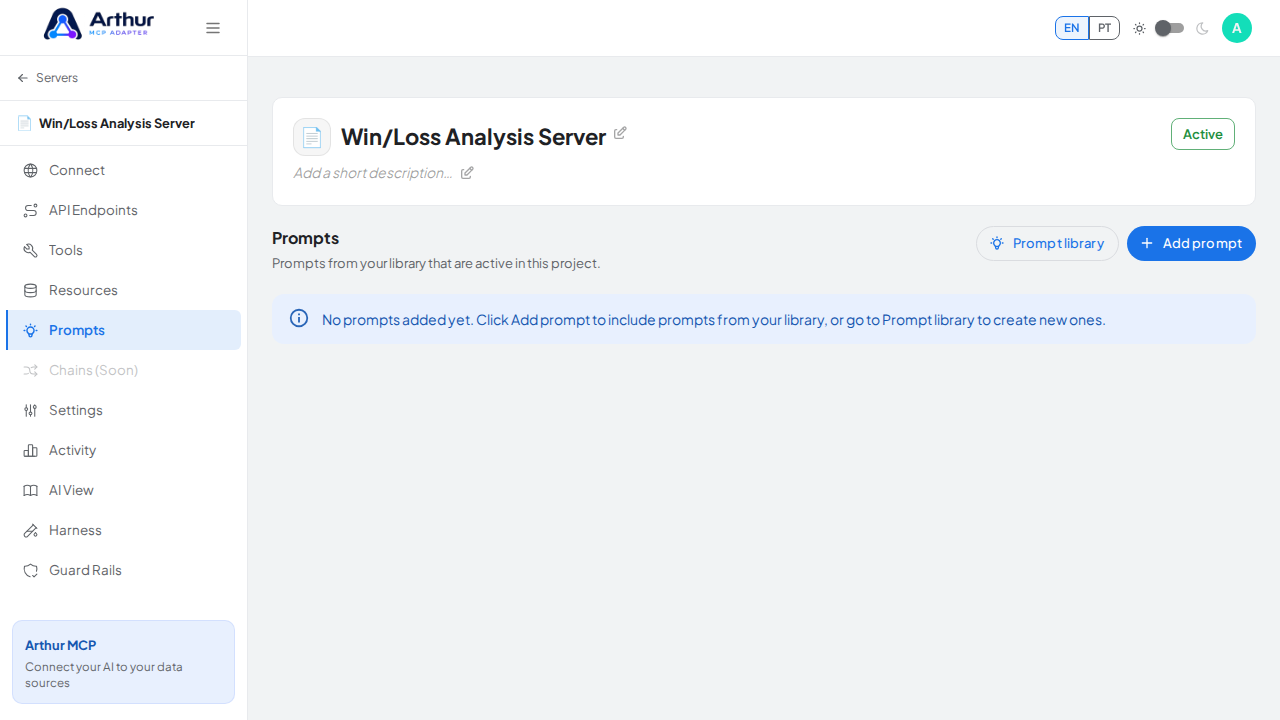
Name the server (for example, Win/Loss Analysis Server) and click Create server.
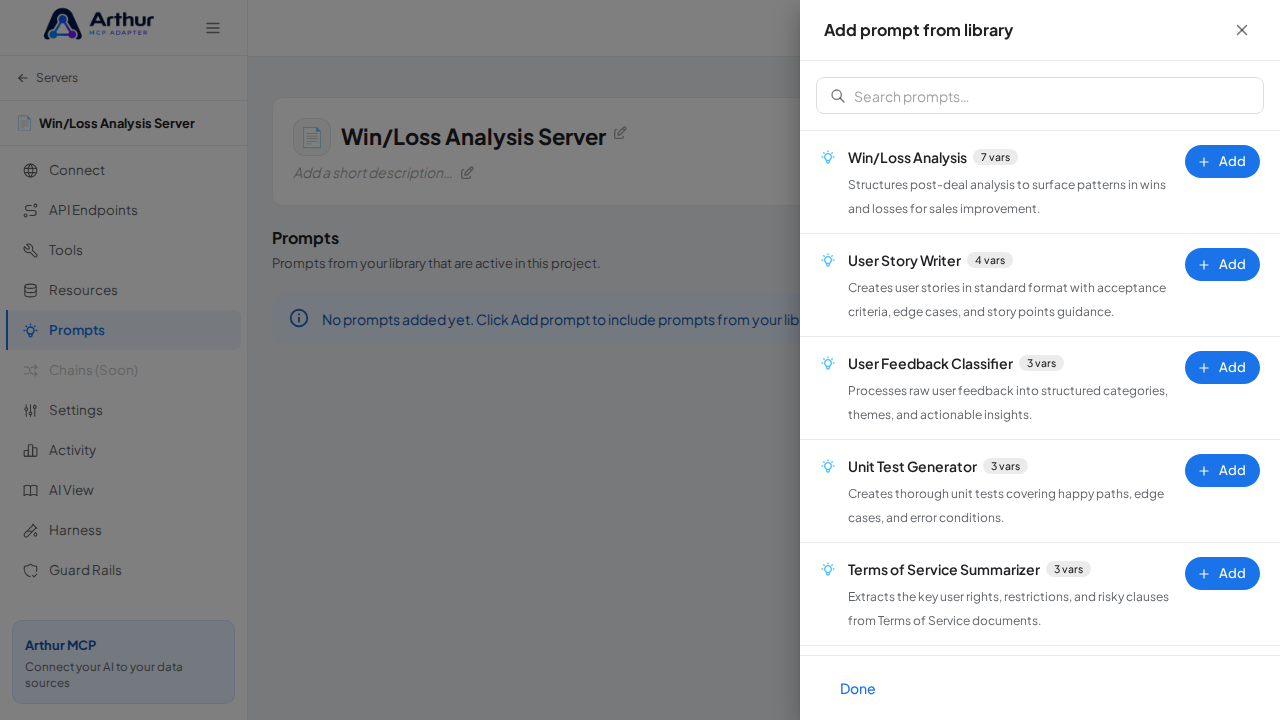
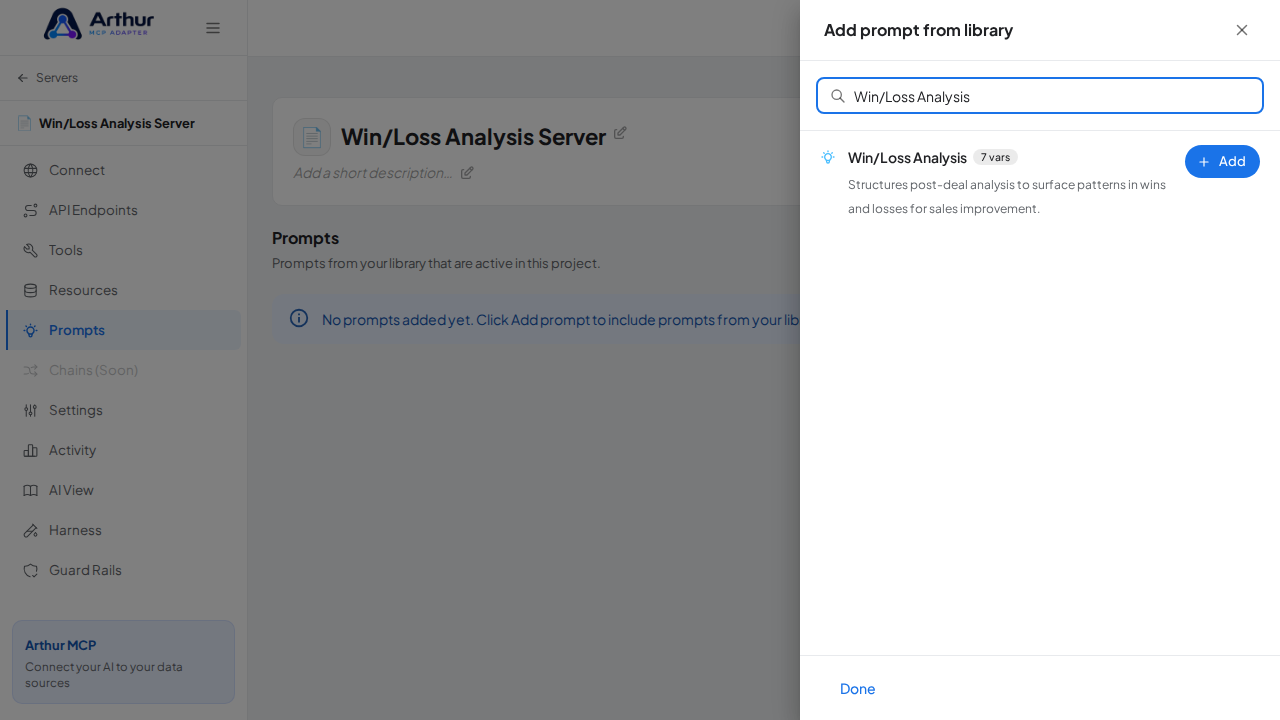
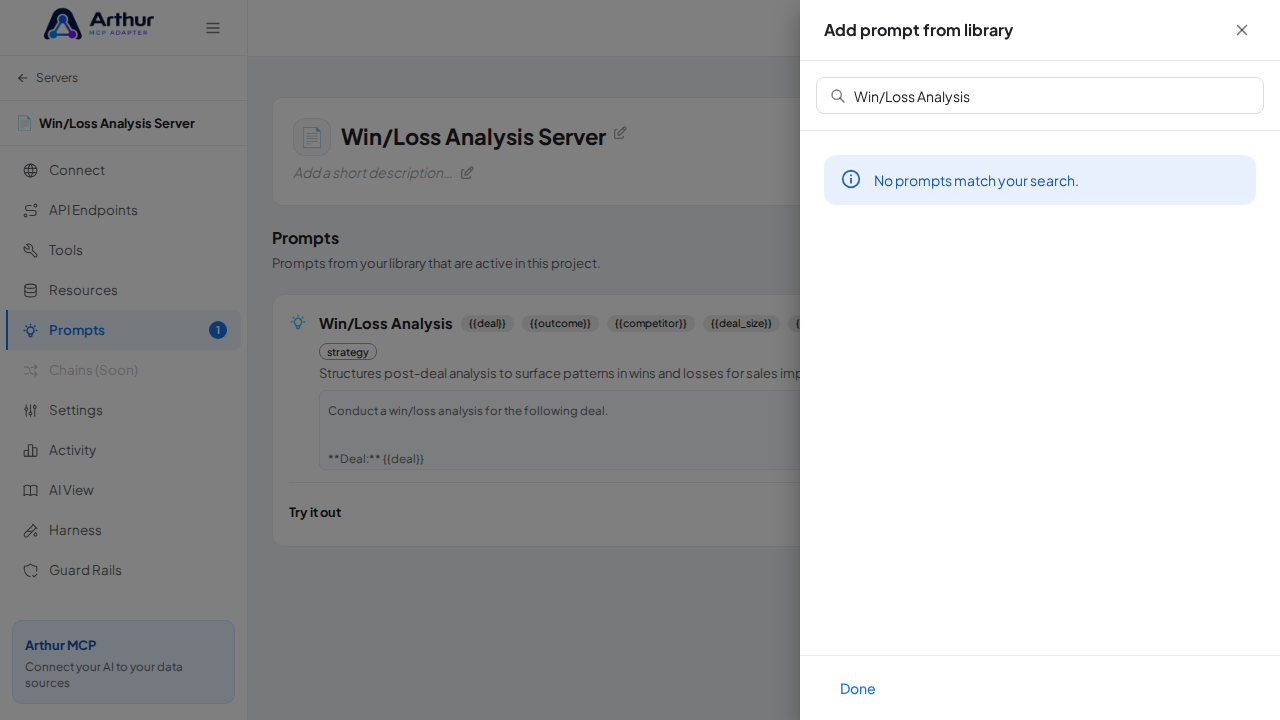
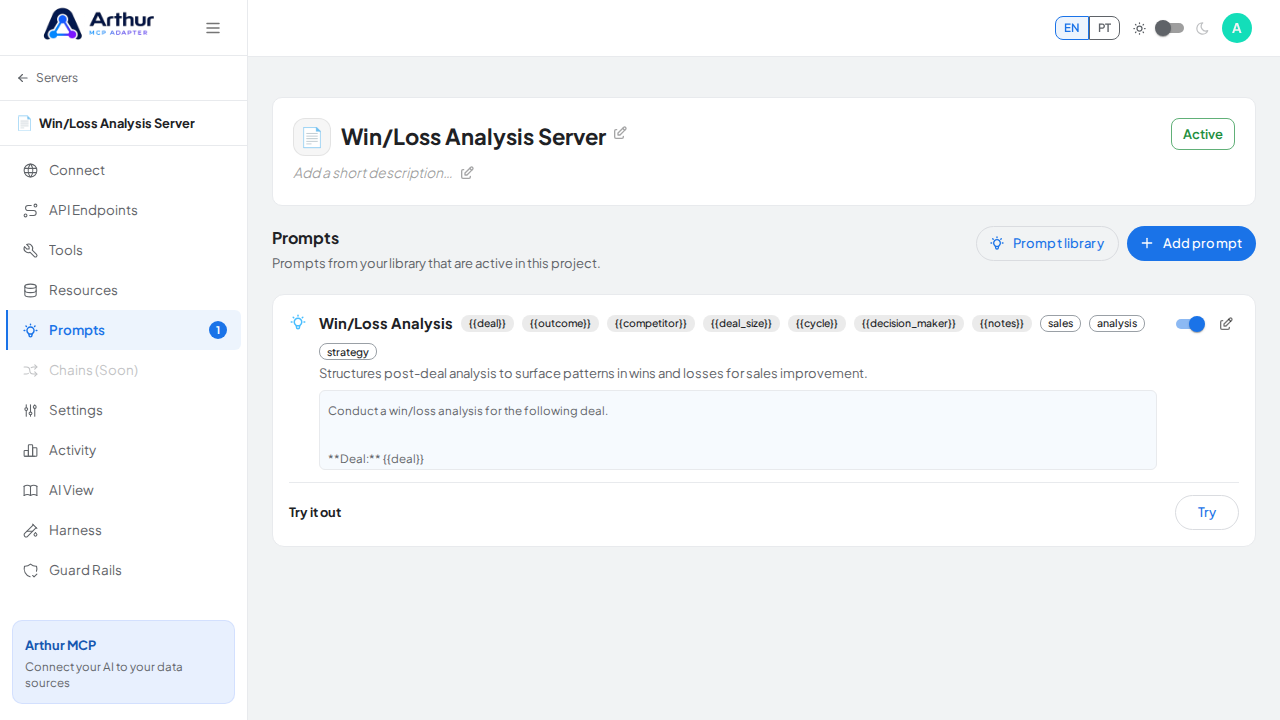
On the server's Prompts tab, click Add prompt, search for Win/Loss Analysis, and click Add.
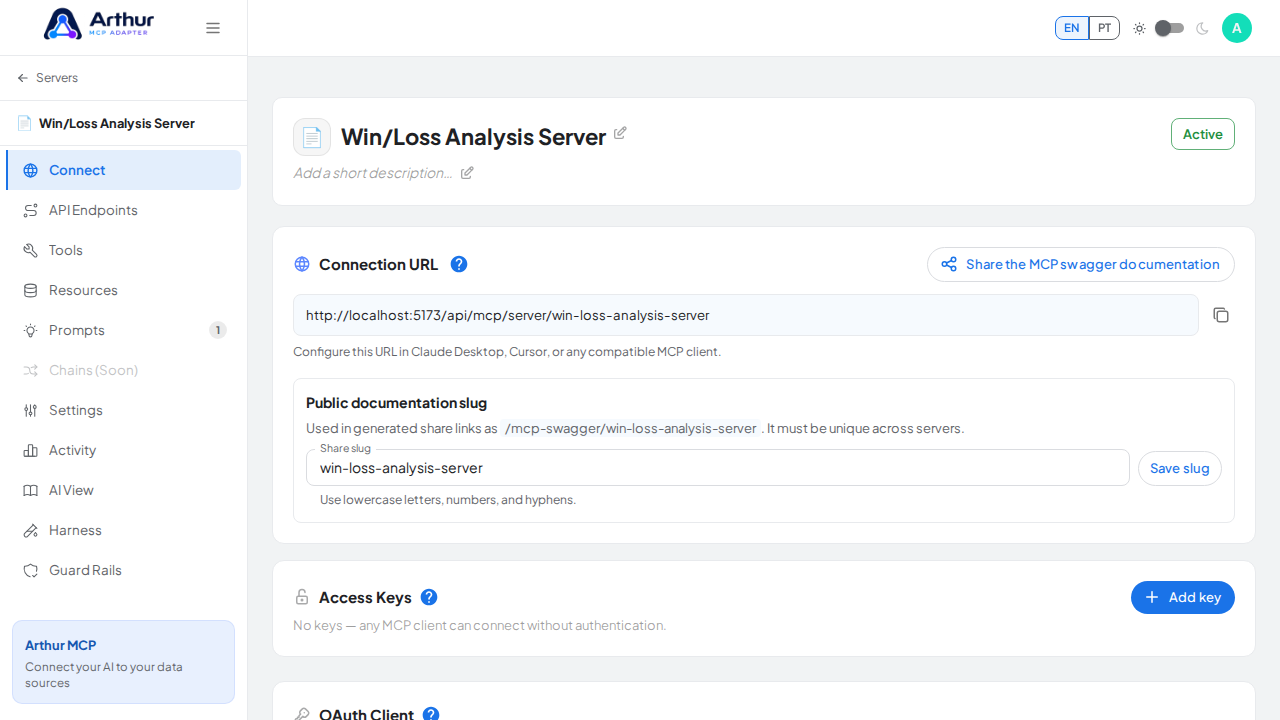
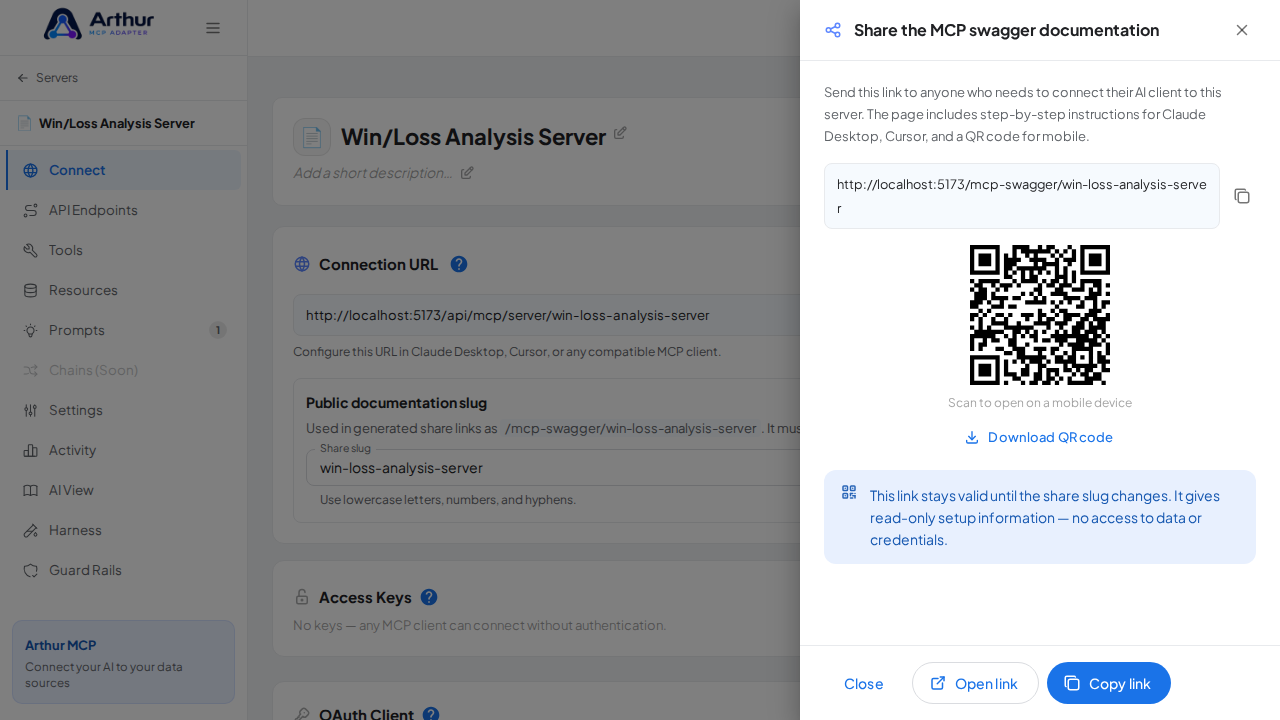
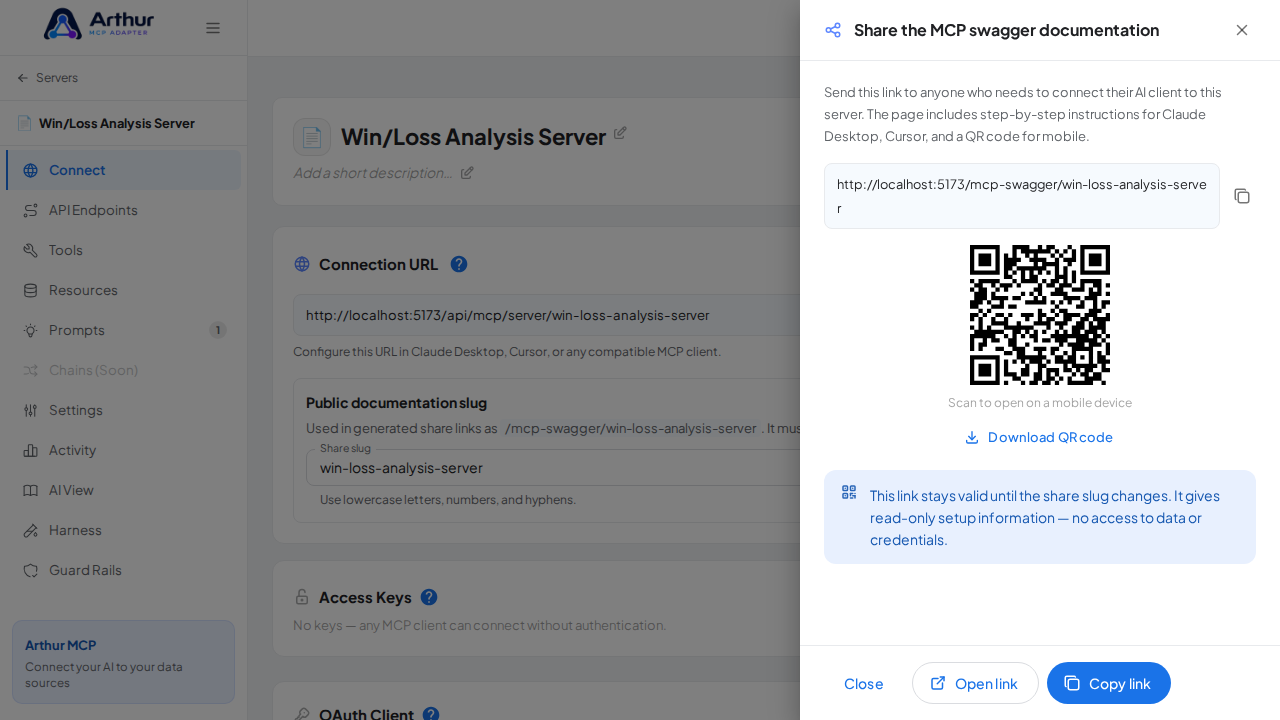
Open the server's Connect section and click Share the MCP swagger documentation — Arthur generates the public documentation link and QR code for this server.
Confirm it worked
The Win/Loss Analysis prompt appears on the server's Prompts tab, and the Connect section offers the server's MCP swagger documentation — a shareable page with setup instructions for any AI client. A connected client can now fetch the prompt through this server.
Good to know
- Structures post-deal analysis to surface patterns in wins and losses for sales improvement.
- Arguments detected from the template:
{{deal}},{{outcome}},{{competitor}},{{deal_size}},{{cycle}},{{decision_maker}},{{notes}}— callers fill these in when invoking the prompt. - Editing the prompt in the shared library updates it on every server where it's linked.
Related
Tutorial video