
How to create SWOT Analysis using MCP
Structured strengths, weaknesses, opportunities, and threats. This guide creates the SWOT Analysis prompt from Arthur's template catalog, sets up a blank MCP server, and links the prompt so any connected AI client can use it.
Steps
Go to Prompt Templates and search for SWOT Analysis.
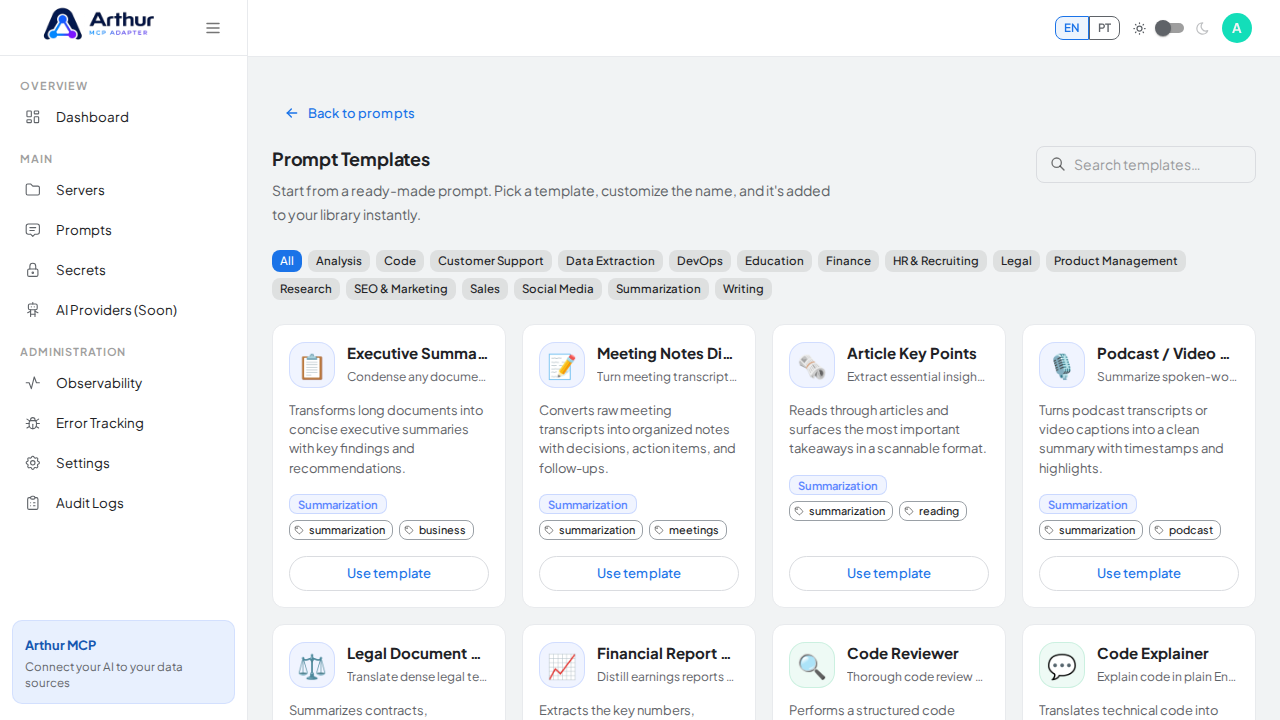
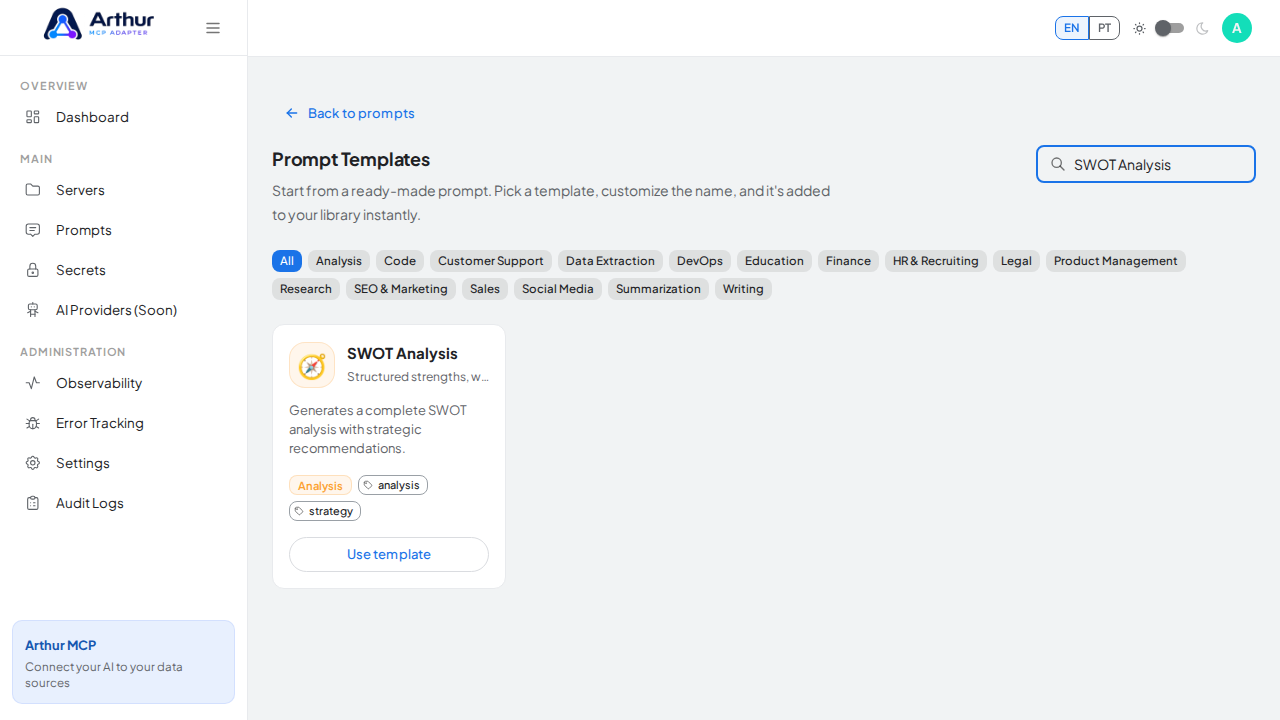
Click Use template on the SWOT Analysis card and review the prefilled name, description, and content preview.
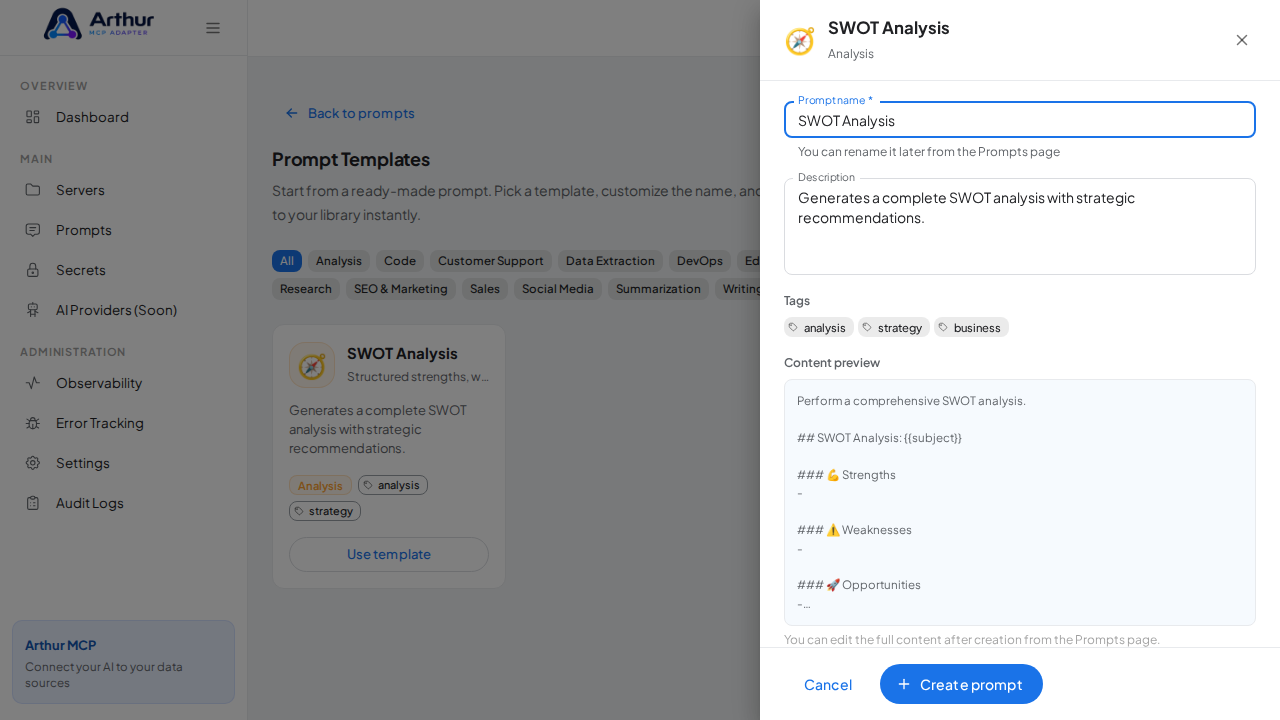
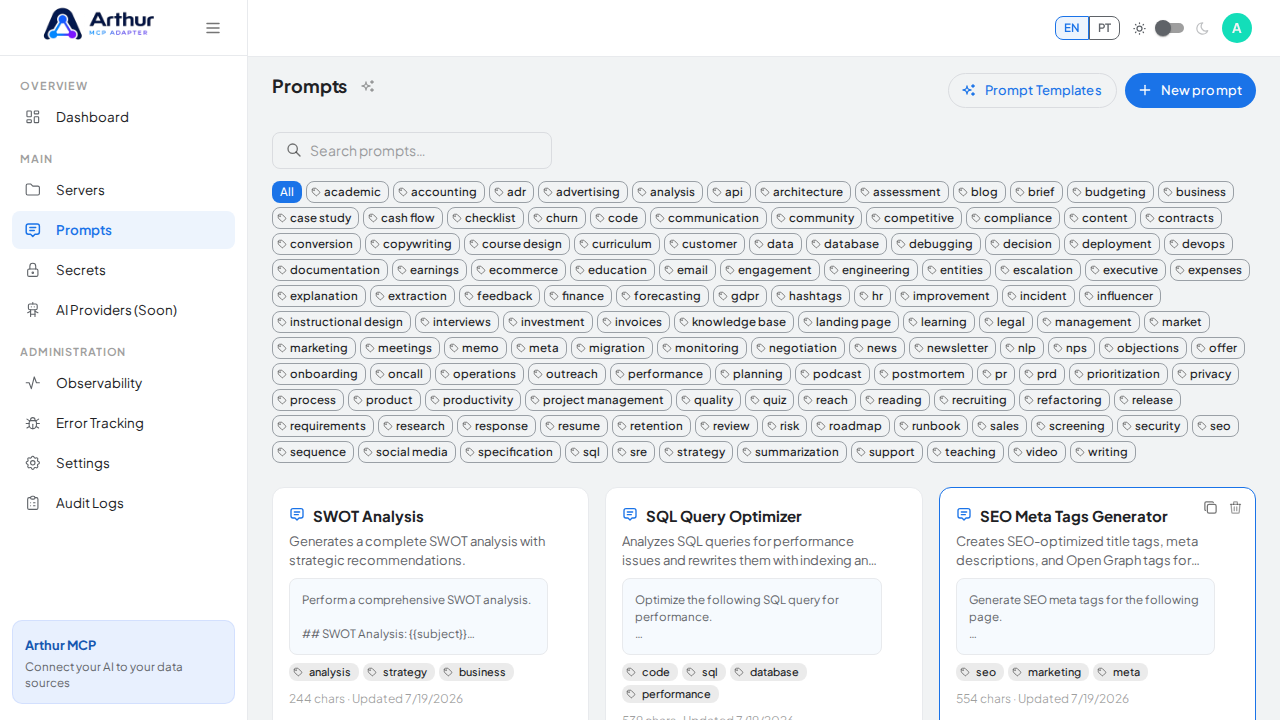
Click Create prompt — the prompt is added to your shared library.
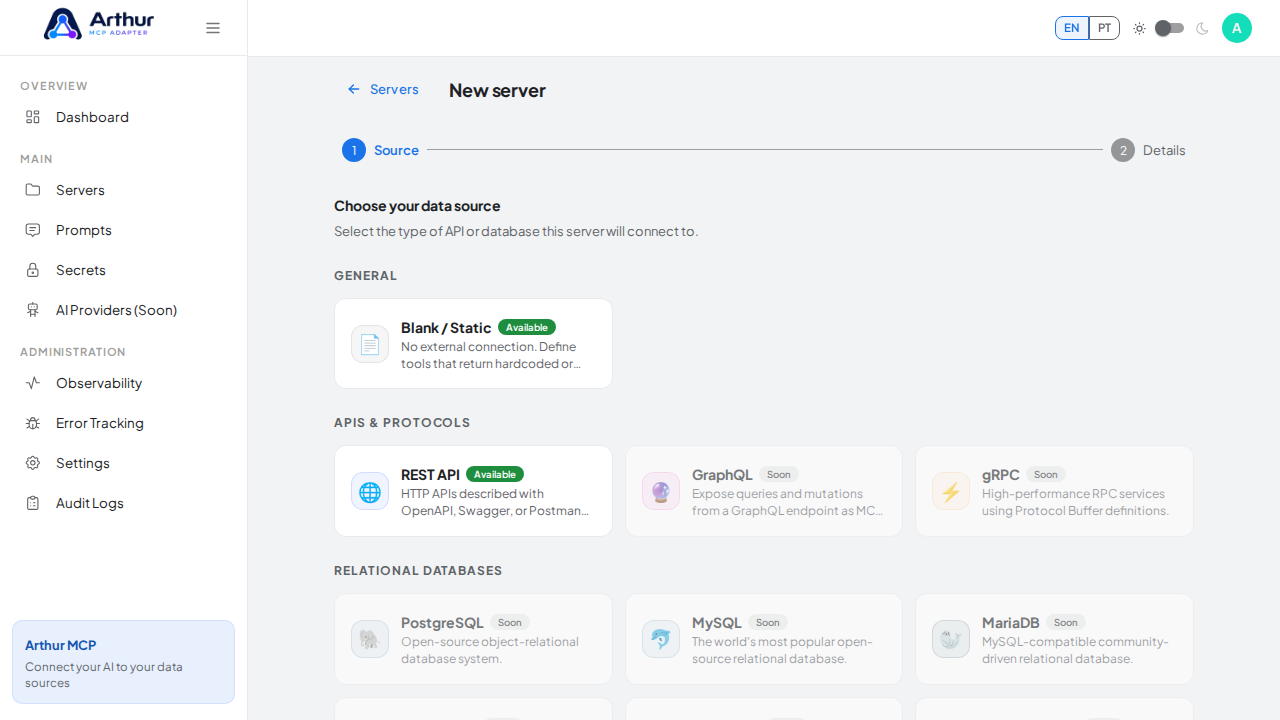
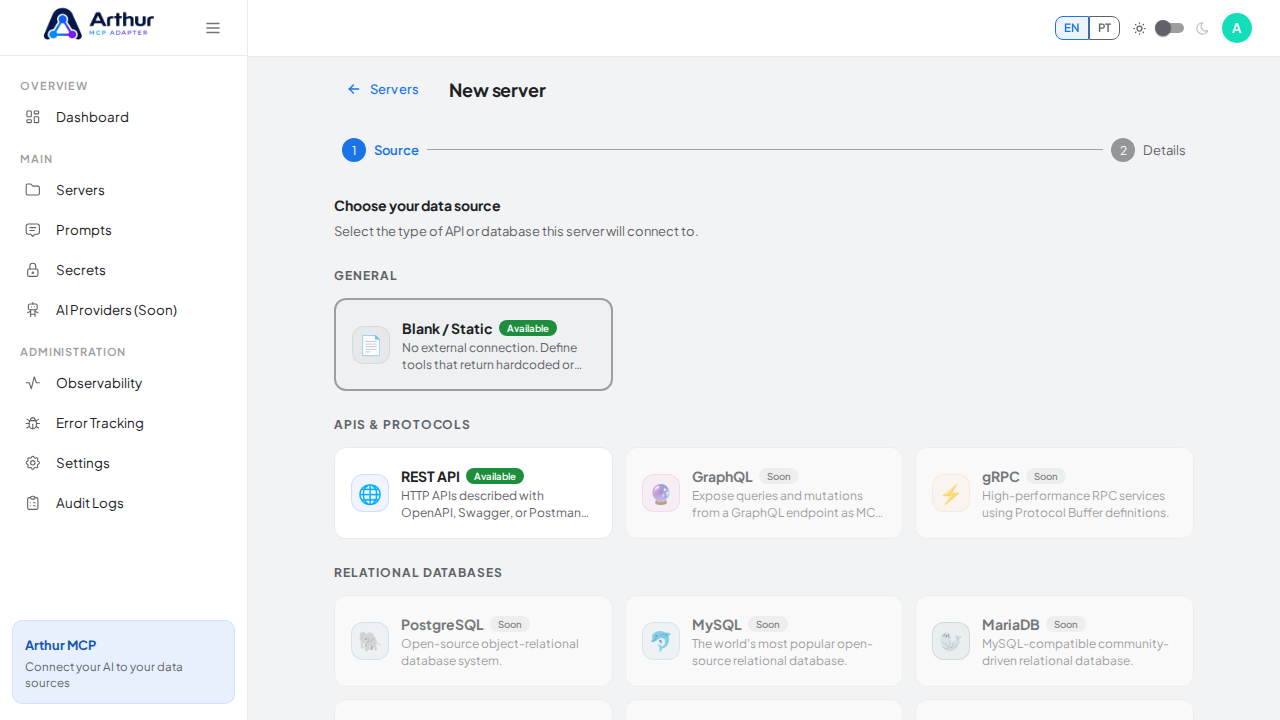
Go to New server, choose Blank / Static as the source, and click Next.
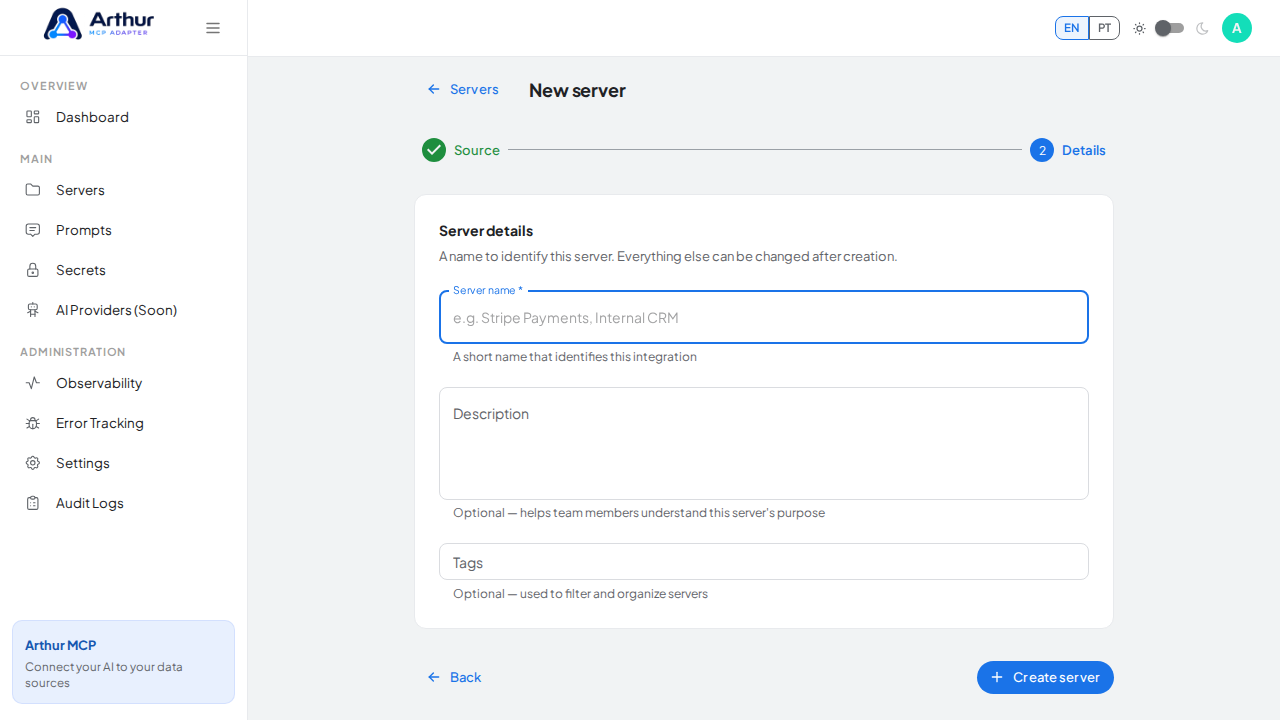
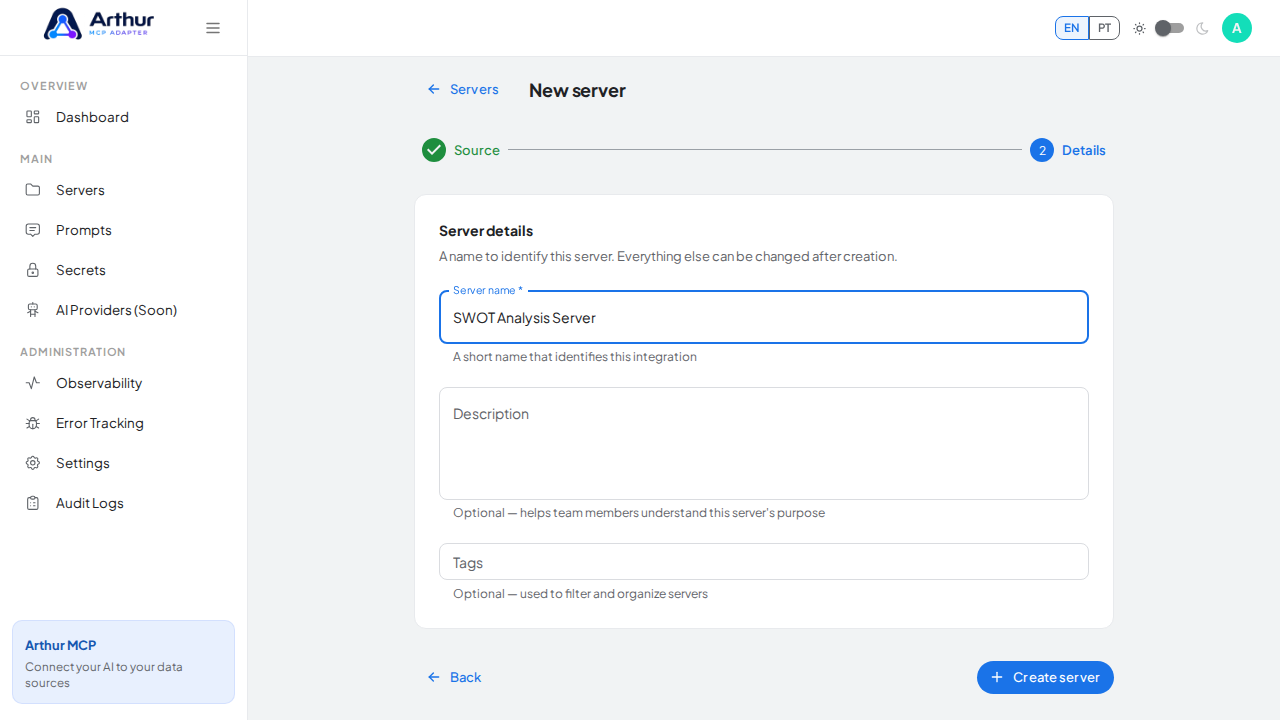
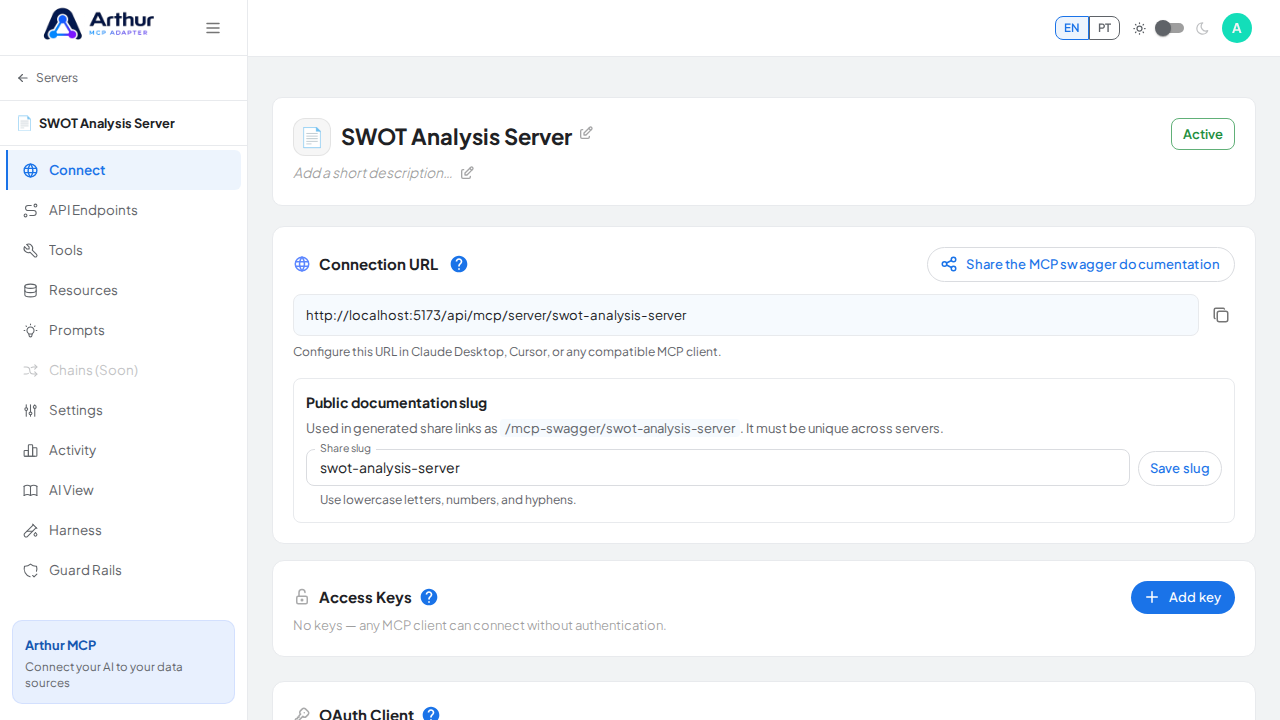
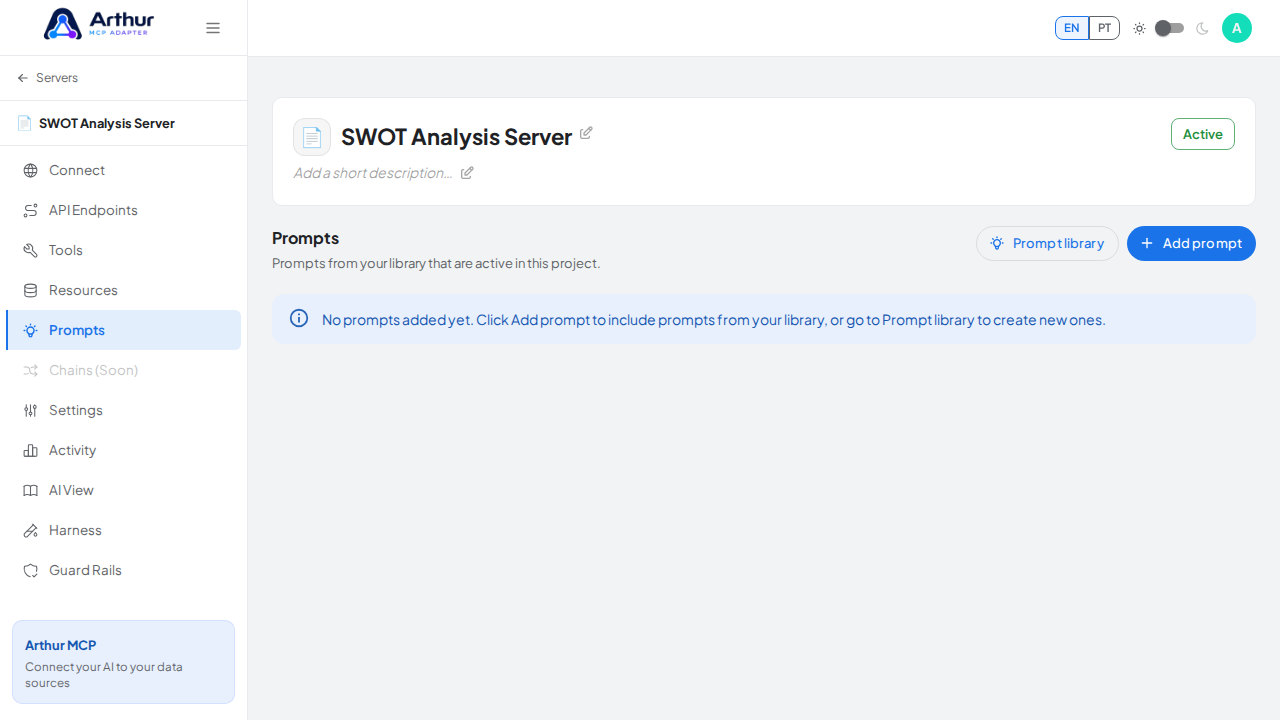
Name the server (for example, SWOT Analysis Server) and click Create server.
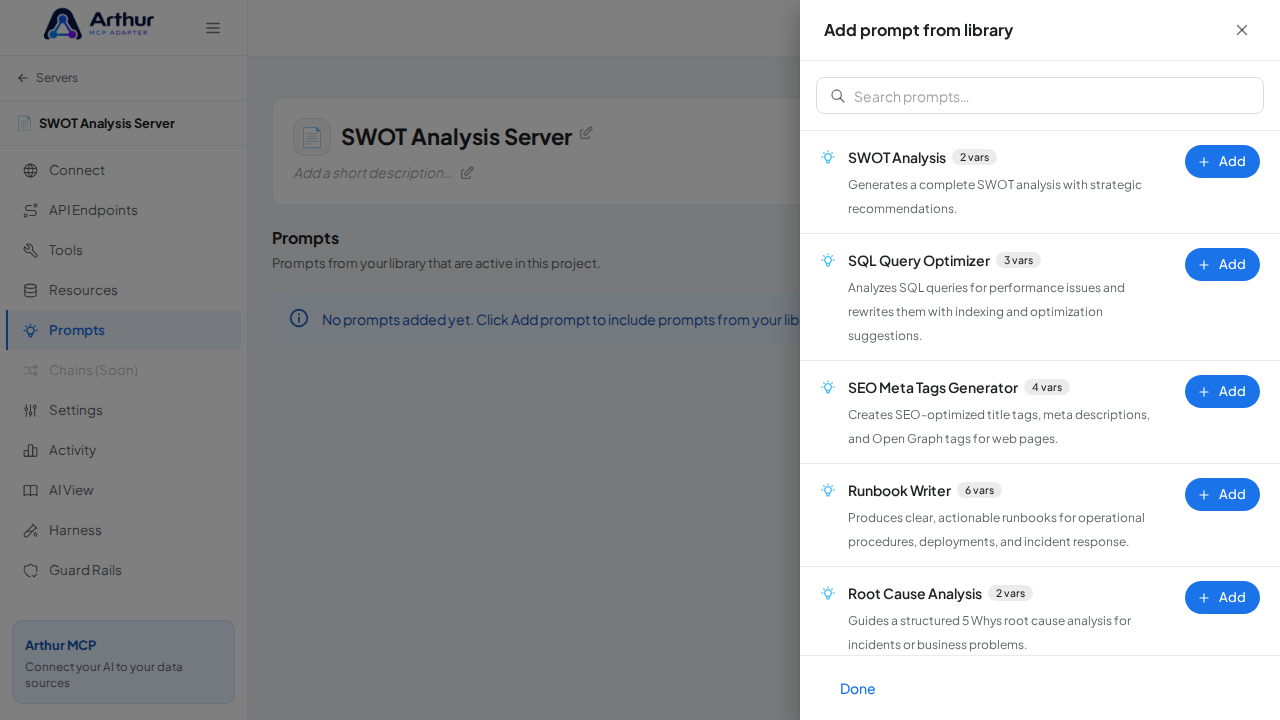
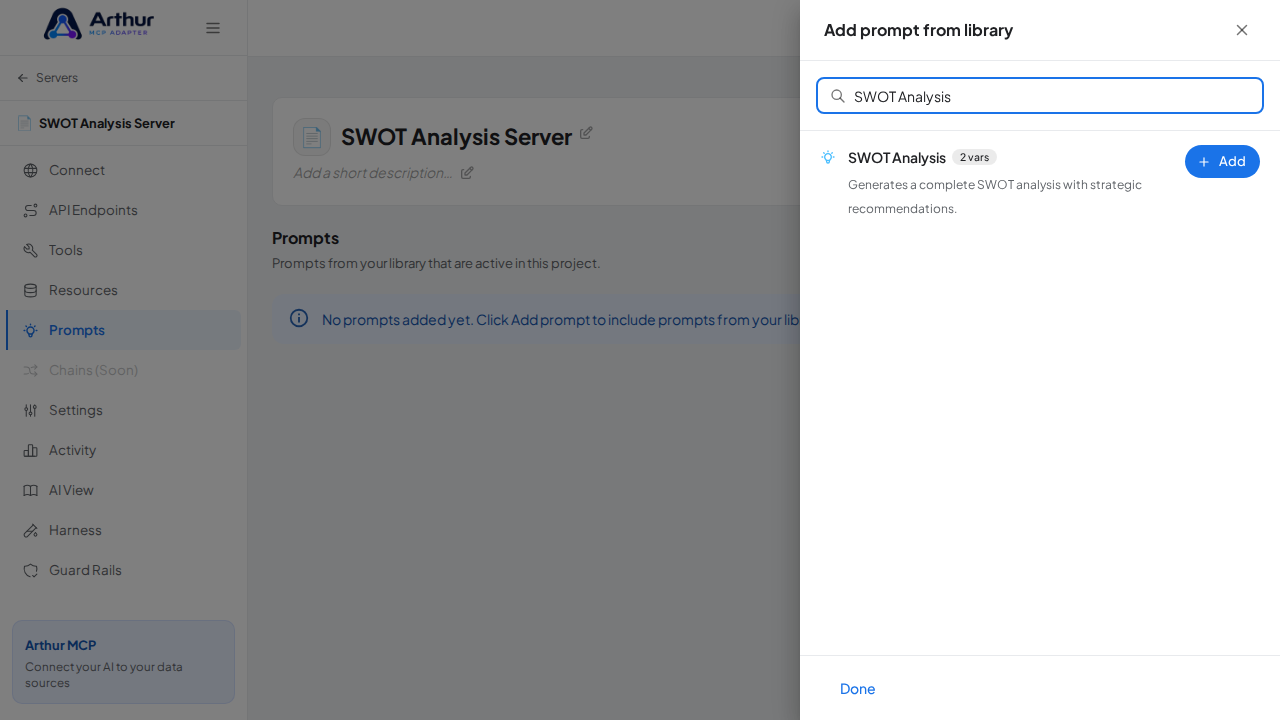
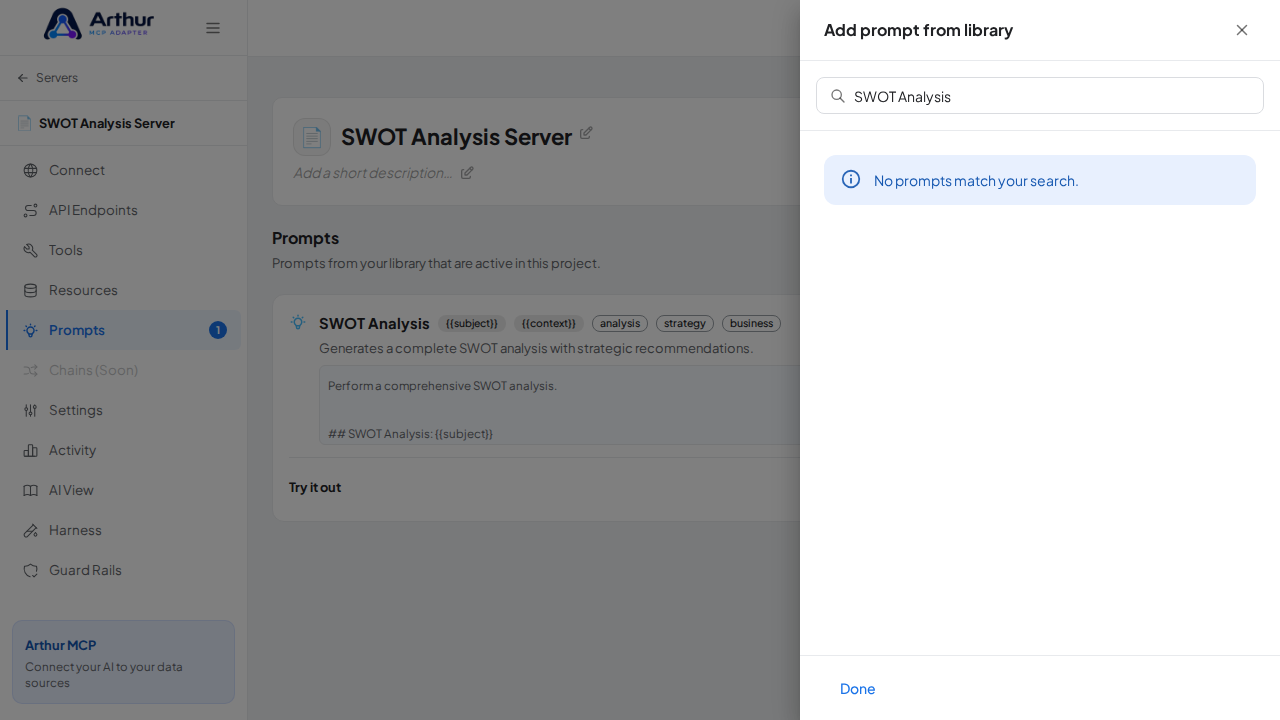
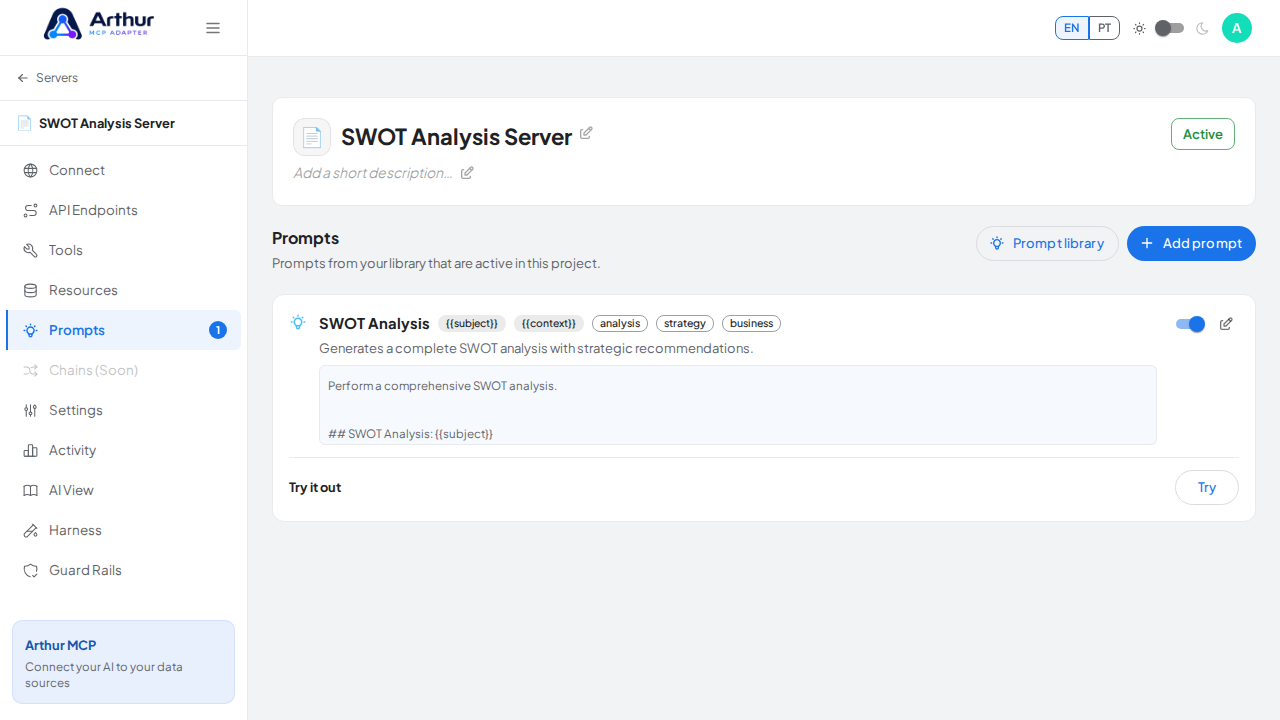
On the server's Prompts tab, click Add prompt, search for SWOT Analysis, and click Add.
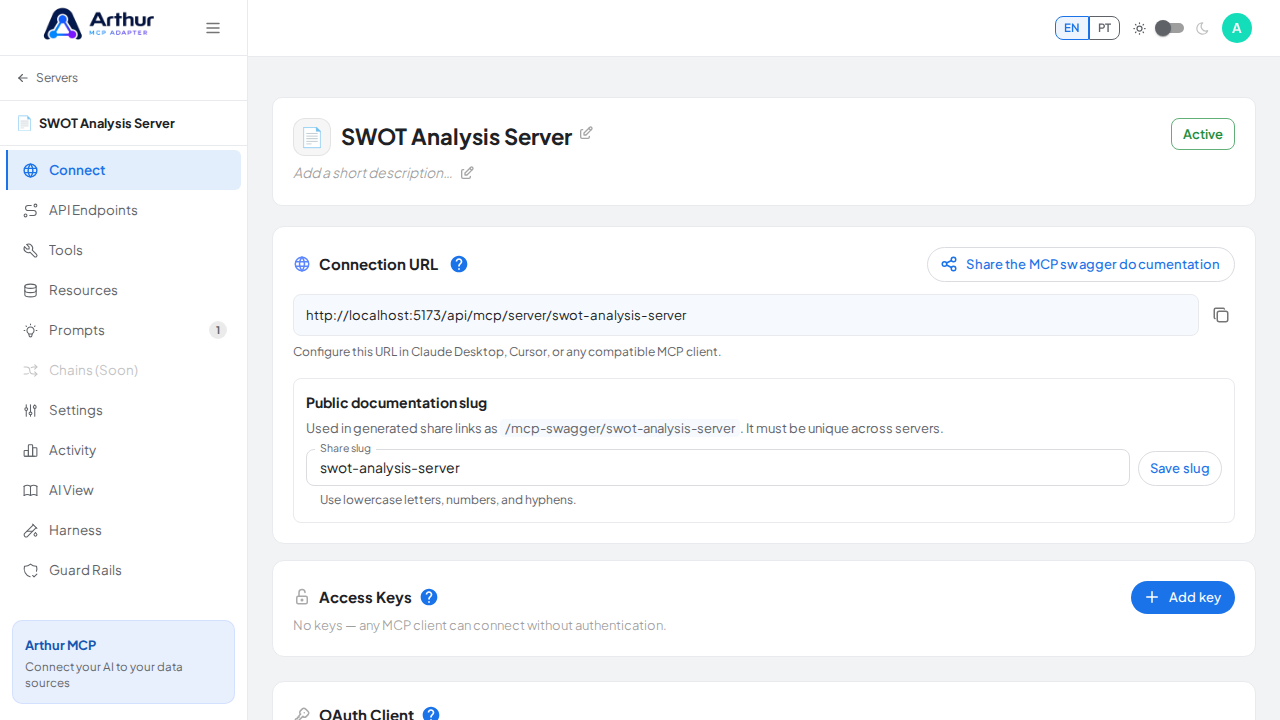
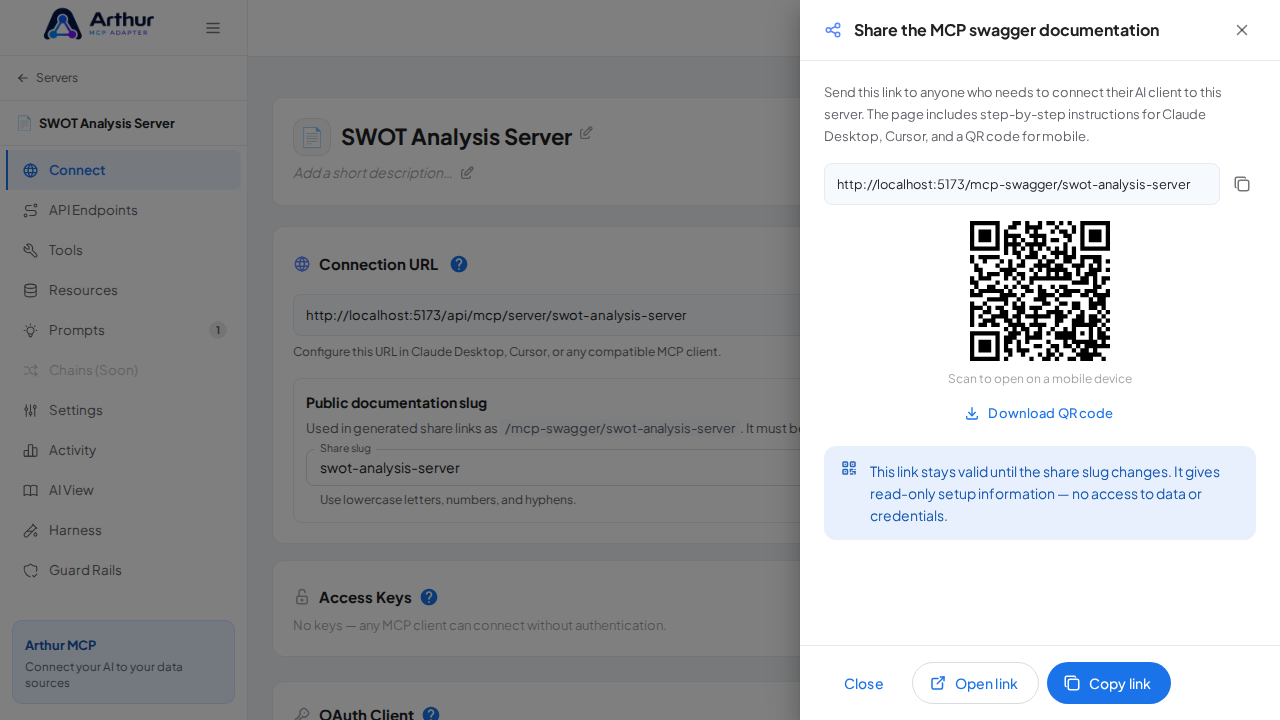
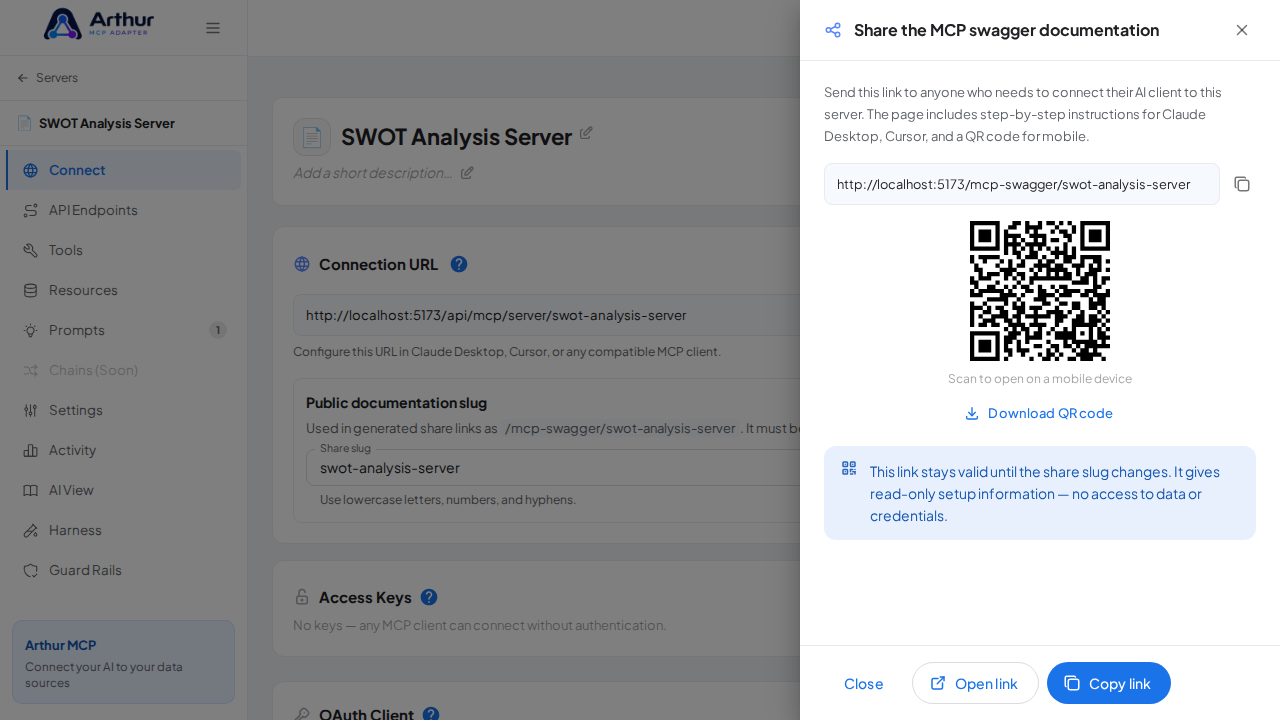
Open the server's Connect section and click Share the MCP swagger documentation — Arthur generates the public documentation link and QR code for this server.
Confirm it worked
The SWOT Analysis prompt appears on the server's Prompts tab, and the Connect section offers the server's MCP swagger documentation — a shareable page with setup instructions for any AI client. A connected client can now fetch the prompt through this server.
Good to know
- Generates a complete SWOT analysis with strategic recommendations.
- Arguments detected from the template:
{{subject}},{{context}}— callers fill these in when invoking the prompt. - Editing the prompt in the shared library updates it on every server where it's linked.
Related
Tutorial video